My Content Creator projects are missing
For privacy reasons, we do not have access to projects you create with Content Creator and cannot recover projects on your behalf.
Most of your Content Creator projects are automatically available on the iOS and Android mobile apps and the web version of Content Creator. Projects that include fonts you've uploaded do not yet sync to all devices and will only be available on the device where you created the project.
If your projects are missing, there are a few things you can try.
Warning: Please do not delete the Content Creator app. This will delete all projects saved in your project feed.
- Check that you’ve signed in using the correct account—you could have more than one.
- Under Quick Actions, tap Projects to navigate to your designs, and then pull down the screen to refresh the view and show the latest projects. The spinner will work as the projects load. If not, check your internet connection.
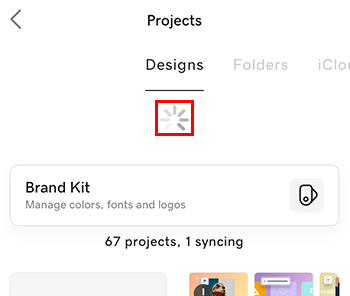
- Shut down and restart the Content Creator app (do not delete it!). This updates the app to show your latest projects.
- Check the Apple App Store to make sure you have the latest version of the Content Creator mobile app
Still not seeing your projects?
- If you previously saved your projects to Folders, follow the steps to retrieve your projects from Folders.
- Are you a PRO subscriber? If you had iCloud sync turned on in the app when you created your projects, you might be able to retrieve them from your iCloud sync drive.
- If you were on a mobile connection when you created your projects, check your Content Creator mobile app settings to make sure Project Sync is not set to use Wi-Fi only.
- Did you recently back up your device? If so, you might be able to access your projects from your backup.
Note: Use with caution—restoring a backup will reset all other apps and information on your device.
- Check that you’ve signed in using the correct account—you could have more than one.
- Under Quick Actions, tap Manage Projects to navigate to your designs, and then pull down the screen to refresh the view and show the latest projects. The spinner will work as the projects load. If not, check your internet connection.

- Shut down the Content Creator app and restart it (do not delete it!). This updates the app to show your latest projects.
- Check the Play Store to make sure you have the latest version of the Content Creator mobile app.
Still not seeing your projects?
- If you were on a mobile connection when you created your projects, check your Content Creator mobile app settings to make sure Project Sync is not set to use Wi-Fi only.
- Did you recently back up your device? If so, you might be able to access your projects from your backup.
Note: Use with caution—restoring a backup will reset all other apps and information on your device.
- Check that you’ve signed in using the correct account—you could have more than one.
- Refresh your browser window to show the latest projects.
- If you created your projects on the Content Creator app using a mobile connection and do not see them on the web, check your Content Creator mobile app settings to make sure Project Sync is not set to Wi-Fi only.