Track links and attachments in your emails
Track how recipients interact with your emails by using Advanced Tracking (link and file tracking) in Professional Email powered by Titan. You'll get notified when someone clicks a link or downloads an attachment.
Attach tracked links or files
Select a tab based on whether you want to enable link or attachment tracking.
Use link tracking to get notified when recipients click links in your email.
- Sign in to webmail. Use your Professional Email powered by Titan address and password (your GoDaddy username and password won't work here).
- In the upper-left corner, select New email.
- Enter the recipient and subject.
- In the formatting toolbar at the bottom of the email, select
 Insert Link.
 - In the pop-up, enter the URL and display text.
- Turn on the Track this link toggle.
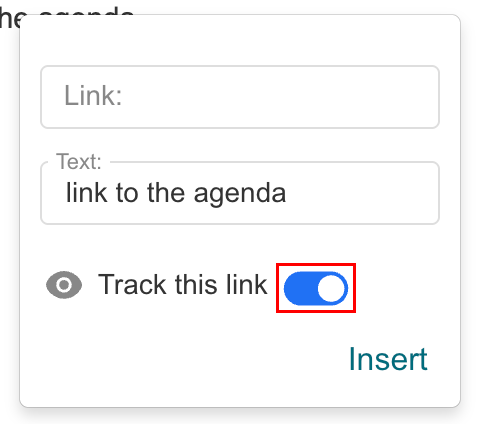
- Select Insert.
Once sent, you'll be notified when a recipient clicks the tracked link, along with the timestamp.
Use file tracking to see when recipients download attachments.
- Sign in to webmail. Use your Professional Email powered by Titan address and password (your GoDaddy username and password won't work here).
- In the upper-left corner, select New email.
- Enter the recipient and subject.
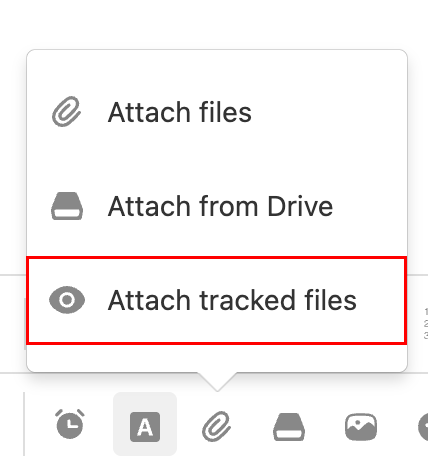
- At the bottom of the email, select
 Attach file, and then Attach tracked files.
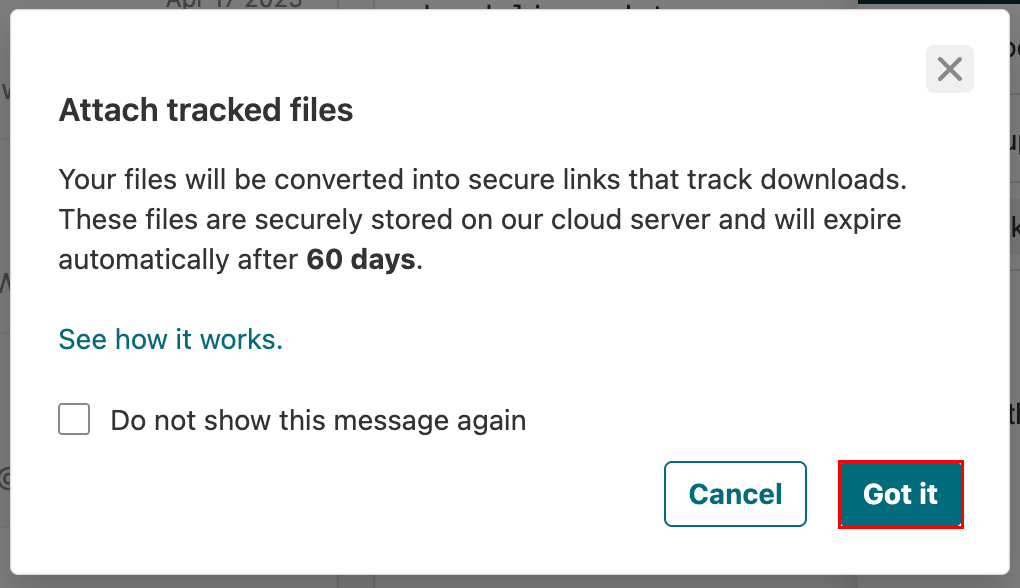
- If you see a message warning you that tracked files expire after 60 days, select Got It.
- Select the file(s) you want to track.
After sending, you'll be notified when a recipient downloads the file, including the date and time.
Tracked attachments are securely hosted on Titan's servers and expire 60 days after the email is sent.
View link clicks and file downloads
Check engagement details for your sent emails in the tracking dashboard.
- Sign in to webmail. Use your Professional Email powered by Titan address and password (your GoDaddy username and password won't work here).
- In the upper-right corner, select
 Read Receipts.
 - Open a tracking notification. The dashboard will show:
- Email open activity
- Link clicks
- Attachment downloads
- Timestamps for each interaction
More info
- To get notified when a recipient reads your email, turn on Email Tracking.
- Set up Vacation Responder for out-of-office auto-replies
- Save email attachments to Titan Drive