Encaminhar mensagens Professional Email powered by Titan para outro endereço
Você pode encaminhar os emails recebidos da sua caixa de entrada do Professional Email powered by Titan para outro endereço de email, como uma caixa de entrada pessoal ou compartilhada. Isso é útil se você quiser gerenciar mensagens em um lugar ou não perder emails importantes.
Observação: O encaminhamento externo está disponível apenas para os planos Pro Plus, Premium e Ultra. Atualizar meu plano de email
- Faça login no do webmail . Use seu endereço Professional Email powered by Titan e senha (seu nome de usuário e senha da GoDaddy não funcionarão aqui).
- No canto superior direito, selecione
 Configurações e, em seguida, Preferências .
 - No lado esquerdo, selecione Encaminhamento .
- Ao lado de Encaminhar emails , selecione Adicionar .
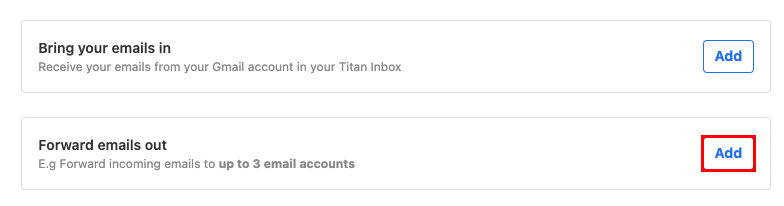
- Em Encaminhar emails para , insira o endereço de email de destino para onde deseja encaminhar os emails recebidos.
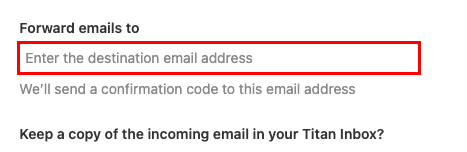
- Escolha se deseja manter uma cópia dos emails recebidos na sua caixa de entrada do Titan e selecione Avançar . Enviaremos um código de confirmação para o endereço de email de destino.
- Insira o código de confirmação e selecione Iniciar encaminhamento . Suas mensagens recebidas serão encaminhadas para o endereço de email designado.
Você pode voltar para a página Encaminhamento a qualquer momento para alterar ou excluir seu encaminhamento.
Saiba mais
- Saiba mais sobre suas opções de encaminhamento para Professional Email powered by Titan.
- Para enviar email para vários contatos de uma vez, crie um grupo de contatos.
- Use etiquetas de email para organizar minha caixa de entrada