My GoDaddy Smart Terminal Duo won't read cards
If the GoDaddy Smart Terminal Duo can’t read a payment card while it’s inserted, an error alert will appear on the screen. There are some things that you can do to troubleshoot the error. If troubleshooting doesn’t resolve the issue, you can manually enter the credit card information.
Different versions of the Smart Terminal Duo have different contactless (NFC) "tap" locations and card reader placement. Check the back of your device to see which version you have (Duo V2.0, Duo V3.0, etc.).Step 1: Troubleshoot the error message
Tap the  alert to view the
error message, such as Card not detected, Re-insert Card or Reset terminal. Here's how to troubleshoot these errors:
alert to view the
error message, such as Card not detected, Re-insert Card or Reset terminal. Here's how to troubleshoot these errors:
- Review the error message on the screen and take any suggested action. A credit card may have been declined or have another issue that the customer needs to resolve (expired, wrong PIN, etc.).
Step 2: Orient the customer’s card or device correctly
Verify that the customer is using the correct location on the Smart Terminal for their payment method.
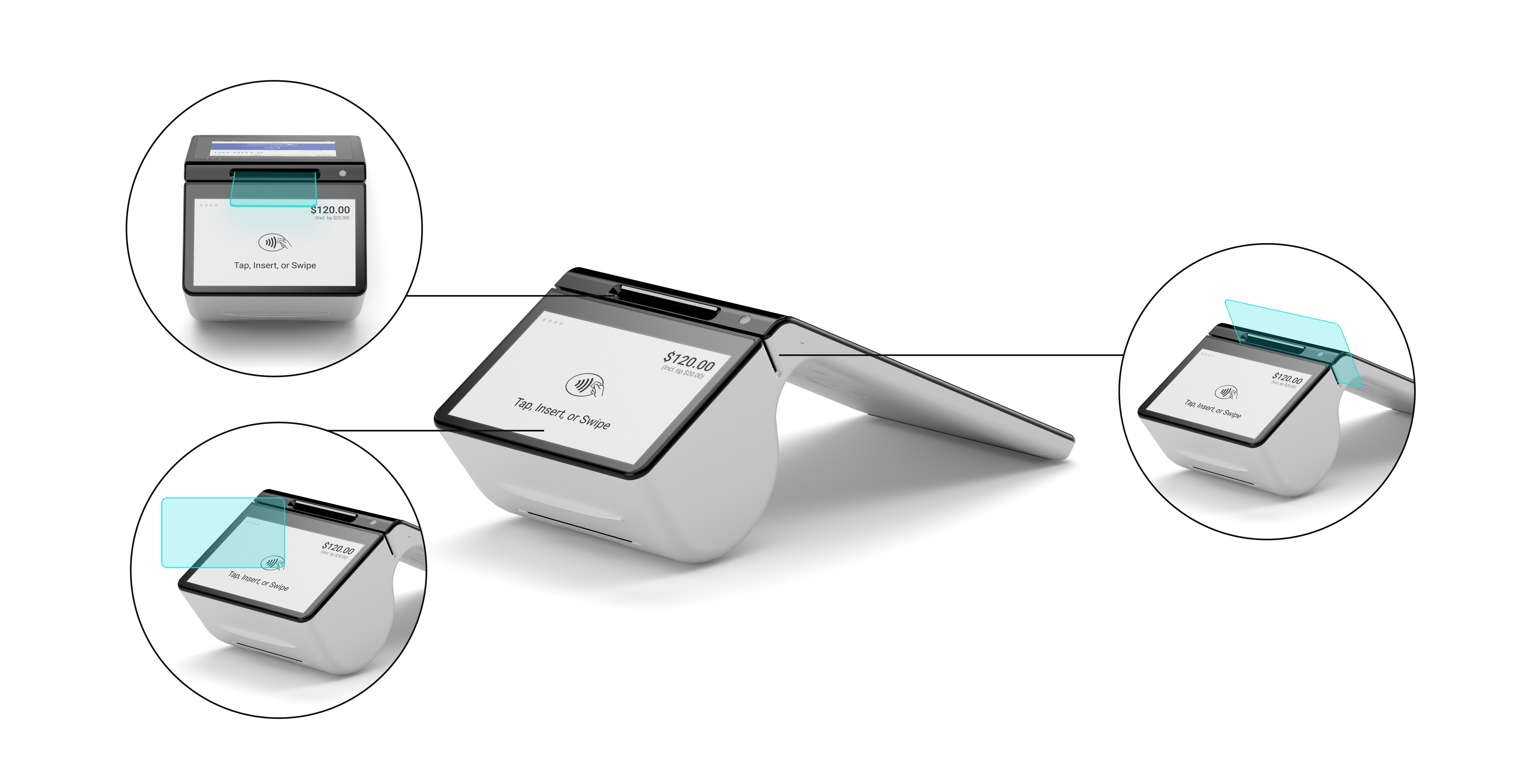
- For chip cards, insert the card into the slot above the payment screen. Make sure the front of the card is facing up, with the chip inserted first. Don't remove the card during the transaction.
- For credit cards without a chip:
- Duo V2.0: Make sure the front of the card is facing up, with the magnetic strip on the right. Insert the card slowly into the slot above the payment screen and then pull it out rapidly.
- Duo V3.0: Swipe the card through the horizontal groove above the customer-facing screen, with the magnetic strip facing the device. Use a smooth motion and uniform speed when swiping.
- For contactless (NFC) payments, tap the card or device on the
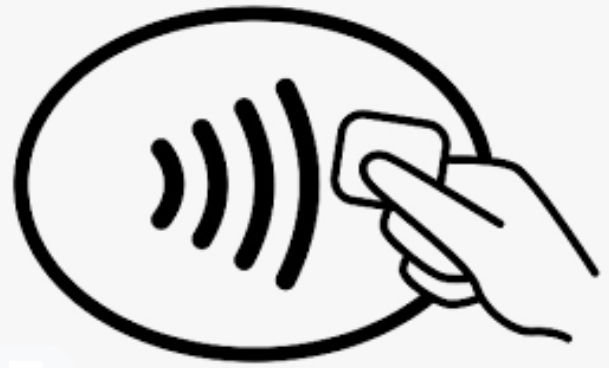 NFC icon. Depending on your model, the icon is either onscreen or on the front of the device. Keep it close to the Smart Terminal during the transaction.
- Duo V2.0 or Duo V3.0 (with NFC icon onscreen): Tap the card or device on the customer-facing screen.
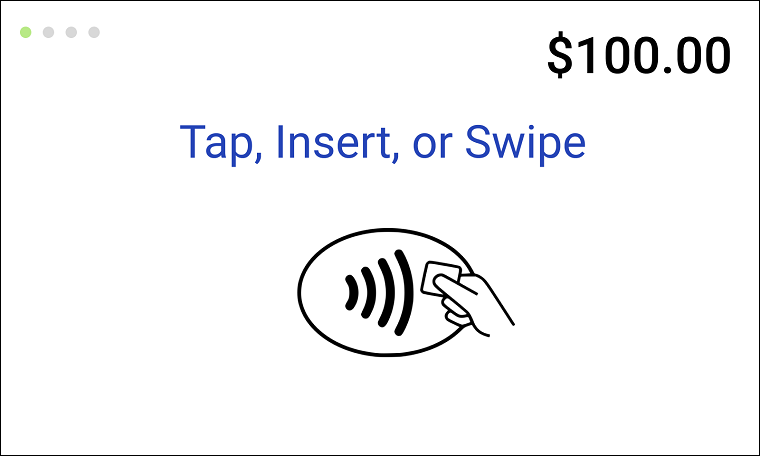
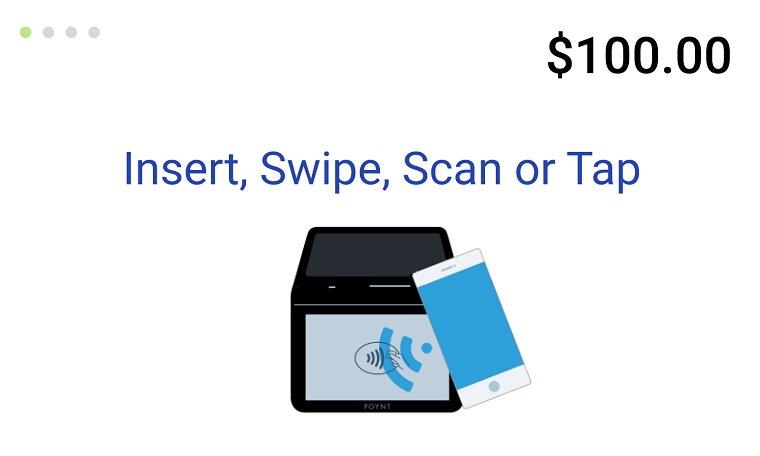
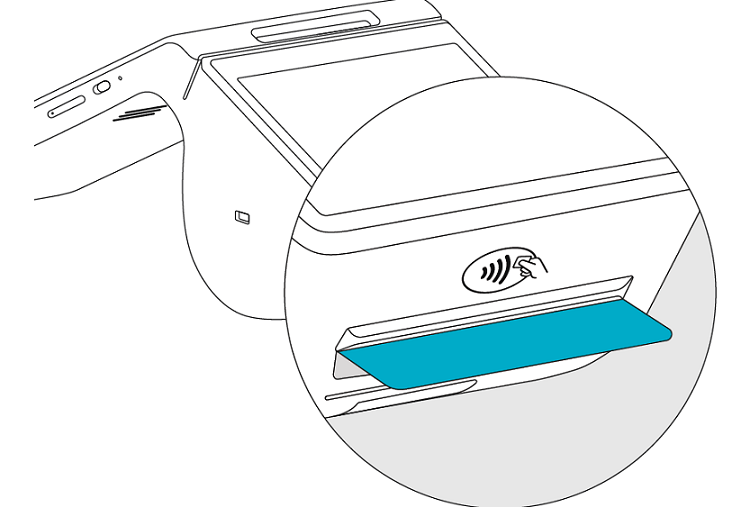
- Duo V3.0 (with NFC icon printed above the receipt slot): Tap the card or device on the
NFC icon below the customer-facing screen.
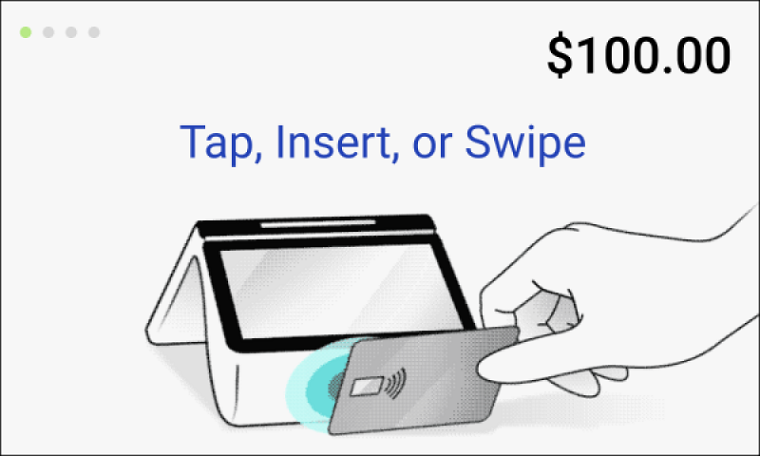
- Duo V2.0 or Duo V3.0 (with NFC icon onscreen): Tap the card or device on the customer-facing screen.
Step 3: Perform a hard reboot
Perform a hard power reset on the device, then try again:
- Press and hold the power button until the merchant screen goes dark. (Ignore any prompts that appear on the screen.)
- Let go of the power button and leave the Smart Terminal turned off for at least 30 seconds.
- Press and hold the power button for at least 3 seconds to power on the Smart Terminal. (Your device may take a little longer to turn on.)
- Place the order and try running the customer’s card again.
Step 4: Enter the credit card info manually
If the smart terminal can’t read the customer’s card, process the charge manually.
- Create an order on the smart terminal.
- Tap Charge and then tap Manual Entry.
- Enter the credit card information and tap Charge.
- Wait for the customer to sign the Customer screen. If you don’t want a signature, tap Skip.
- Wait for the customer to select their receipt type.
Step 5: Contact Customer Support
Credit card issues could be caused by any number of things that are out of your control, like an expired card or insufficient funds. If your Smart Terminal can’t read any (or most) cards, though, there may be an issue with the device. Please contact us for assistance.
More info
- Here is what you should know if your customer’s card is declined.
- Learn how to process a credit card transaction with the Smart Terminal.