Add a delegated mailbox as a shared folder to Outlook on the web
If you’ve been granted Read and manage (Full Access) delegate permissions to someone’s mailbox and would like to see it at same time as your primary inbox, you can add their inbox as a shared folder in Outlook on the web.
Required: Users with only Send as or Send on behalf permissions cannot add the owner’s mailbox as a shared folder to their Webmail. The owner needs to grant you Read and manage (Full Access) permissions for you to access their mailbox.
- Sign in to Outlook on the web. Use your Microsoft 365 email address and password (your GoDaddy username and password won't work here).
- On the leftmost side, hover over your email address, and then select
 More options.
 - Select Add shared folder or mailbox.

- Enter the name or email address of the user who granted you delegate access, and then select Continue.
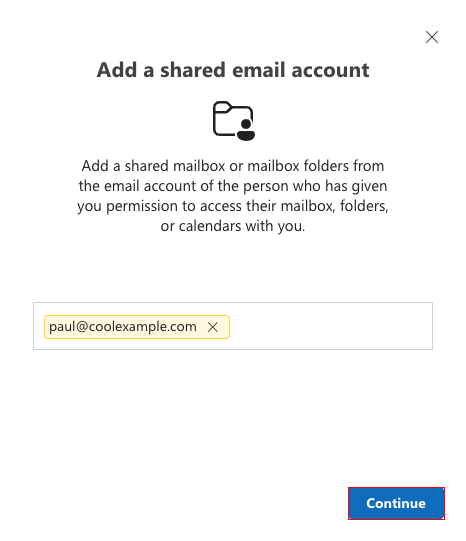
The user’s mailbox will be added as a shared folder.
If you use the Outlook app on your computer, you must be using new Outlook for the delegated user to show up on your list of email addresses. You may need to restart the app.
Related steps
- As a delegate user, you can also sign in directly to the delegated inbox from Outlook on the web.
- Add a user as a delegate to my Microsoft 365 inbox
More info
- To forward all incoming messages to a different email account, set up forwarding.
- Compare forwarding, aliases, distribution groups and shared mailboxes
- How many user email accounts do I need to buy?