Add a user as a delegate to my Microsoft 365 inbox
Granting a user delegate access allows them to manage your email account on your behalf. This feature is especially useful for assistants or team members who need to handle your communications or manage your schedule. Delegate users can perform actions such as reading, creating, editing or deleting items in your folders, as well as responding to meeting requests.
- Sign in to the Exchange admin center. Use your Microsoft 365 email address and password (your GoDaddy username and password won't work here).
- On the leftmost side, select Recipients, and then Mailboxes.
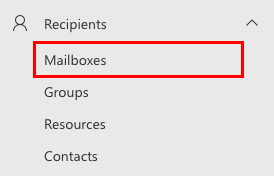
- Select the user you want to give delegate access to. A menu will open on the rightmost side.
- Under the name of the user, select Delegation.
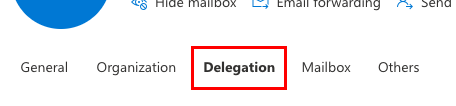
- Choose which permissions you'd like to give the user. You can add a user to more than one option:
- Send as: Allows the delegate to send emails that appear to come from the mailbox owner. Does not grant access to read existing emails.
- Send on behalf: Allows the delegate to send emails on behalf of the mailbox owner; emails show the delegate sent them on the owner’s behalf. Does not grant the delegate access to read existing emails.
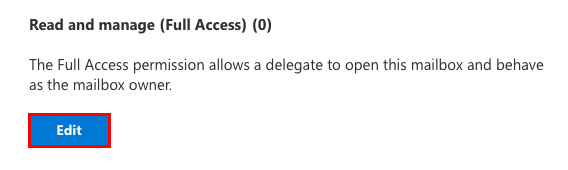
- Read and manage (Full Access): Allows the delegate to open the mailbox, read emails and manage the mailbox as the owner.
- Under one of the options, select Edit. The Manage mailbox delegation settings will open.
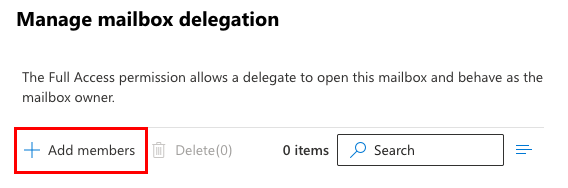
- Select + Add members, and then select the email address of the user who should receive delegate access to your mailbox.
- At the bottom of the menu, select Save.
Repeat these steps to give the user additional permissions as a delegate. For example, if you want a user to be able to access your inbox and send email on your behalf, you would want to add them to the Send on behalf and Read and manage (Full access) delegation groups.
Users with Send as or Send on behalf permissions will now be able to set your email address as the From address in a new email. (If From isn't visible next to To, select  More options, and then Show From.)
Related steps
- After giving a user Read and manage (Full Access) permissions, share with them how to sign in to your inbox as a delegate.
- A user with Read and manage (Full Access) permissions can also add your inbox as a shared folder to their webmail.
More info
- To forward all incoming messages to a different email account, set up forwarding.
- Compare forwarding, aliases, distribution groups and shared mailboxes
- How many user email accounts do I need to buy?