Add my company logo and branding to webmail
Professional Email powered by Titan's Branding feature lets you personalize the mailboxes across your domain to use your company logo and brand colors.
Note: Branding is only available to Professional Email powered by Titan Premium and Ultra plans. Upgrade my email plan
Required: Only admins can make changes to Branding. Learn how to grant a user admin permissions.
- Sign in to webmail. Use your Professional Email powered by Titan address and password (your GoDaddy username and password won't work here).
- In the upper-right corner, select
 Settings, and then Preferences.
 - On the leftmost side, under COMPANY SETTINGS, select Branding. You’ll see options to upload your logo and customize colors.
- To upload your company logo, select Upload .png, .jpg up to 2MB. Drag and drop your logo or select it from your device, and then select Save. Titan will automatically optimize the logo for display at the top of your webmail.
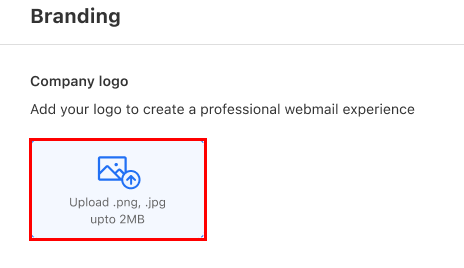 Note: Your uploaded logo displays in the upper-right corner of webmail. The GoDaddy logo in the upper-left corner is fixed and can't be changed or removed.
 - Next, customize your color theme. You can do so using 1 of 2 options:
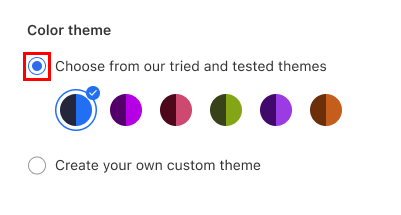
- Use a premade theme: Select Choose from our tried and tested themes, and then one of the color options.
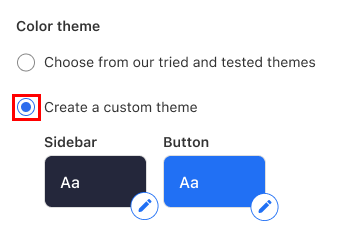
- Create a own custom theme: Select Create your own custom theme. Under Sidebar, select
 Edit (the pencil icon), and then choose a sidebar color. Under Button, repeat the same steps.
- Use a premade theme: Select Choose from our tried and tested themes, and then one of the color options.
- At the bottom of the page, select Save changes, and then Save changes again to confirm you want your branding changes to apply to all mailboxes. You’ll see confirmation that the changes were successfully applied.
You can come back to the Branding page to change the company logo and color theme for webmail at any time.