Automatically clean up emails by sender with Auto-clean
Professional Email powered by Titan's Auto‑clean feature automatically moves or deletes old emails from specific senders. Choose how long emails stay in your inbox and what happens to them afterward, so you can keep your inbox tidy without manual cleanup. Auto‑clean is especially useful for things like newsletters or automated emails that you don’t need to keep forever.
Note:
- Auto‑clean is only available to Pro Plus, Premium and Ultra plans. Upgrade my email plan
- You can create up to 10 Auto‑clean rules per account.
- Auto‑clean rules are based on the sender’s email address.
Create an Auto-clean rule from an email
- Sign in to webmail. Use your Professional Email powered by Titan address and password (your GoDaddy username and password won't work here).
- Open an email from the sender you want to auto-clean.
- Select
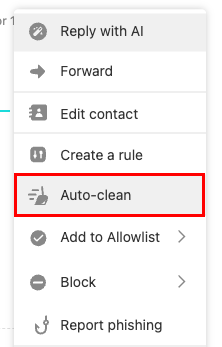
 More actions, then select Auto-clean.
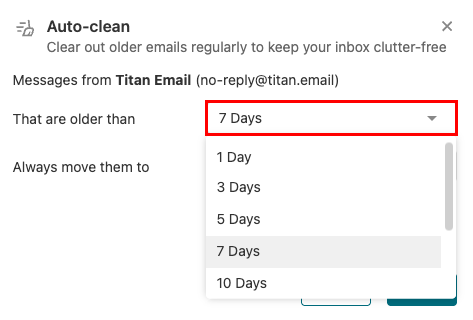
- Choose how old the email must be before it’s cleaned (for example, 7 days).
- Select whether to move emails to Archive or Trash.
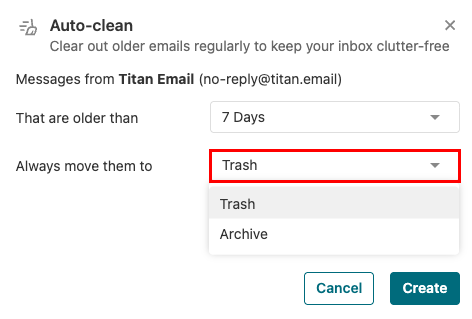
- Select Create to save the rule.
Once saved, Titan Email will automatically clean emails from that sender based on your settings.
Create or manage Auto-clean rules in settings
- Sign in to webmail. Use your Professional Email powered by Titan address and password (your GoDaddy username and password won't work here).
- In the upper-right corner, select
 Settings, and then select Preferences.
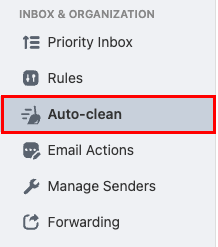
 - On the leftmost side, under Inbox & Organization, select Auto-clean.
- In the upper-right corner, select Create a new rule.
- Enter a name for the rule.

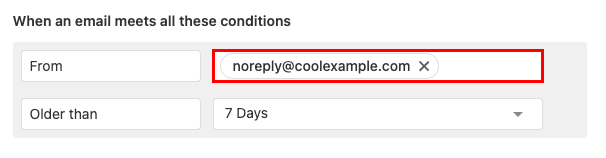
- Under When an email meets all these conditions, next to From, enter the email address whose messages you want to auto-clean.
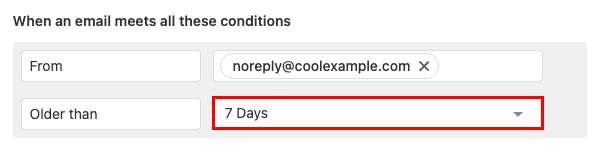
- Next to Older than, select how long a message from the sender should be kept in your Inbox.
- Under Do the following, next to Move to, select Trash or Archive. (If you might need an email later, we recommend selecting Archive.)

Changes take effect automatically after you save them.
More info
- Block a sender to automatically send their email to Trash.
- Create inbox rules to automatically perform actions on incoming email, like moving them to a specific folder or marking them as read.
- Is my email backed up?