Enable Email Backup for a Professional Email powered by Titan user
An account admin needs to enable Email Backup for a mailbox before it starts backing up and before anyone can restore it.
- Sign in to your Email & Office Dashboard (use your GoDaddy username and password).
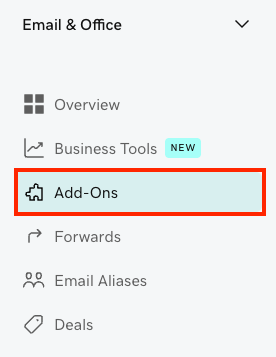
- On the leftmost side, select Add-Ons. (If you also own Microsoft 365, it will say Apps & Add-Ons).
- Under Email Backup, select Add to Cart.
- If you have Microsoft 365 and Professional Email powered by Titan, select which one you would like to enable Email Backup for.
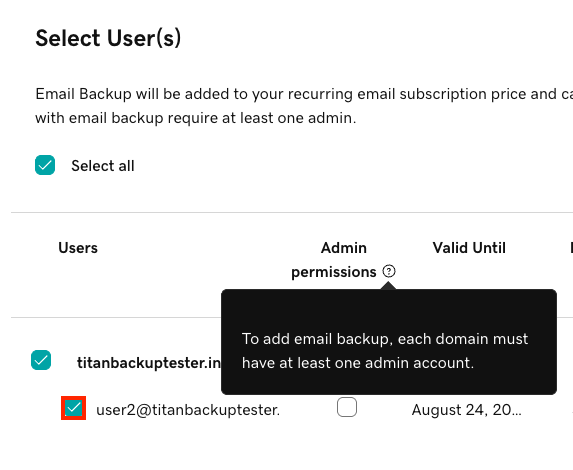
- Select the user(s) that you want to protect. At least 1 user needs to be an admin. If you don't have any admin users, select the Admin permissions checkbox next to the user you want to make an admin.
- In the upper-right corner, select Add User(s) to Cart. The cart will open.
- To add Email Backup to the selected users, select Complete Purchase. You'll see a confirmation that Email Backup was successfully purchased.
It could take up to 24 hours for Email Backup to be enabled for your Professional Email powered by Titan user(s).