Import my contacts, calendar, email and tasks
Note: These instructions are for reference only. Our GoDaddy Guides can't help you with importing data.
To move Outlook items from one address to another, or one device to another, first create an Outlook backup file. Once you have a backup file, you're ready to import to Outlook. Please note that Microsoft no longer supports versions of Outlook older than 2016.
Select the appropriate tab based on the email platform you're using.
Outlook on the web can import Comma separated values (.csv) For the best results, your file should also have UTF-8 encoding.
- Sign in to Outlook on the web. Use your Microsoft 365 email address and password (your GoDaddy username and password won't work here).
- On the leftmost side of the page, select
 People.
 - Select Manage, and then Import contacts.
- Select Browse, choose your .csv file, and then select Open.
- Select Import.
Outlook for Windows can import Comma separated values (.csv) or Personal storage table (.pst) files.
New OutlookClick here to follow the steps for New Outlook.
New Outlook
Click here to follow the steps for New Outlook.
- Open Outlook.
- Select Settings, then Data files, and then Import.
- Under Outlook Data File (.pst), select Get started, and then Select file.
- Browse to and select your .pst file, and then select Open.
- Choose the folder you want to import from. Leave the Include subfolders checkbox selected to include subfolders too.
- Choose how you want duplicate items to be handled, and then select Next.
- Select the destination mailbox from the Account list.
- Select or create the destination folder.
- Select Import.
Note: New Outlook currently only supports importing Outlook Data Files (.pst). To import a .csv file, select the Classic Outlook section instead.
Classic OutlookClick here to follow the steps for Classic Outlook.
Classic Outlook
Click here to follow the steps for Classic Outlook.
- Open Outlook.
- In the upper-left corner, select File.
- Select Open & Export, and then Import/Export.
- Select Import from another program or file, and then Next.
- Select your file type (Comma Separated Values (.csv) or Outlook Data File (.pst)), and then select Next.
- Select Browse, choose your file, and then Open.
- Under Options, choose how you want duplicate items to be handled, and then select Next.
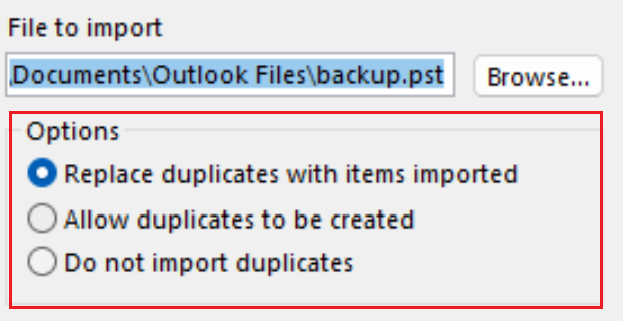
- If the file is password protected, enter the password, and then select OK.
- Select the Microsoft 365 mailbox where you want the data imported. If you're not importing into your Microsoft 365 mailbox, select Import items into the current folder. This option will import your data into the currently selected folder.
- Select Finish. Outlook will start importing the Outlook items from your backup file. Once the progress box disappears, the import is complete.
Outlook for Mac can import Personal storage table (.pst) or Outlook for Mac (.olm) files.
Required: These steps only apply to Legacy Outlook.
- Open Outlook.
- If you're in the new version of Outlook, revert to the legacy version of Outlook. Select Outlook, and then New Outlook. You might have to confirm that you want to revert.
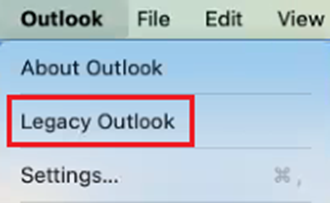
- Select File, and then Import.
- If you don't see Import, select Tools, and then Import instead.
- Select your backup file type, and then Continue.
- Locate the file on your Mac, and then select Import.
- Once the import is complete, select Finish. Your imported items will appear in the navigation pane under On My Computer.
More info
- Learn more about exporting and importing files in Outlook from Microsoft.
- See more about how to import contacts to Outlook on the web from Microsoft.
- Migrate my email to Microsoft 365