Administrar notificaciones para Chat + Conversations
When customers send a message through your Websites + Marketing site's chat widget, you'll also get an email notification. You can turn these notifications off or change the email address they're sent to.
Note: The GoDaddy mobile app is not available with free Conversations plans.
Required: You need a Websites + Marketing plan to use Chat + Conversations. If you're subscribed to Conversations standalone you won't have this feature.
- Inicia sesión en tu aplicación móvil GoDaddy.
- At the bottom of the screen, tap Conversations to see a list of all your unarchived conversations.

- In the top-right corner, tap
 more, and then tap Settings.
 - Next to Email Notifications, to receive chat messages through email, turn the toggle on (shows green). To stop receiving chat messages through email, turn the toggle off (shows white).
- Recibirás notificaciones por correo electrónico en la dirección de correo electrónico principal asociada con tu cuenta de GoDaddy. Para cambiarlo, sigue los pasos descritos en la pestaña Web de este artículo.
- To receive notifications in the GoDaddy mobile app whenever you get new messages, select Manage in Device Settings.
- Permitir notificaciones en la aplicación para GoDaddy Conversations.
- Inicia sesión en tu aplicación móvil GoDaddy.
- At the bottom of the screen, tap Conversations to see a list of all your unarchived conversations.
- In the top-right corner, tap
 settings.
 - Next to Email Notifications, to receive chat messages through email, turn the toggle on (shows green). To stop receiving chat messages through email, turn the toggle off (shows white).
- Recibirás notificaciones por correo electrónico en la dirección de correo electrónico principal asociada con tu cuenta de GoDaddy. Para cambiarlo, sigue los pasos descritos en la pestaña Web de este artículo.
- To receive notifications in the GoDaddy mobile app whenever you get new messages, select Manage in Device Settings.
- Permitir notificaciones en la aplicación para GoDaddy Conversations.
- Ve a la página de tu producto GoDaddy.
- Desplázate hacia abajo, expande Websites + Marketing y selecciona Administrar al lado de tu sitio.
- En el menú de la izquierda, expande Conversations y luego selecciona Configuración .
- Selecciona Notificaciones .
- Para recibir mensajes de chat a través del correo electrónico,
 Activar (se muestra en verde). Para dejar de recibir mensajes de chat por correo electrónico, apaga el interruptor (se muestra en blanco).
 - Recibirás notificaciones por correo electrónico en la dirección de correo electrónico principal asociada con tu cuenta de GoDaddy. Para cambiarlo, escribe la nueva dirección de correo electrónico en el cuadro.
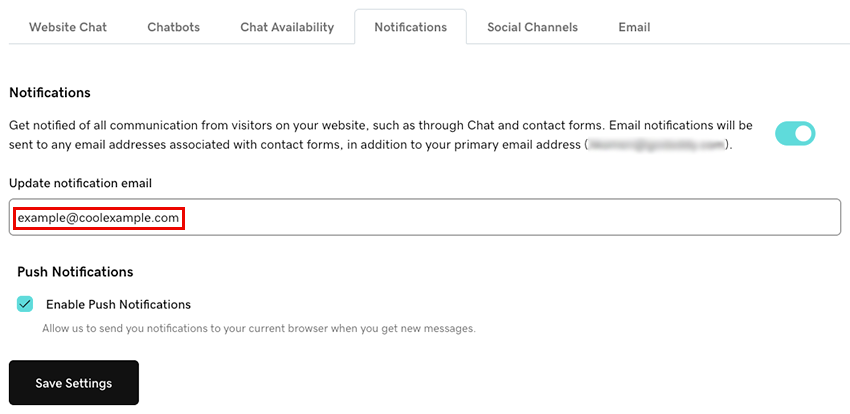
- Para recibir notificaciones en tu navegador cada vez que recibes nuevos mensajes a través de Conversations, selecciona la casilla de verificación Habilitar notificaciones automáticas . Esto enviará notificaciones a tu navegador actual.
- Selecciona Guardar configuración para guardar tus cambios.
Si tienes problemas para configurar tus notificaciones, prueba los pasos en nuestro artículo sobre notificaciones de solución de problemas para Chat + Conversations .