Mark conversations as spam or not spam
Artificial intelligence (AI) automatically sends spam emails to your spam folder. This keeps your inbox clean so that you can focus on more valuable inquiries.
You can mark spam messages as not spam to send them back to your inbox, or manually mark any messages in your Conversations inbox as spam to move them to your spam folder.
Note:
- Automatic spam filtering is applied to your emails only, but you can manually send any message to your spam folder, including those from your social media.
- The GoDaddy mobile app is not available on free Conversations plans.
- Sign in to your GoDaddy mobile app.
- At the bottom of the screen, tap Conversations to see a list of all your unarchived conversations.

See your spam conversations
- Tap Inbox, and then tap Spam. If you have any messages marked as spam, they’ll appear here.
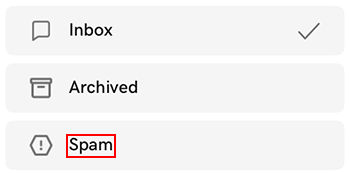
Mark a conversation as not spam
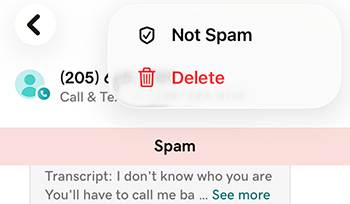
- From within your spam folder, tap the conversation you want to mark as not spam.
- In the upper-right corner, tap
 More.
More. - Tap Not Spam.
Mark a conversation as spam from your inbox
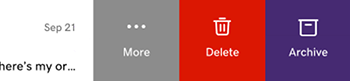
- On the conversation you want to mark as spam, swipe slightly left.
- Tap More.
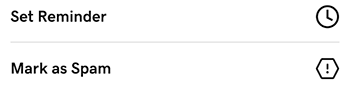
- Tap Mark as Spam.
Mark a conversation as spam from within a thread
- Tap the conversation you want to mark as spam.
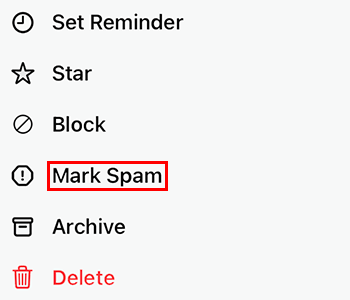
- In the upper-right corner, tap More.
- Tap Mark Spam.
- Sign in to your GoDaddy mobile app.
- At the bottom of the screen, tap Conversations to see a list of all your unarchived conversations.
See your spam conversations
- Tap Inbox, and then tap Spam. If you have any messages marked as spam, they’ll appear here.
Mark a conversation as not spam
- Tap the message you want to mark as not spam.
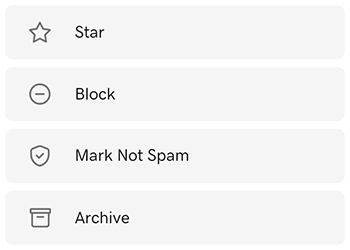
- In the upper-right corner, tap More.
- Tap Mark Not Spam. The message will be moved to your Conversations inbox.
Mark a conversation as spam from your inbox
- Tap and hold the conversation you want to send to the spam folder.
- In the upper-right corner, tap More.
- Tap Mark Spam.
Mark a conversation as spam from within a thread
- Tap the conversation you want to mark as spam.
- In the upper-right corner, tap More.
- Tap Mark Spam.
- In a web browser, go to your GoDaddy product page.
-
If you have the standalone version of Conversations, expand Conversations Unified Inbox. To the right of your Conversations plan, select Web Inbox.
OR
If you have a Websites + Marketing plan, scroll to Websites + Marketing and select Manage next to your site. In the left menu, expand Conversations.
- Select Inbox. A list of your unarchived conversations will show.
See your spam conversations
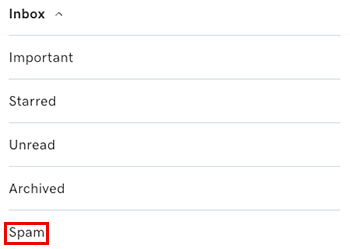
- At the top of your list of conversations, tap Inbox and then tap Spam.
Mark a conversation as not spam
- In your spam folder, hover your mouse pointer over the conversation you want to mark as not spam.
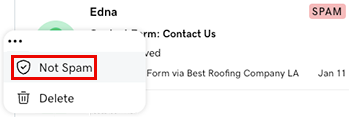
- To the left of the conversation, select More.
- Select Not Spam.
Mark as spam from your inbox
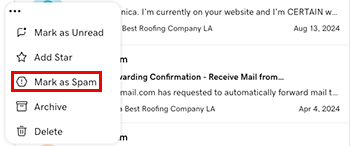
- Hover your mouse pointer over the conversation you want to mark as spam.
- To the left of the message, select More.
- Select Mark as Spam.
Mark as spam from within a conversation thread
You can also mark conversations as spam when you're in a conversation thread:
- Select the conversation you want to mark as spam.
- In the upper-right corner, select
 Mark as spam.