Clean an external sticky label printer
Sticky label printers use linerless sticky label rolls to print receipt labels that you can peel and stick onto items in an order. Regularly clean the sticky label printer to keep it clear of residual label glue and dust or debris that can build up on sticky surfaces. This helps prevent issues like paper jams or poor printing quality.
The guidelines below refer to Star Micronics TSP-143 series of sticky label printers. For help with different models, please refer to your printer’s instruction manual or manufacturer.
The printer should always be cleaned every 6 months or every 40 printed rolls. We recommend conducting maintenance daily to ensure optimal performance.
- Turn off the power and unplug the printer from the electrical outlet.
- Clean the exterior printer surfaces:
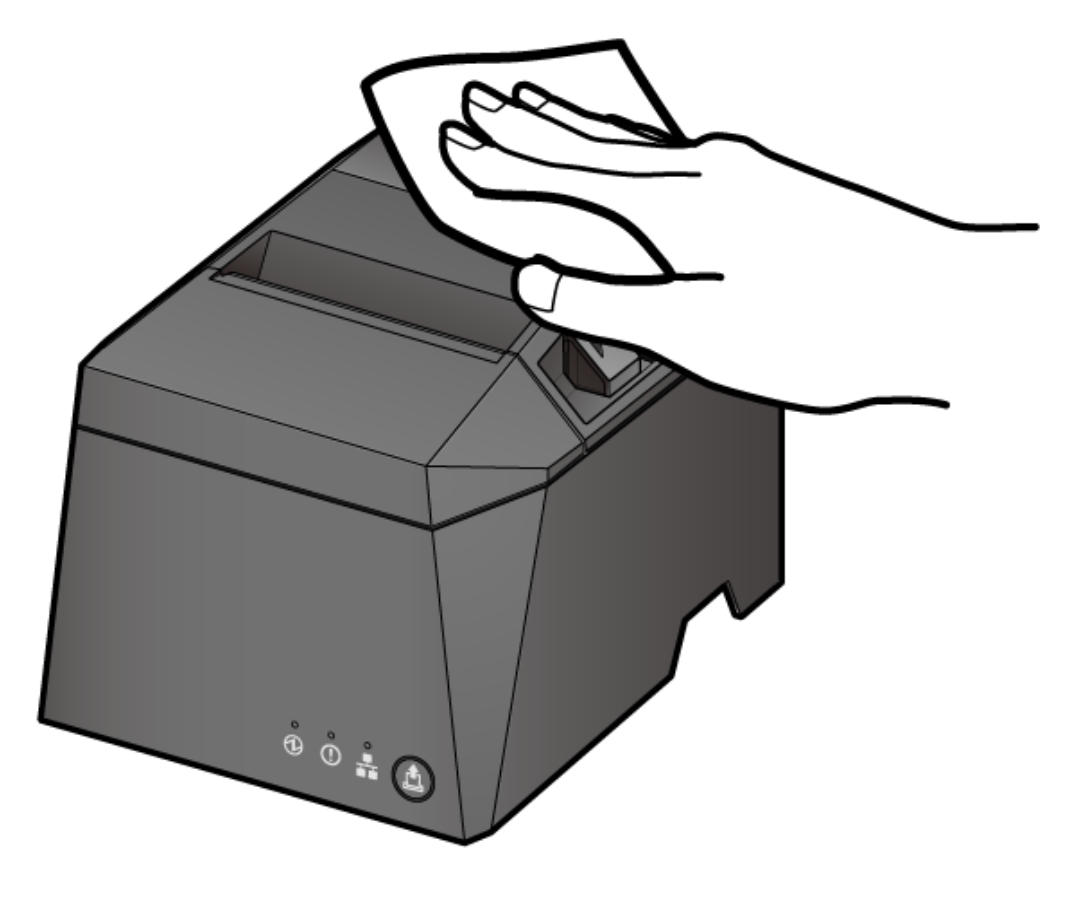
- Wipe off the dirt on the plastic section with a soft, clean, dry cloth.
- Make sure to remove any sticky debris and dust that may have built up from the label paper glue, as this can lead to paper jams.
- For stubborn residue or debris, soak a soft cloth in water containing a very small amount of diluted neutral detergent, completely wring out the cloth and gently wipe off the dirt. Wipe off any moisture using a soft, dry cloth.
Warning: Make sure to dilute the neutral detergent. Undiluted detergent can cause the plastic to change color or deteriorate.
Clear glue residue or dust buildup from the thermal head, printer roller and paper compartment.
- Turn off the power and unplug the printer from the electrical outlet.
- Press the lever next to the paper slot to open the paper roll cover.
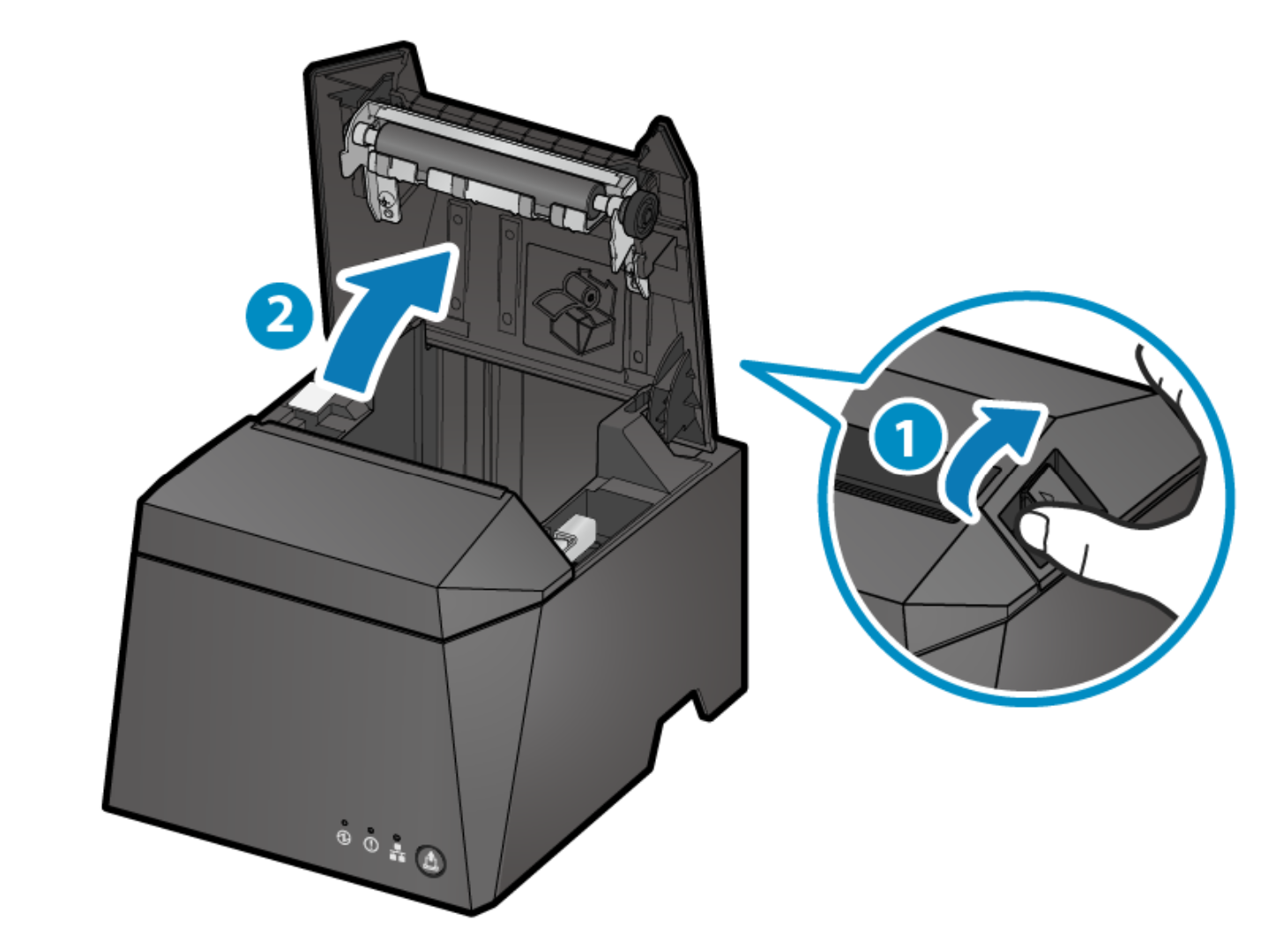
- Clean the thermal head:
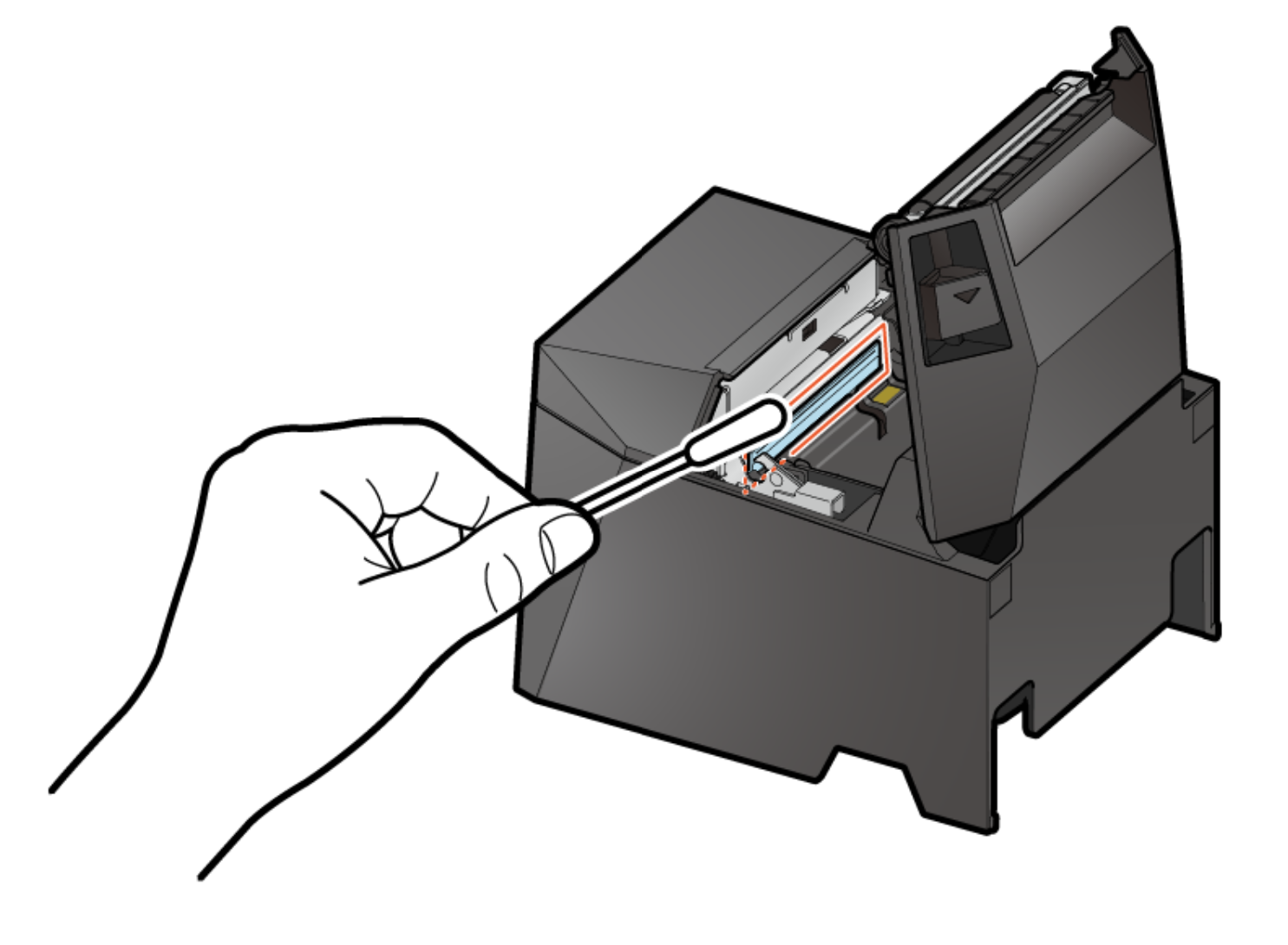
- Dampen a cotton swab or soft cloth with alcohol solvent (ethanol, isopropyl alcohol) and wipe the thermal area of the head.
- Remove the glue and paper powder from the surface of the thermal head.
- The thermal head can be easily damaged. Be careful not to scratch the head when cleaning.
- Do not clean the thermal head immediately after printing while the thermal head is hot.
- There is risk that static electricity can damage the thermal head after it’s cleaned, so be careful about static electricity.
- Turn the power on only after the alcohol has completely dried.
Warning: - Clean the rubber roller:
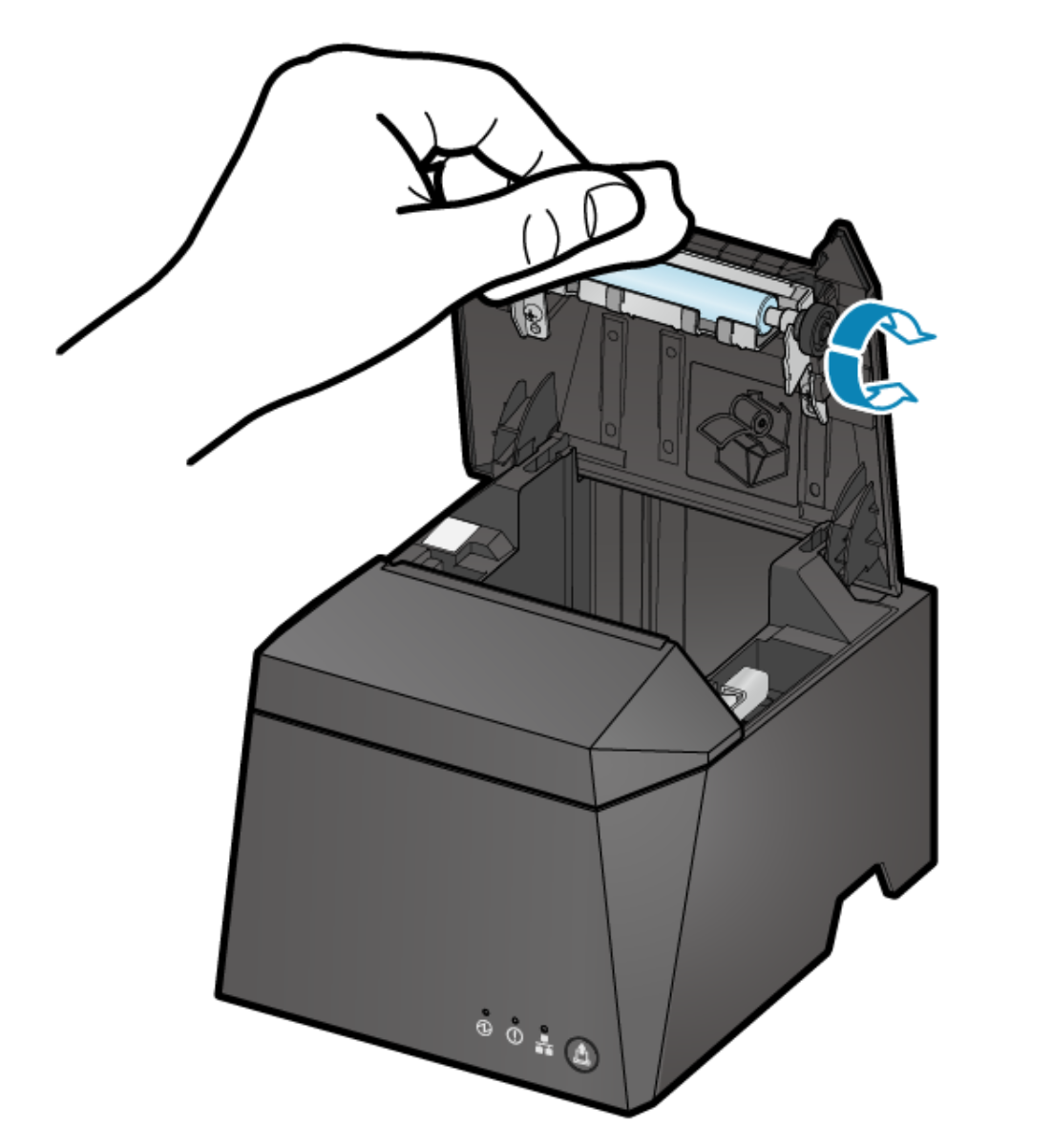
- Use a soft, dry cloth to wipe off dirt from the rubber roller.
- Rotate the rubber roller while cleaning to make sure that the whole roller is cleaned.
- Clean the paper compartment:
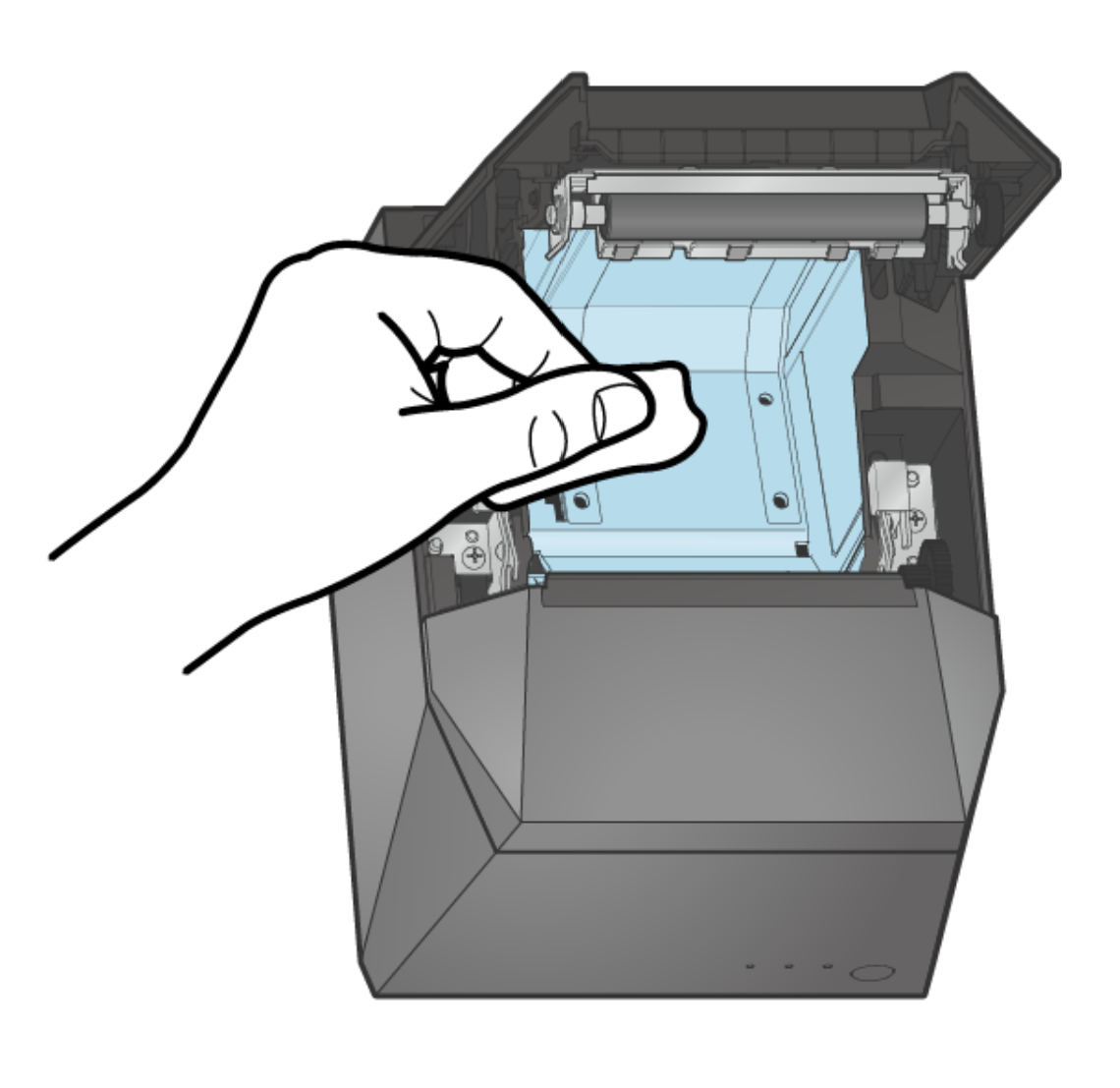
- Use a soft, dry cloth to remove any label paper glue, debris, dust and paper powder.
- Make sure to remove any glue residue or sticky debris and dust. Not doing so can lead to paper jams.
Warning: Avoid using air when removing debris, dust and paper powder from the paper roll storage space. Air can blow debris, dust and paper powder into the interior of the printer, causing malfunction.
More info
- Connect a printer or a different external accessory to your GoDaddy Smart Terminal.
- Troubleshoot an external receipt or sticky label printer.
- Check compatible accessories and order an accessory for your GoDaddy Smart Terminal.