Connect a printer to a GoDaddy Smart Terminal
Connect your GoDaddy Smart Terminal to an external receipt or sticky label printer with a USB, Ethernet (via Wi-Fi network router) or Bluetooth connection. Test your connected printer to make sure it’s working properly.
If you have multiple printers (for example, one in the bar and one in the kitchen), you can connect each of them to your Smart Terminal via an Ethernet (Wi-Fi network) connection. This is currently only available for compatible Star Micronics Ethernet printers. The same printer can also be connected to multiple Smart Terminals.
Need some help deciding how to connect? Check out our recommended printer connections.
- Smart Terminal Flex is compatible with Ethernet (via network router) printer connections only.
- Smart Terminal Duo and Smart Terminal Flex also include a built-in printer for paper receipts.
- All GoDaddy Smart Terminals can send receipts via email or text.
- Printers connected via Ethernet or USB can also be connected to a cash drawer, if needed.
Setup videos
Select your Smart Terminal below to watch a video about connecting a cash drawer to your device.
Setup steps
Follow the steps below to connect a cash drawer to a Smart Terminal directly or through a printer.
Available for: GoDaddy Smart Terminal Pro, GoDaddy Smart Terminal Flex, GoDaddy Smart Terminal Duo
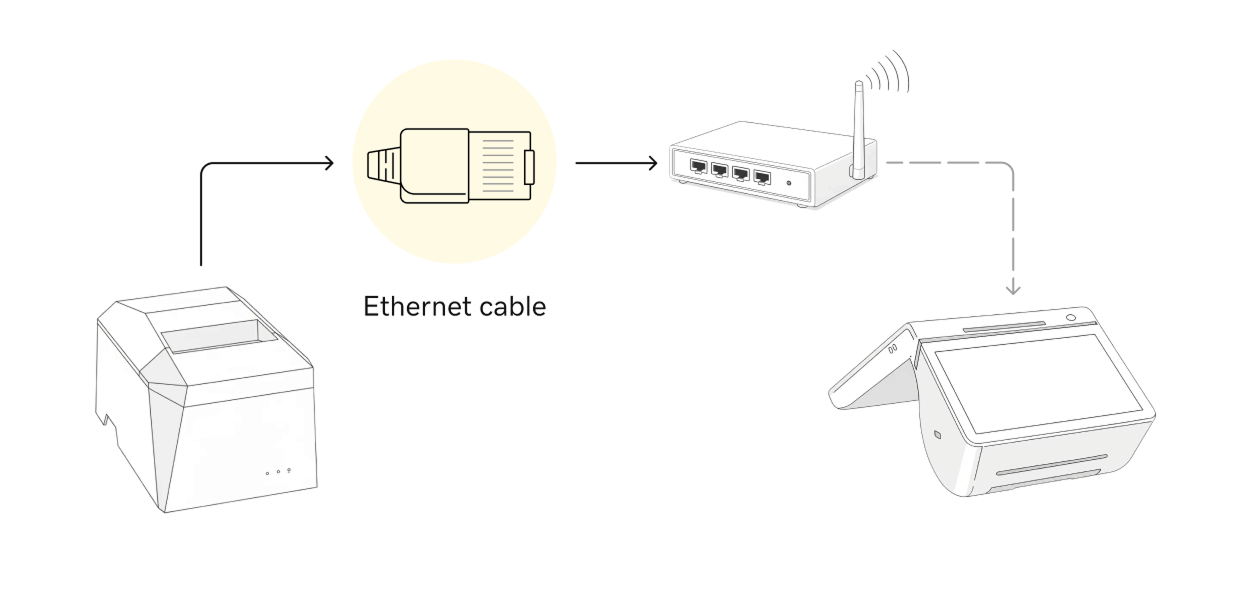
Connect the Smart Terminal to a wi-fi network using either a wireless or Ethernet (wired) connection. Then, connect the printer to the same router with an Ethernet cable.
- Connect the Smart Terminal to a Wi-Fi network, using either a wireless or Ethernet (wired) connection.
- With the printer turned off, connect one end of the Ethernet cable into the printer and the other end into the same Wi-Fi router that the Smart Terminal is connected to.
- Find the IP address for the printer:
- Load the printer paper if you haven’t yet.
- With the printer powered off, press and hold the printer’s power button and feed button for a few seconds.
- The printer will print two test receipts. Release the feed button when it begins printing the first receipt.
- Locate the IP address on the second test receipt. The IP address will be listed in the IP Parameters towards the bottom of the second receipt.
Note: If the receipt is blank, the paper roll is likely inserted upside-down. Double-check the paper roll orientation and try again. - Turn on the printer if it’s still powered off.
- Add the printer to the Smart Terminal:
- On the Smart Terminal, tap Accessories on the first page of the Smart Terminal home menu.
- Tap Add accessory, then tap Printers and then tap Network.
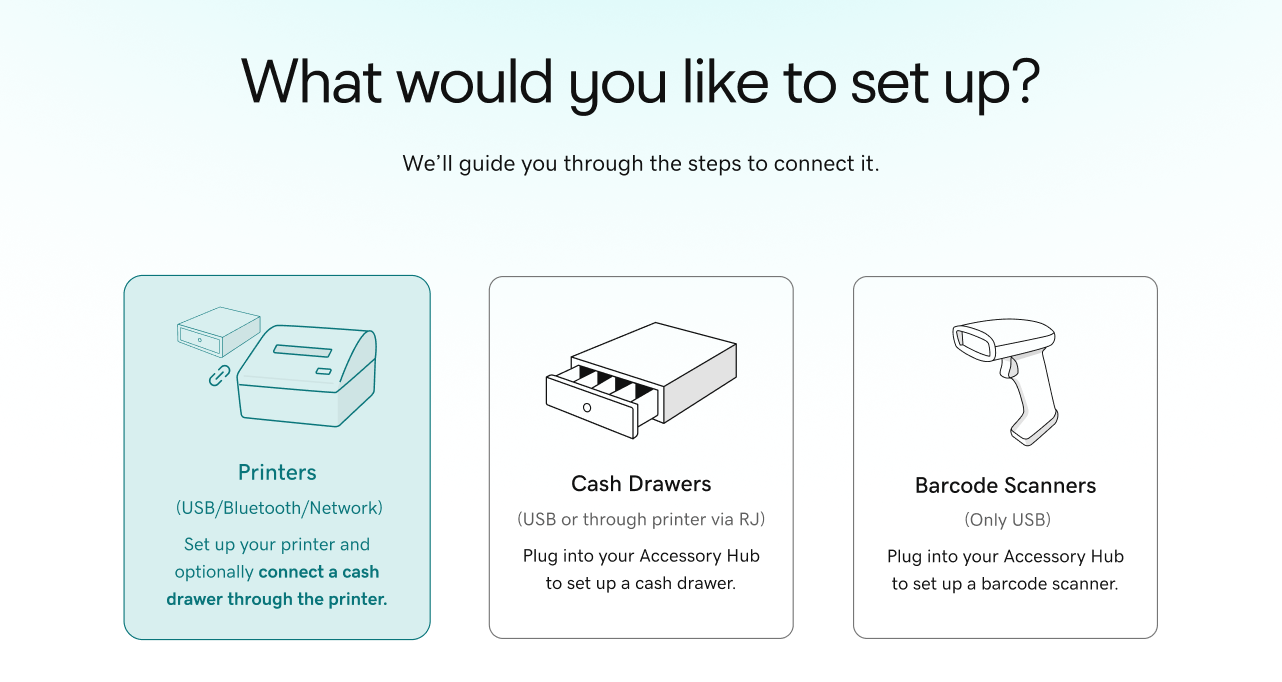
- Follow the onscreen steps to double-check your connections and printer paper. Tap Next until you reach the IP address input screen.
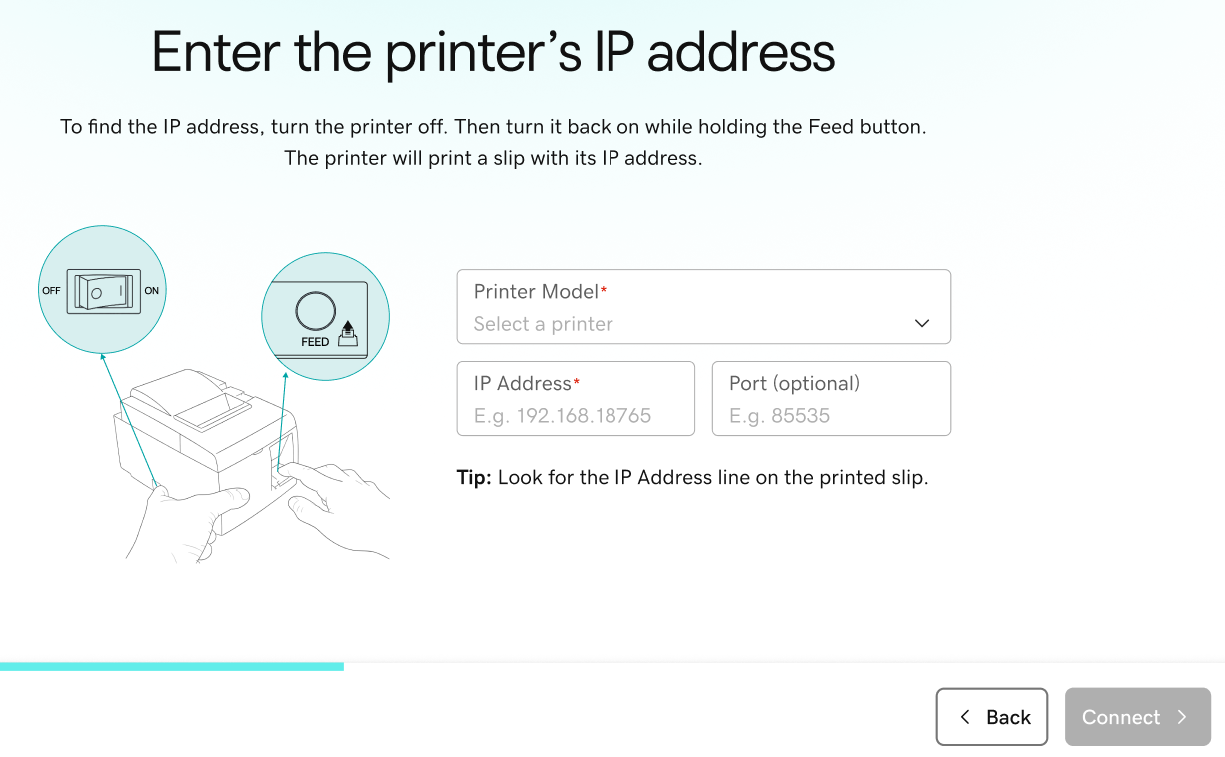
- Under Printer Model, select your printer brand and model from the drop-down list.
- Under IP Address, enter the IP address from your test receipt. Tap Connect.
- Print a test receipt and customize the name and receipt settings to complete the printer setup.
- After connecting the printer, tap Print Test Page. Wait for the receipt to print, then tap Yes, it printed to confirm.
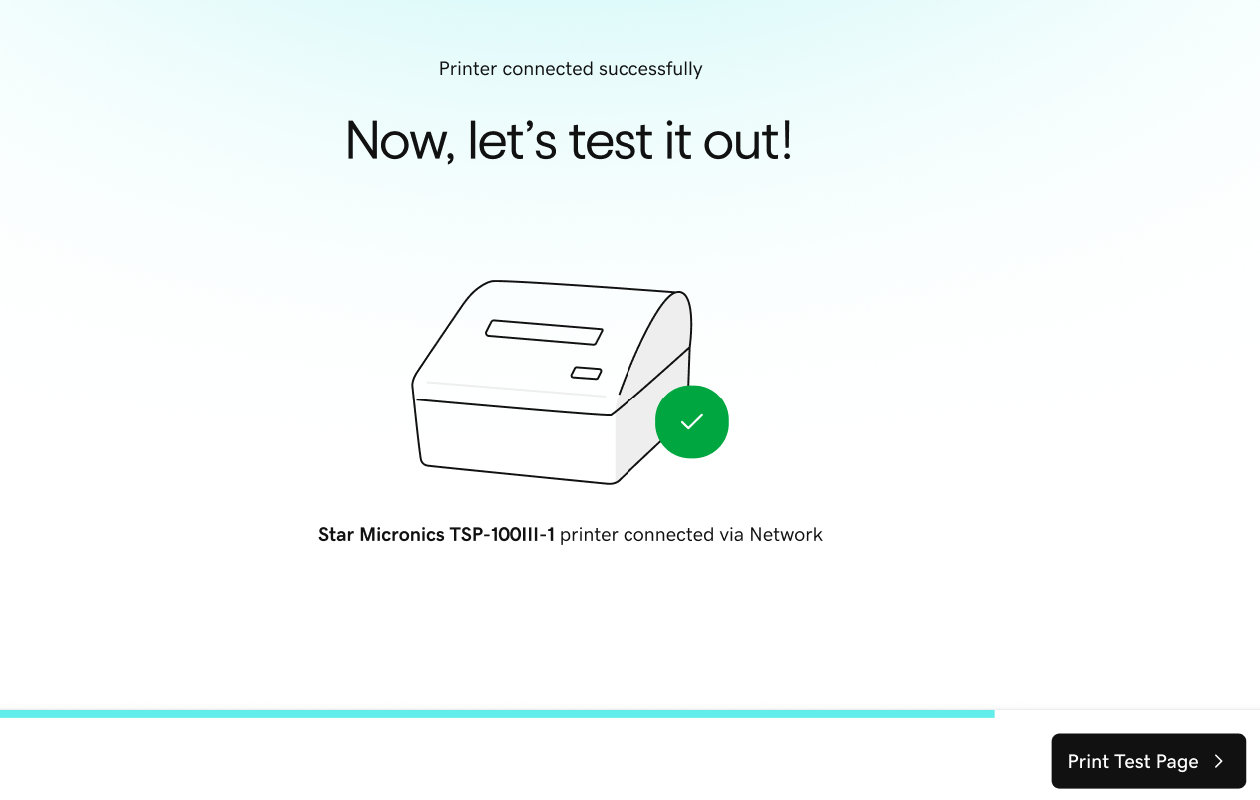
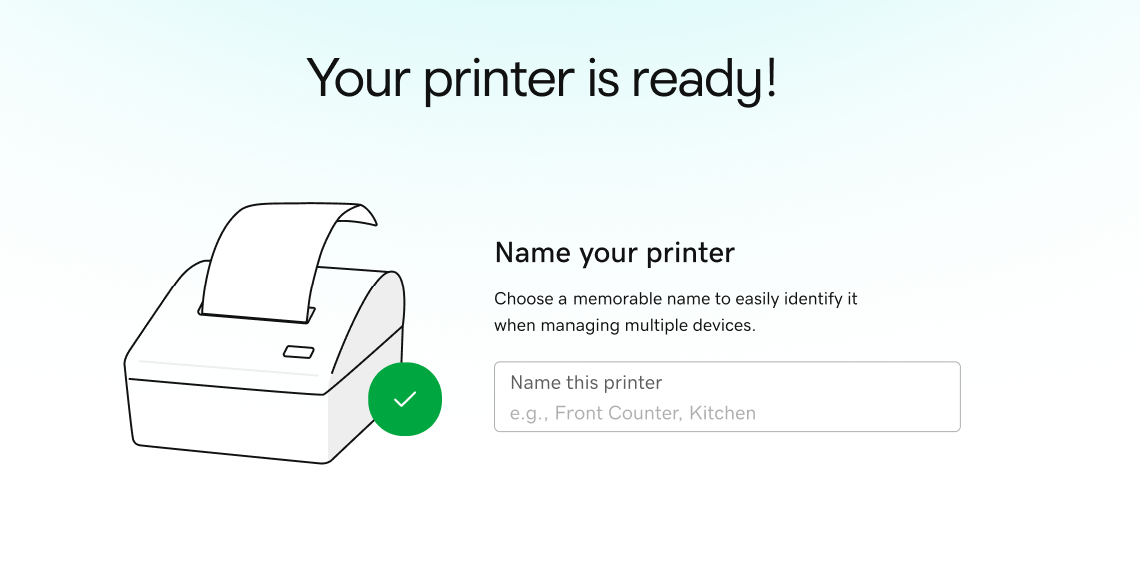
- Enter a custom Name for the printer (like “Bar” or “Kitchen”). Tap Save and continue.
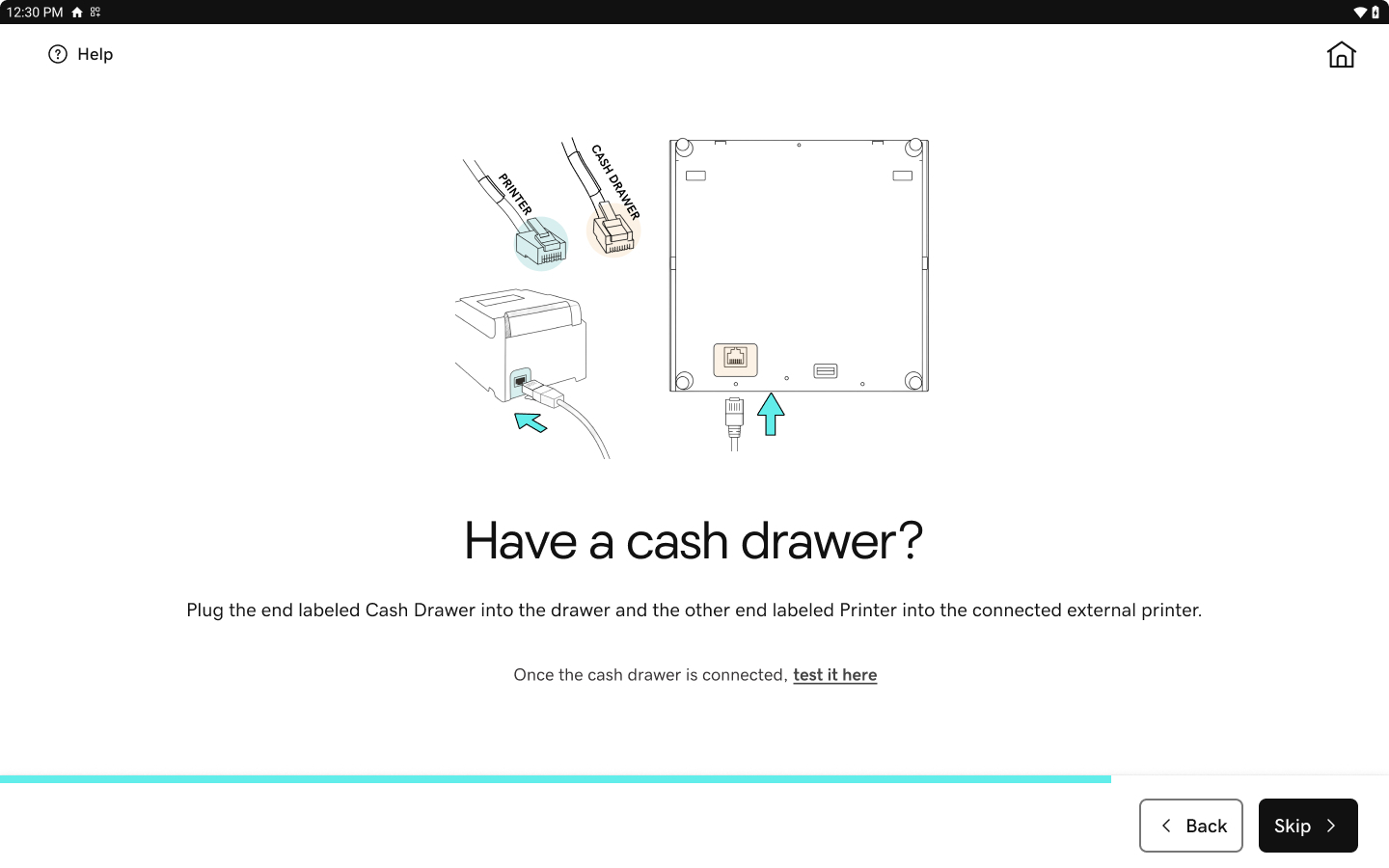
- If you’ve connected a printer-driven cash drawer, tap Test it here to open the drawer. Otherwise, tap Skip to continue with printer setup.
- Tap Go to Receipt Settings. To assign specific receipts to print from this printer (like an order or customer receipt), update the receipt settings for the printer.
Note: Sticky label printers automatically print item receipts, which are formatted to display correctly on sticky labels.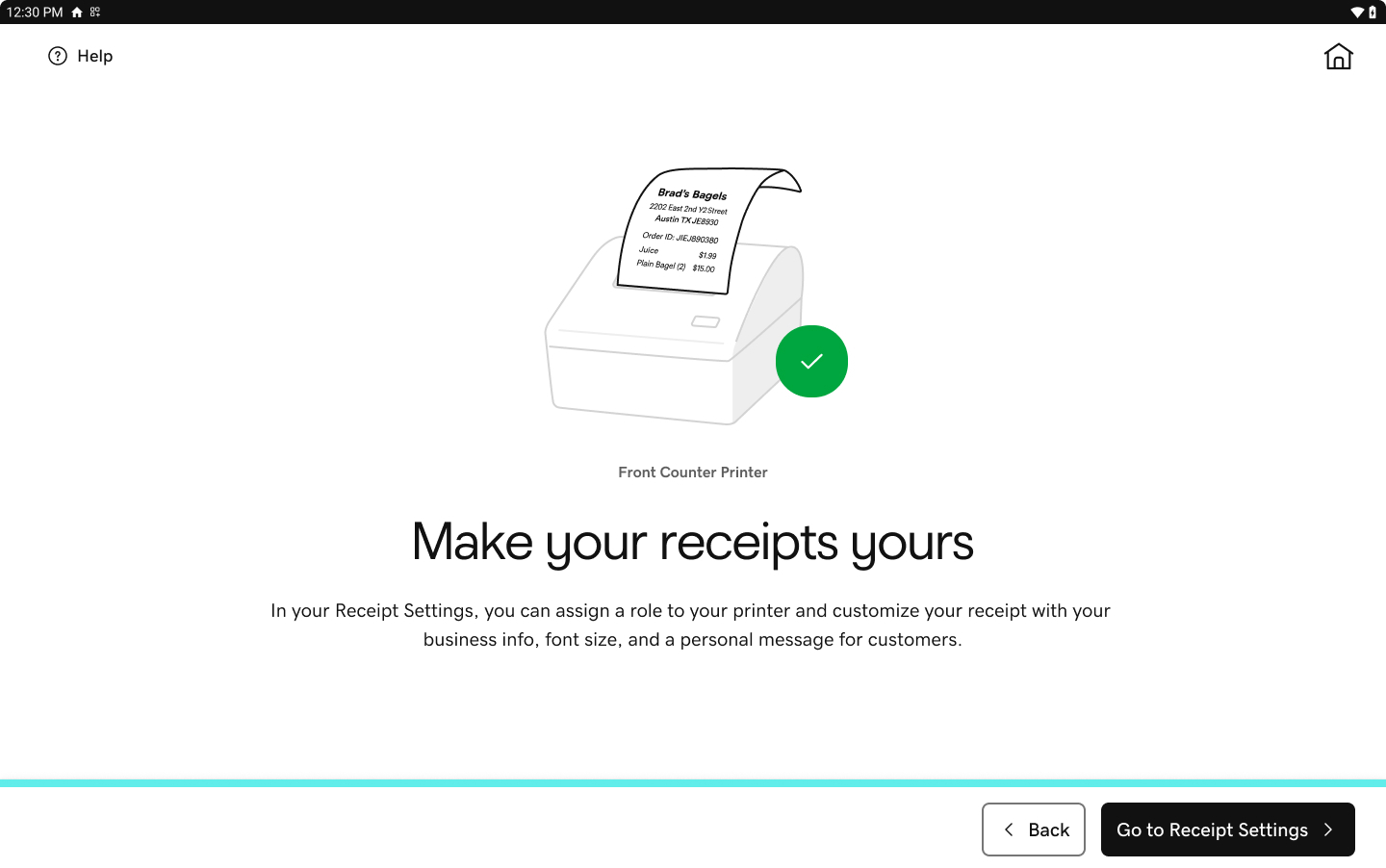
- After connecting the printer, tap Print Test Page. Wait for the receipt to print, then tap Yes, it printed to confirm.
- (Optional) You can also connect multiple printers to the same Smart Terminal or connect one printer to multiple Smart Terminals. Here’s how:
- Multiple printers to the same Smart Terminal: Repeat steps 2-6 for each printer you want to add. Make sure to add a nickname and assign receipt types to each printer, to keep track of what you want to print to each location.
- Multiple Smart Terminals to the same printer: Connect each Smart Terminal (using wired or wireless connection) to the same router that the printer is connected to. Then repeat steps 4-6 on each Smart Terminal to connect it to the printer.
Available for: GoDaddy Smart Terminal Pro, GoDaddy Smart Terminal Duo
Connect a printer directly to your Smart Terminal via USB cable. This type of connection is quick, straight-forward and doesn’t require connecting the printer to a Wi-Fi network.
- Navigate to the Smart Terminal home menu.
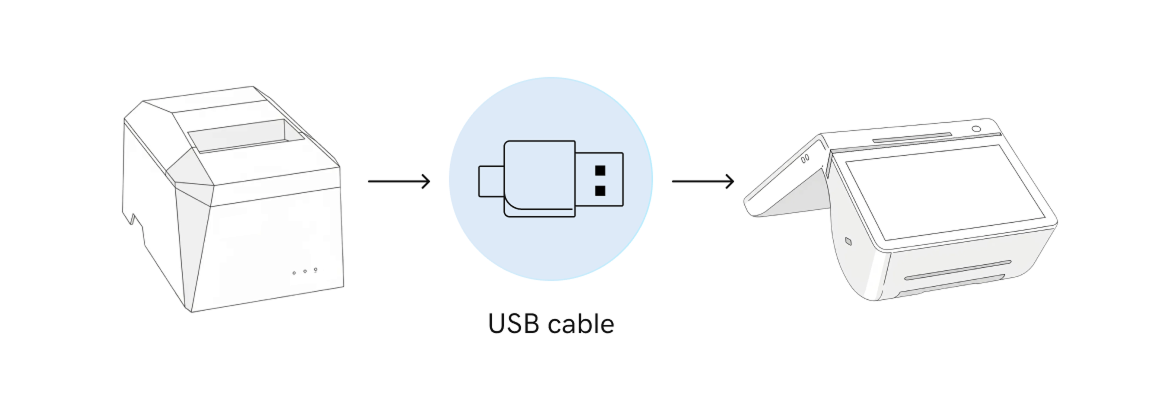
- With the printer turned off, connect the USB cord from the printer directly into the USB port on the Smart Terminal charging dock (Duo).
- Smart Terminal Duo: While using the printer, the Smart Terminal must remain in the charging dock and connected to a power source.
- Load the printer paper if you haven’t yet.
- Turn the printer on. A confirmation notification will appear on the Smart Terminal home menu that says the printer is connected. Tap Finish Setup.
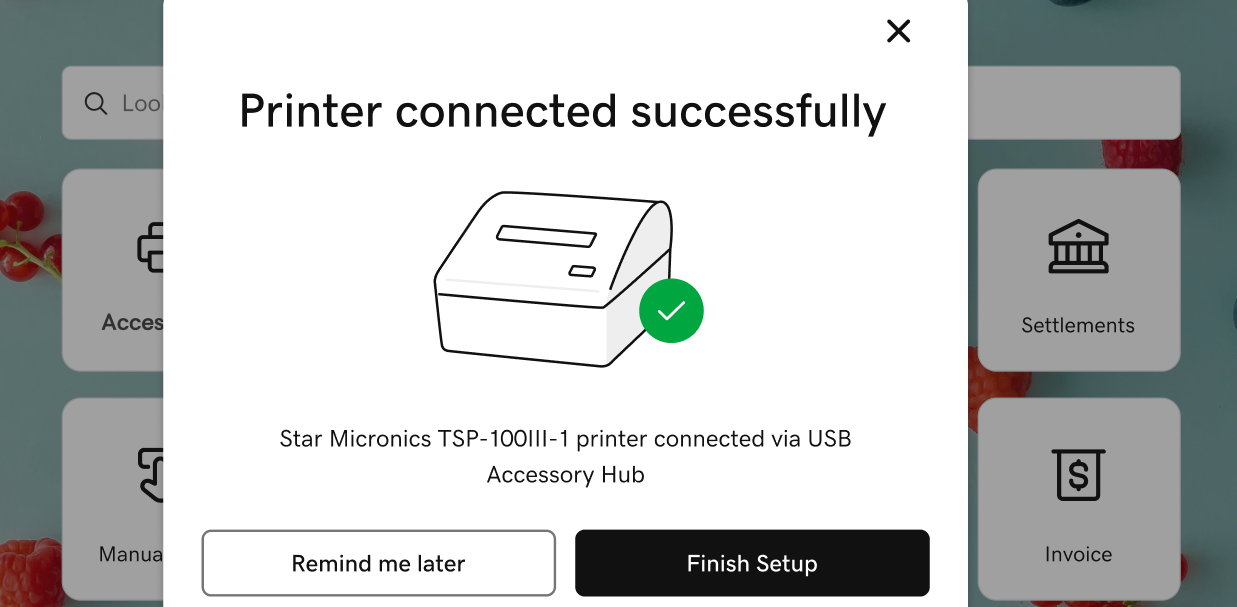
- Print a test receipt and customize the name and receipt settings to complete the printer setup.
- After connecting the printer, tap Print Test Page. Wait for the receipt to print, then tap Yes, it printed to confirm.
- Enter a custom Name for the printer (like “Bar” or “Kitchen”). Tap Save and continue.
- If you’ve connected a printer-driven cash drawer, tap Test it here to open the drawer. Otherwise, tap Skip to continue with printer setup.
- Tap Go to Receipt Settings. To assign specific receipts to print from this printer (like an order or customer receipt), update the receipt settings for the printer.
Note: Sticky label printers automatically print item receipts, which are formatted to display correctly on sticky labels.
- After connecting the printer, tap Print Test Page. Wait for the receipt to print, then tap Yes, it printed to confirm.
Available for: GoDaddy Smart Terminal Pro, GoDaddy Smart Terminal Duo
Connect a printer directly to your Smart Terminal using a Bluetooth connection. Currently, only select legacy printers connect via Bluetooth.
- Load the printer paper and turn on the Bluetooth printer.
- Add the printer to the Smart Terminal:
- On the Smart Terminal, tap Accessories on the first page of the Smart Terminal home menu.
- Tap Add accessory, then tap Printers and then tap Bluetooth.
- Follow the onscreen steps to double-check your connections and printer paper, then search for Bluetooth printers. Tap Next until you reach a list of detected printers.
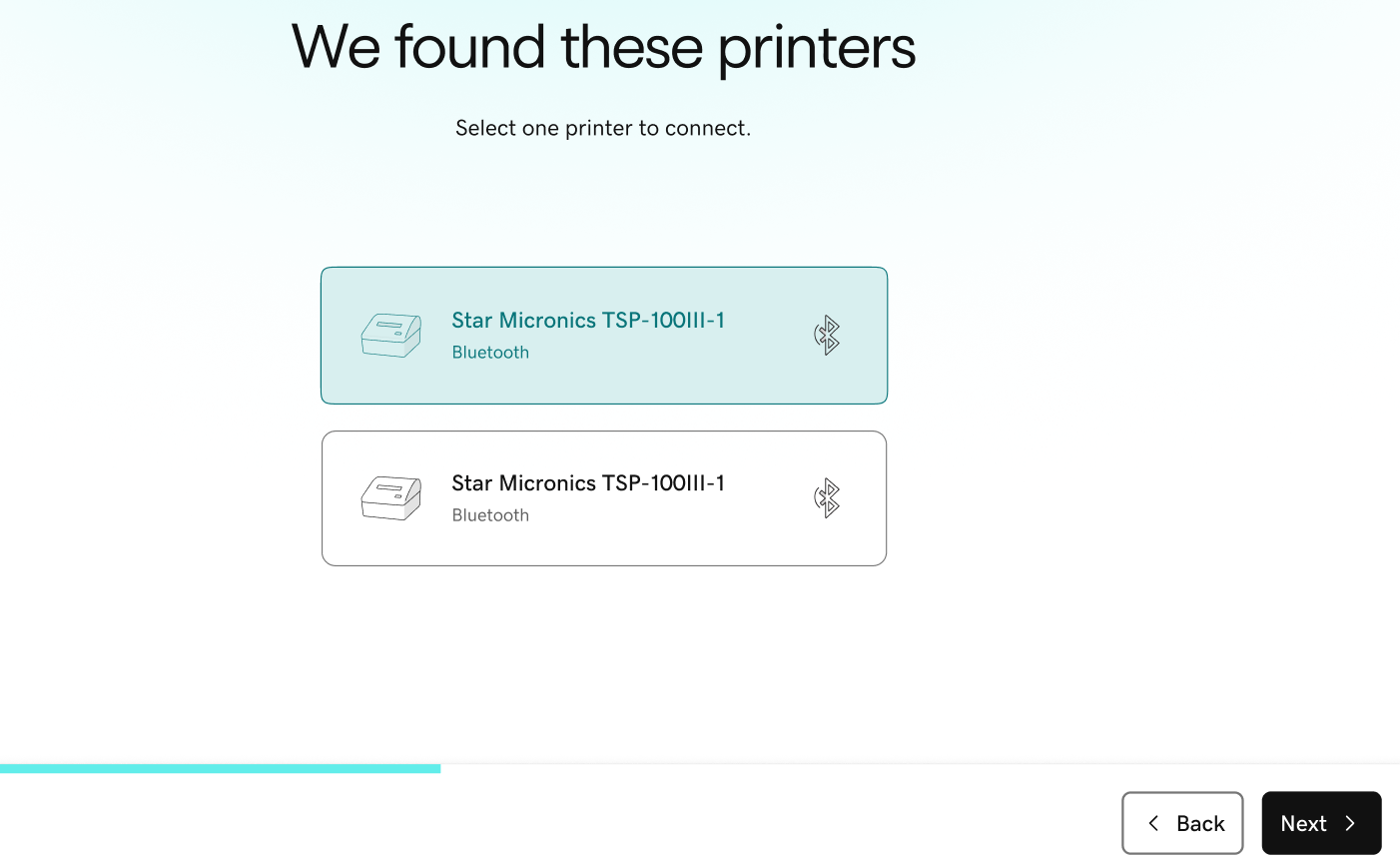
- Tap your printer, then tap Next to connect it.
- Print a test receipt and customize the name and receipt settings to complete the printer setup.
- After connecting the printer, tap Print Test Page. Wait for the receipt to print, then tap Yes, it printed to confirm.
- Enter a custom Name for the printer (like “Bar” or “Kitchen”). Tap Save and continue.
- If you’ve connected a printer-driven cash drawer, tap Test it here to open the drawer. Otherwise, tap Skip to continue with printer setup.
- Tap Go to Receipt Settings. To assign specific receipts to print from this printer (like an order or customer receipt), update the receipt settings for the printer.
Note: Sticky label printers automatically print item receipts, which are formatted to display correctly on sticky labels.
- After connecting the printer, tap Print Test Page. Wait for the receipt to print, then tap Yes, it printed to confirm.
Print a test receipt to make sure your connected printer is working properly.
- Tap Accessories on the first page of the Smart Terminal home menu.
- Locate the printer you want to test and tap Test.
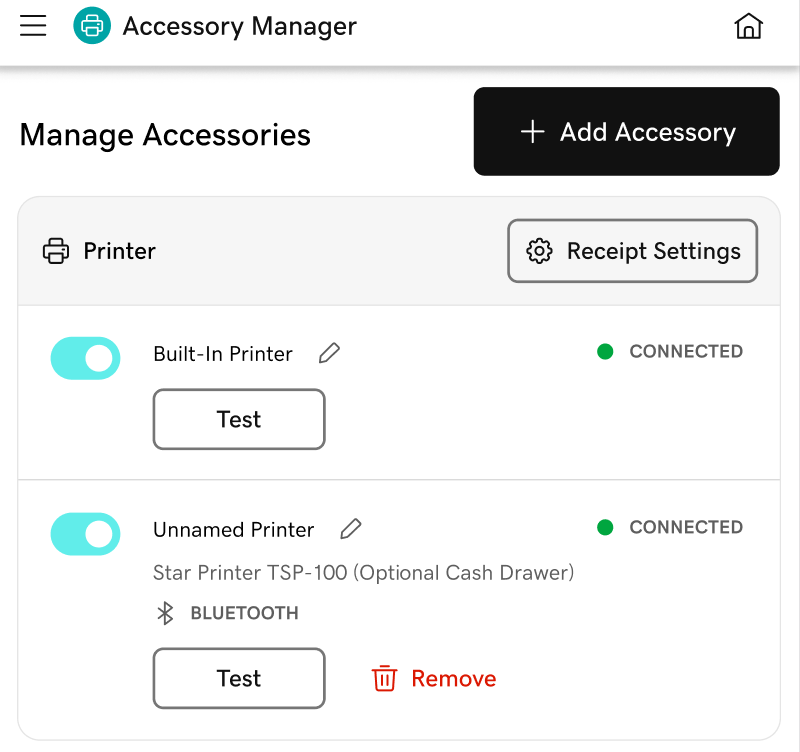
- Verify that a test receipt printed, then tap Yes, it printed.
Note: If a test receipt does not print, make sure the printer paper is loaded correctly and use the tabs above to double-check the setup steps for your printer type. If a test receipt still does not print, check out our troubleshooting steps for additional help.
More info
- If your printer isn’t working as expected, check out our troubleshooting tips for help.
- Connect a different external accessory (like a cash drawer or barcode scanner) to your GoDaddy Smart Terminal.
- See all compatible accessories for GoDaddy Smart Terminals and find out more about accessory connection types and terms.
- Order accessories for your Smart Terminal.