Understanding POS accessory connection types
You can connect external printers, cash drawers and barcode scanners to your GoDaddy Smart Terminal with wired (USB or Ethernet) or wireless (Wi-Fi network or Bluetooth) connections. Depending on your device, accessories can be connected directly to the Smart Terminal, to the charging dock or accessory hub, or with another accessory.
Review the info below for our recommendations for different business types and models, an overview of the different available connection types and how to get set up, and definitions for commonly used terms.
Still deciding on a POS device? Take a look at the current Smart Terminals that are available to use with GoDaddy Payments.
Select from the following list to jump directly to a section:
Printer connections
Connect an external receipt or sticky label printer to your Smart Terminal for greater flexibility and control over where different types of receipts are printed.
| Connection type | ||
|---|---|---|
| Compatible with | Smart Terminal Duo, Smart Terminal Pro | Smart Terminal Duo, Smart Terminal Flex, Smart Terminal Pro |
| Best for | Single POS stations where reliability and simplicity are priorities, such as small shops, boutiques and cafes.
| Multi-station setups where multiple POS terminals need to share a printer, such as in restaurants, bars or busy retail stores.
|
| How to connect | Connect one end of the USB cable into the printer and the other end into the Smart Terminal charging dock (Duo) or accessory hub (Pro).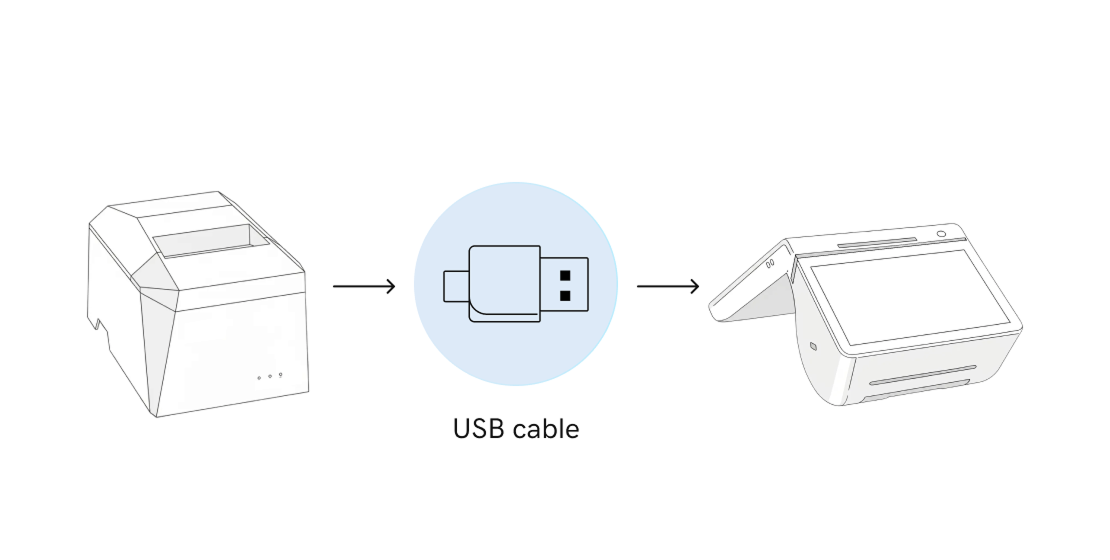 | Connect the printer to a network router with an Ethernet cable. Connect the Smart Terminal to the same router via a Wi-Fi connection or second Ethernet cable.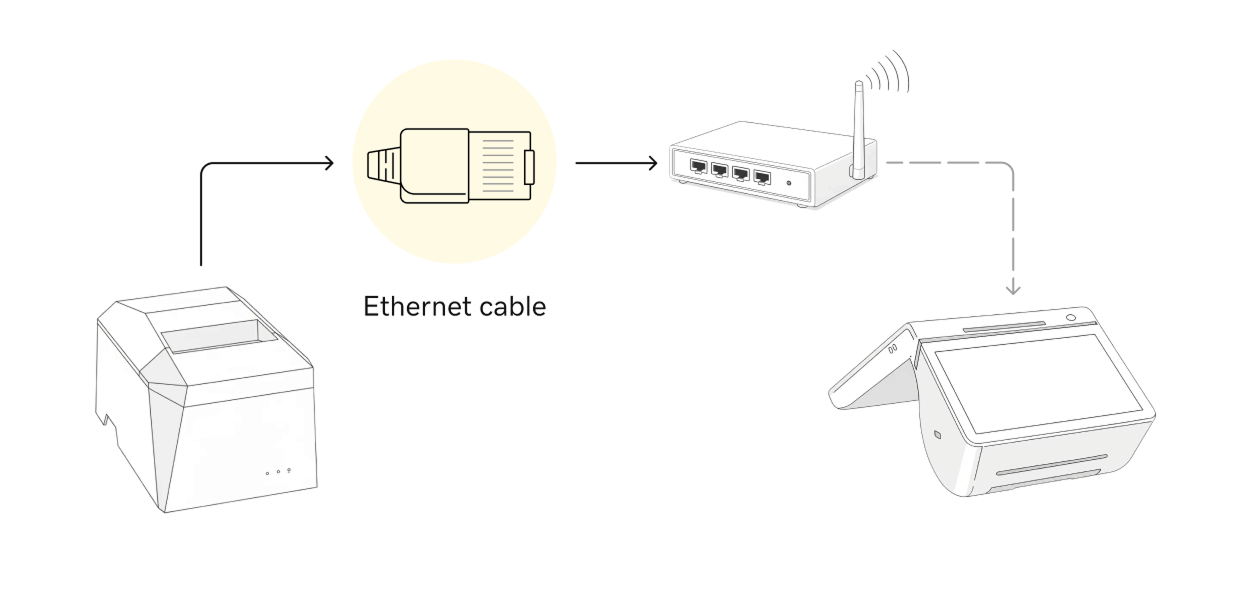
|
| Additional info | Compatible Star Micronics printers (TSP-100 and TSP-143 series) can also be connected to an external cash drawer for a complete accessory setup. | |
| More details | For additional help with choosing, ordering and connecting a printer, please check out our full support articles: | |
Cash drawer connections
Optimize your checkout process by connecting a cash drawer to your Smart Terminal, either directly or through an external printer. Connected cash drawers will automatically open during cash transactions.
| Connection type | ||
|---|---|---|
| Compatible with | Smart Terminal Duo | Smart Terminal Duo, Smart Terminal Flex, Smart Terminal Pro |
| Best for | Smart Terminal Duo users. A direct connection is simple, quick and doesn’t require an external printer to connect. | Smart Terminal Flex and Smart Terminal Pro users. Cash drawers must be connected to the Flex and Pro via an external printer, so this is an efficient way to connect everything in one streamlined setup. |
| How to connect | Connect one end of the USB or RJ-11/RJ-12 cable into the cash drawer and the other end into the Smart Terminal charging dock.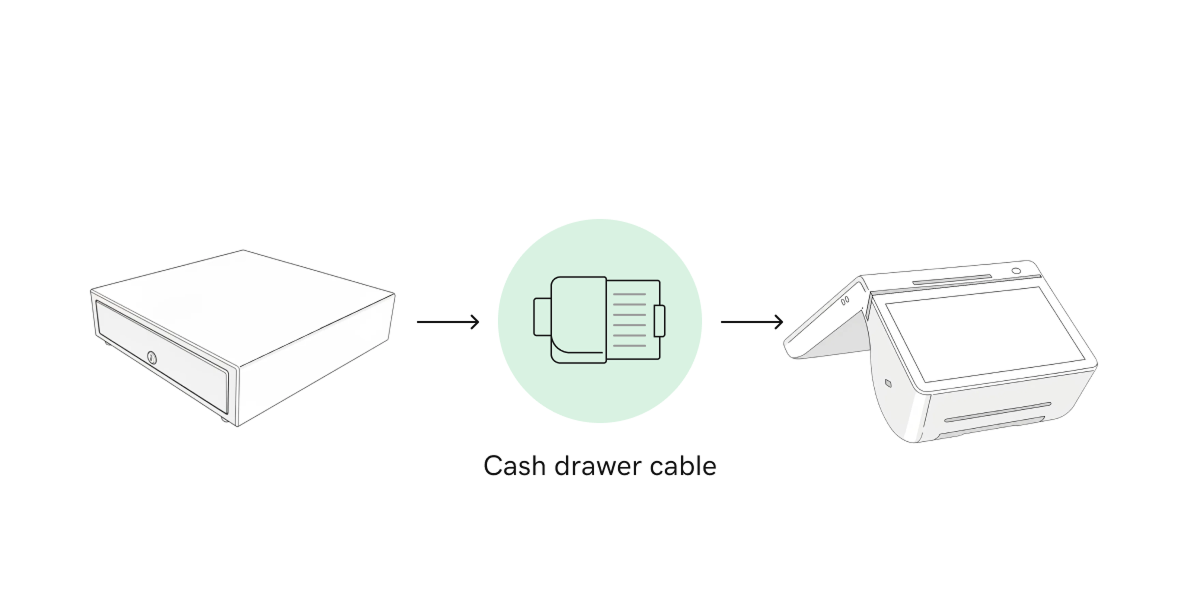
| Connect one end of a cash drawer cable into the cash drawer and the other end into a compatible printer. Connect the printer to the Smart Terminal via USB or Ethernet (via network router) connection. USB printer 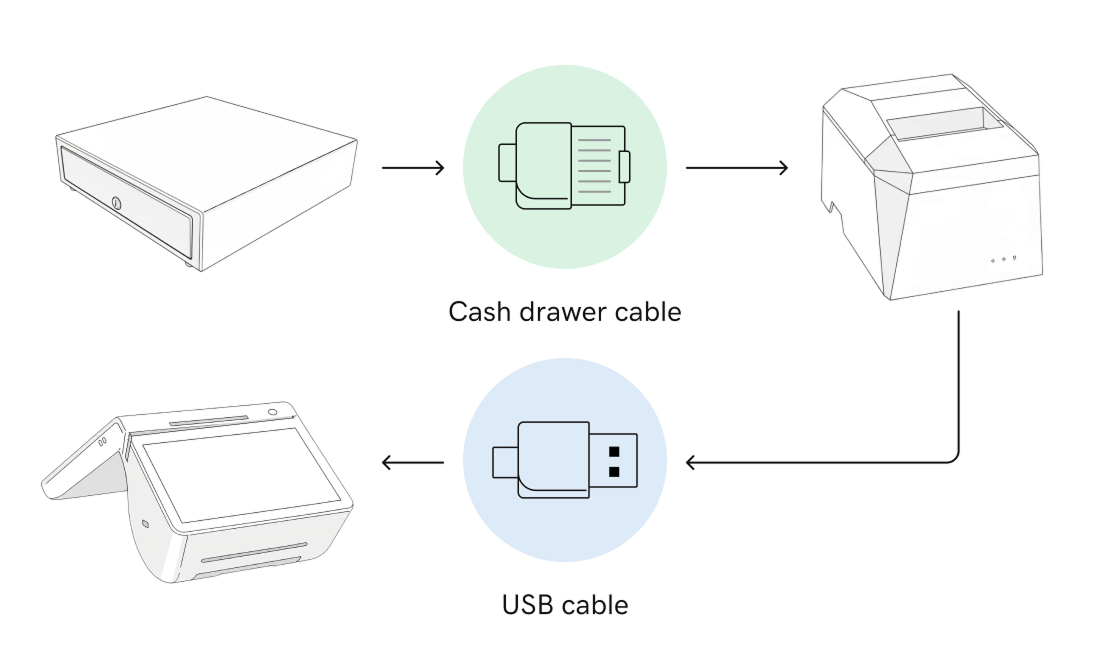 Ethernet printer 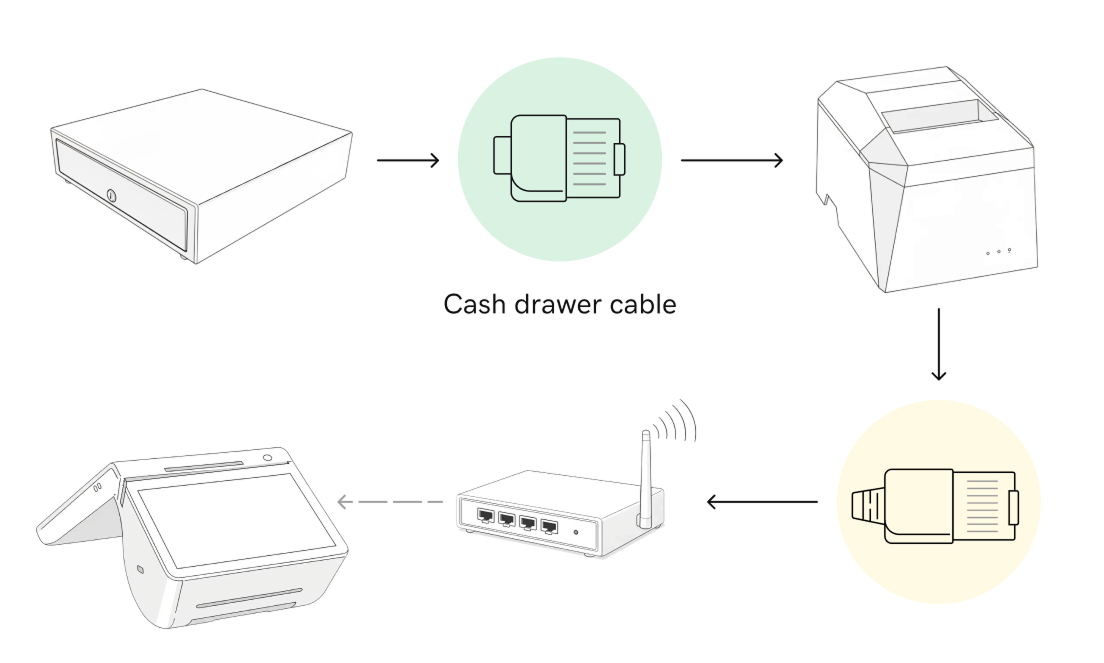
|
| More details | For additional help with choosing, ordering and connecting a printer, please check out our full support articles: | |
Barcode scanner connections
All Smart Terminals include a built-in camera that functions as a barcode scanner. You can also connect a handheld barcode scanner to the Smart Terminal Duo and Smart Terminal Pro for greater flexibility during checkout.
| Connection type | USB Cable |
|---|---|
| Compatible with | Smart Terminal Duo, Smart Terminal Pro |
| How to connect | Connect one end of the USB cable into the scanner and the other end into the Smart Terminal charging dock (Duo) or accessory hub (Pro).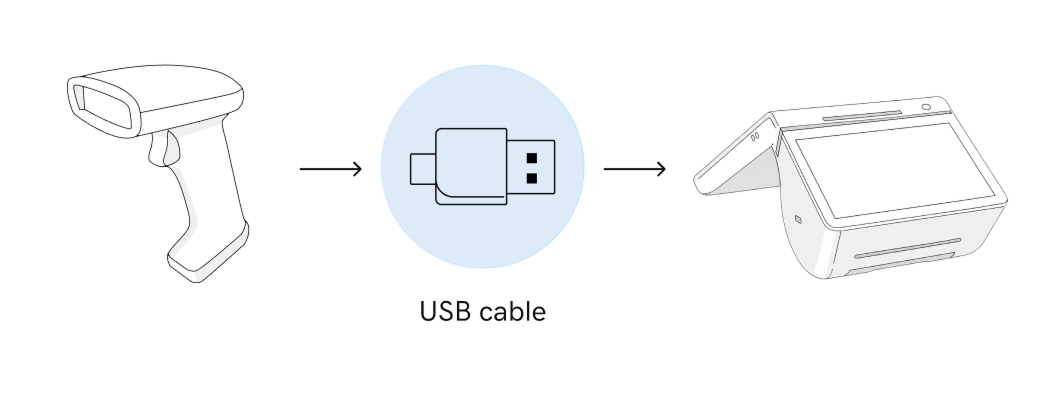
|
| More details | For additional help with choosing, ordering and connecting a barcode scanner, please check out our full support articles: |
Glossary of terms and connection types
The following terms are used often when connecting accessories to GoDaddy Smart Terminals. Please take a moment to review any unfamiliar terms.
| Term | Definition |
|---|---|
| Bluetooth | A short-range wireless technology that enables devices to connect and communicate without using cables or Internet connection. |
| Direct connection | A connection directly between the Smart Terminal, accessory hub or charging dock to a compatible accessory, usually via USB or RJ-11/RJ-12 cables. |
| Ethernet/Ethernet cord | A wired technology that uses physical cables for a faster, more stable, and more secure network connection. |
| LAN (Local Area Network) | General term for a network in a small area, which can use either a wired Ethernet connection or a wireless Wi-Fi connection to link devices. |
| Printer-driven connection | The process of connecting a cash drawer to a Smart Terminal by chaining it with an external printer. The cash drawer is connected to the printer, which is then connected to the Smart Terminal. |
| RJ-11/RJ-12 cable | A type of cable that can be used for connecting accessories to a Smart Terminal. The plugs fit into traditional phone jack-type ports. These can be plugged directly into the Smart Terminal Duo dock or into compatible printers for printer-driven connections. |
| USB Cable | A standard cable used to connect and power electronic devices. |
| Wi-Fi | A wireless technology that uses radio waves for convenience and mobility, but can be slower and less reliable than an Ethernet connection. |
| Wi-Fi network, network router | A wireless local area network that uses Wi-Fi to provide wireless Internet access and connect devices to each other. Devices connect to the Wi-Fi network through a router, using either an Ethernet cable or a wireless connection. |
More info
- Learn how to connect an external accessory to your GoDaddy Smart Terminal.
- See all compatible accessories for GoDaddy Smart Terminals.
- Learn how to order accessories for your Smart Terminal.