Complete a test transaction with the GoDaddy Smart Terminal Duo
Step 4 of the GoDaddy Smart Terminal Duo get started series.
Load a roll of receipt paper and run a test transaction to make sure everything is working as expected. You’ll need to use your own credit or debit card for this. But don’t worry – you can void out the charge after you’ve processed it and there won’t be any charges or fees. (And you’ll learn how to void a transaction!)
- Load a roll of printer paper into the GoDaddy Smart Terminal Duo.
- From the Smart Terminal Duo home page, tap Terminal to access the keypad.
- Enter a small amount like $1.00, then tap Charge.
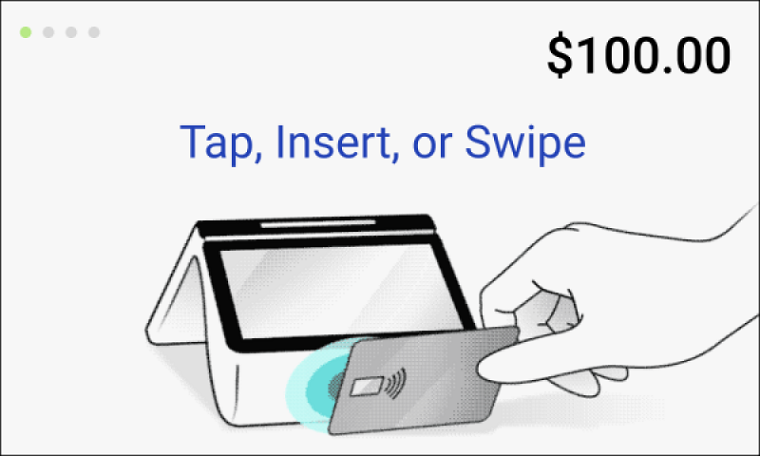
- Insert, tap or swipe your credit card. (Problems reading the credit card? Check out our troubleshooting tips for help.)
Note: Different versions of the Smart Terminal Duo have different NFC "tap" locations and card reader placement. Check the back of your device to see which version you have (V2.0, V3.0, etc.).
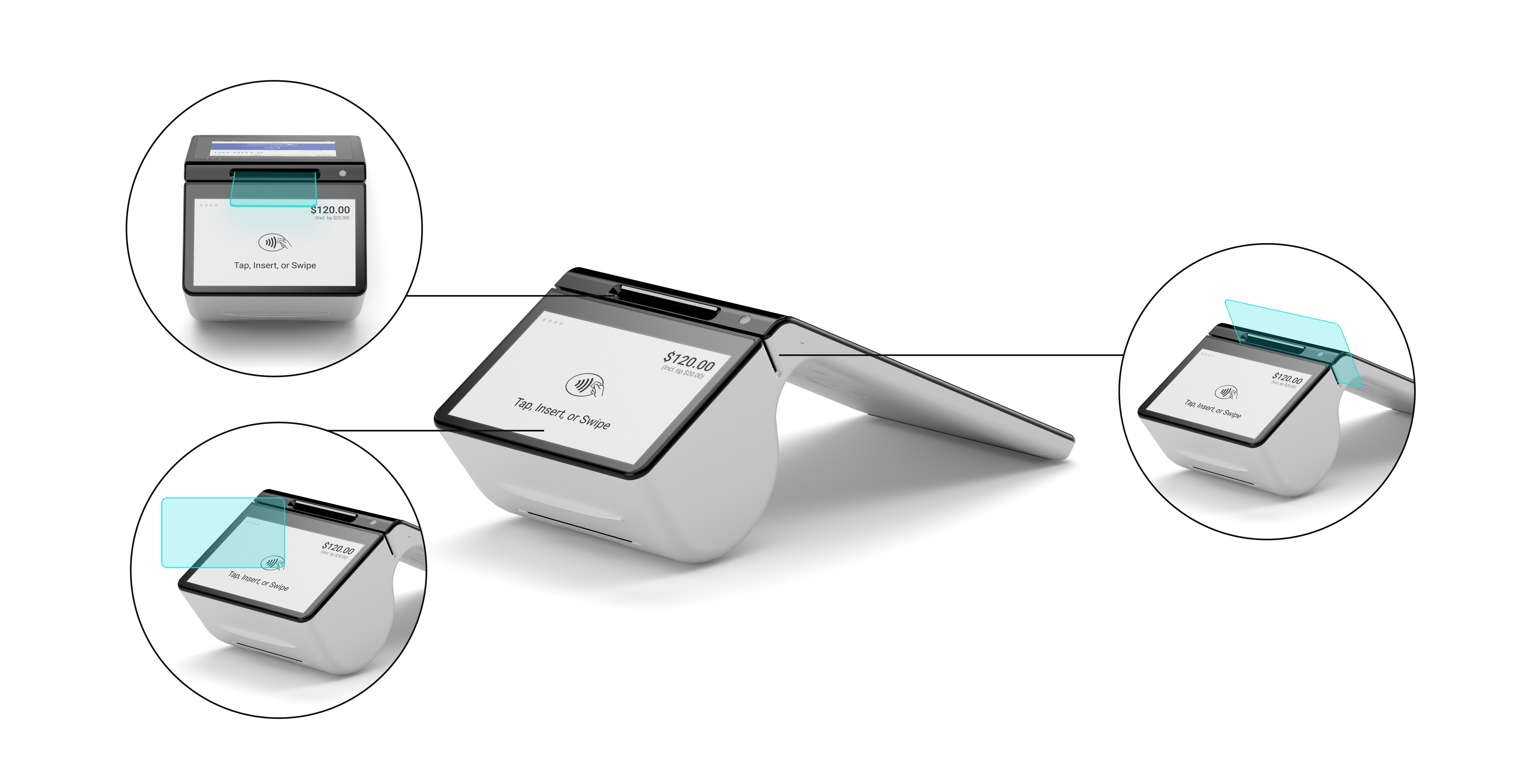
- For chip cards, insert the card into the slot above the payment screen. Make sure the front of the card is facing up, with the chip inserted first. Don't remove the card during the transaction.
- For credit cards without a chip:
- Duo V2.0: Make sure the front of the card is facing up, with the magnetic strip on the right. Insert the card slowly into the slot above the payment screen and then pull it out rapidly.
- Duo V3.0: Swipe the card through the horizontal groove above the customer-facing screen, with the magnetic strip facing the device. Use a smooth motion and uniform speed when swiping.
- For contactless (NFC) payments, tap the card or device on the
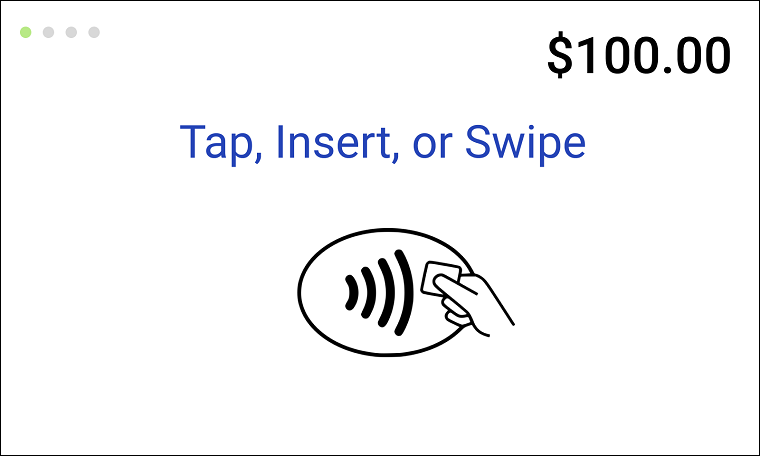
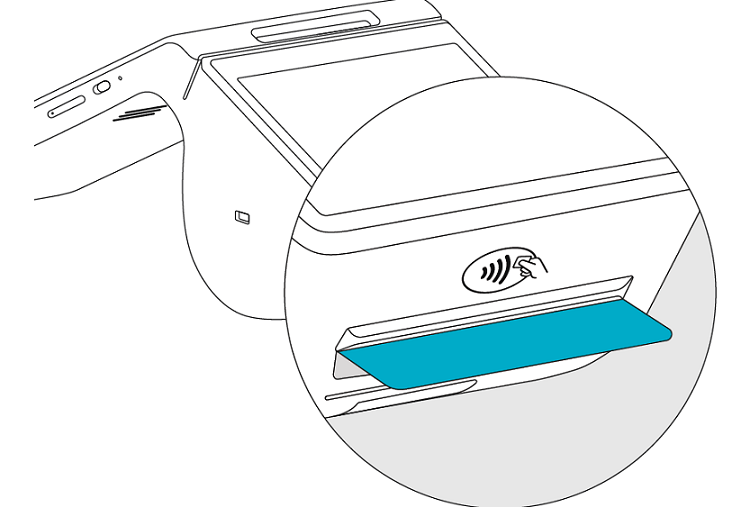
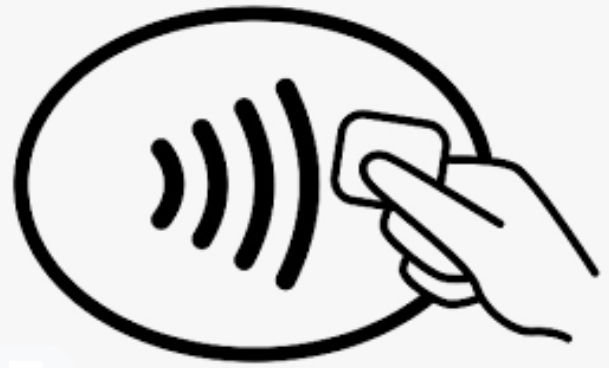 NFC icon. Depending on your model, the icon is either onscreen or on the front of the device. Keep it close to the Smart Terminal during the transaction.
- Duo V2.0 or Duo V3.0 (with NFC icon onscreen): Tap the card or device on the customer-facing screen.
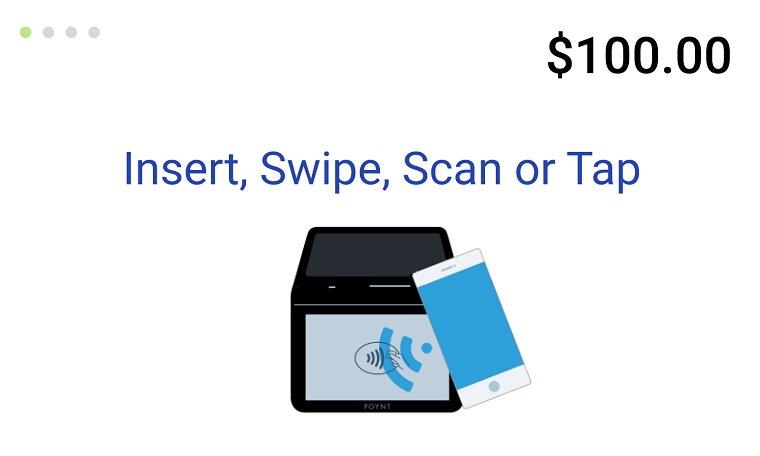
- Duo V3.0 (with NFC icon printed above the receipt slot): Tap the card or device on the
NFC icon below the customer-facing screen.
- Duo V2.0 or Duo V3.0 (with NFC icon onscreen): Tap the card or device on the customer-facing screen.
- On the customer-facing screen, enter your signature when prompted, then tap Done.
- On the customer-facing screen, tap Paper Receipt to print out the receipt. Don’t skip this! You can make sure your printer is working correctly AND look at how your info displays on your receipt.
- Your test transaction is now complete! But now we need to void that charge. Here’s how:
Note: To avoid a potential transaction fee, make sure to void the test charge before Close of Day.
- Return to the Smart Terminal Duo home page and select Transactions.
- You should see the charge you just processed. Tap the transaction, then Void.
- Tap Yes.
- Tap Close. The transaction now shows Voided, meaning the charge will not be applied to your credit card. In the future, you’ll follow this same process whenever you need to void or refund a charge.