Mark a conversation as resolved or unresolved
When customers contact you through any of your Conversations channels, their messages appear in your unified inbox as unresolved threads. Filter by this default status to identify which conversations need your attention. Once you've addressed a customer's query, you can mark the thread as resolved, making it easier to focus on active conversations that still need your response.
If a customer replies to a resolved thread, we'll automatically change the status back to unresolved so you can pick up the conversation where you left off. This helps you stay organized while ensuring no customer messages slip through the cracks.
- Sign in to your GoDaddy mobile app.
- At the bottom of the screen, tap Conversations to see a list of all your unarchived conversations.

See your unresolved conversations
- Tap Status.
- Tap Unresolved, and then tap
 apply to see all unresolved messages.
Mark an unresolved conversation as resolved
If you've addressed a customer's inquiry, consider marking the conversation as resolved. This helps keep your inbox organized, making it easier to identify conversations that need your attention.
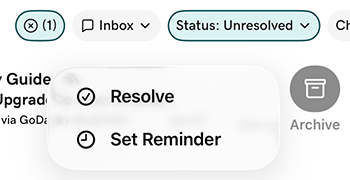
- On the conversation you want to mark as resolved, swipe slightly left, and then tap More.

- Tap Resolve.
Mark a resolved conversation as unresolved from your inbox
Mark a conversation as unresolved if it needs further follow-up. This helps your team identify conversations that still need attention.
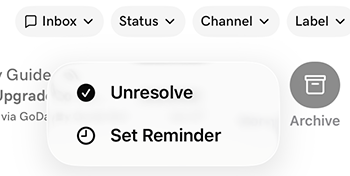
- On the conversation you want to mark as unresolved, swipe slightly left, and then tap More.
- Tap Unresolve.
Mark a resolved conversation as unresolved from within a thread
- Tap the conversation you want to mark as unresolved.
- In the upper-right corner, tap
 unresolve.
- Sign in to your GoDaddy mobile app.
- At the bottom of the screen, tap Conversations to see a list of all your unarchived conversations.
See your unresolved conversations
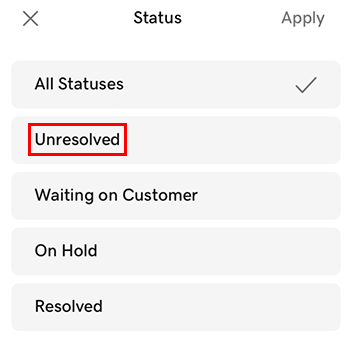
- Tap Status.
- Tap Unresolved to see all unresolved messages.
Mark an unresolved message as resolved
If you've addressed a customer's inquiry, consider marking the conversation as resolved. This helps keep your inbox organized, making it easier to identify conversations that need your attention.
- Tap and hold the message you want to mark as resolved.
- In the upper-right corner, tap
 Resolve.
Mark a resolved conversation as unresolved
Mark a conversation as unresolved if it needs further follow-up. This helps your team identify conversations that still need attention.
- Tap and hold the conversation you want to mark as unresolved.
- In the upper-right corner, tap Unresolve.
- In a web browser, go to your GoDaddy product page.
-
If you have the standalone version of Conversations, expand Conversations Unified Inbox. To the right of your Conversations plan, select Web Inbox.
OR
If you have a Websites + Marketing plan, scroll to Websites + Marketing and select Manage next to your site. In the left menu, expand Conversations.
- Select Inbox. You'll see a list of all your unarchived conversations and can scan for those marked as RESOLVED.

See your unresolved conversations
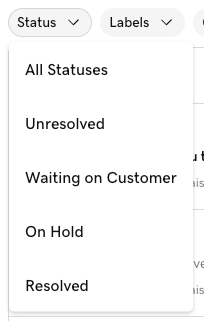
- At the top of your list of conversations, tap Status and then tap Unresolved.
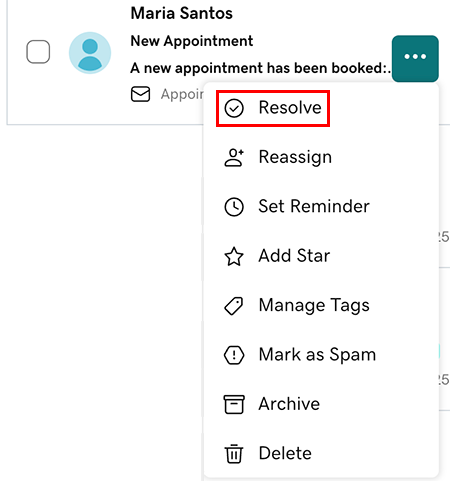
Mark an unresolved conversation as resolved
- Hover your mouse pointer over the conversation you want to mark as resolved.
- Select
 More.
More. - Select Resolve.
Mark a resolved conversation as unresolved from your inbox
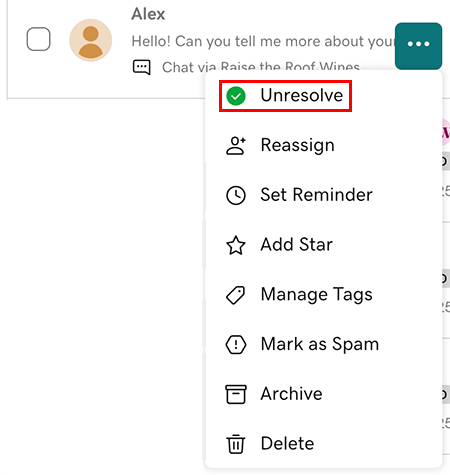
- Hover your mouse pointer over the conversation you want to mark as unresolved.
- To the left of the message, select More.
- Select Unresolved.
Mark a resolved conversation as unresolved from within a conversation thread
- Select the conversation you want to mark as unresolved.
- In the upper-right corner, select
 Unresolve.