Beheer meldingen voor Chat + Conversations
When customers send a message through your Websites + Marketing site's chat widget, you'll also get an email notification. You can turn these notifications off or change the email address they're sent to.
Note: The GoDaddy mobile app is not available with free Conversations plans.
Required: You need a Websites + Marketing plan to use Chat + Conversations. If you're subscribed to Conversations standalone you won't have this feature.
- Meld je aan bij je GoDaddy mobiele app.
- At the bottom of the screen, tap Conversations to see a list of all your unarchived conversations.

- In the top-right corner, tap
 more, and then tap Settings.
 - Next to Email Notifications, to receive chat messages through email, turn the toggle on (shows green). To stop receiving chat messages through email, turn the toggle off (shows white).
- Je ontvangt e -mailmeldingen op het primaire e -mailadres dat is gekoppeld aan je GoDaddy -account. Volg de stappen op het tabblad Web van dit artikel om dit te wijzigen.
- To receive notifications in the GoDaddy mobile app whenever you get new messages, select Manage in Device Settings.
- Sta in-app-meldingen toe voor GoDaddy Conversations.
- Meld je aan bij je GoDaddy mobiele app.
- At the bottom of the screen, tap Conversations to see a list of all your unarchived conversations.
- In the top-right corner, tap
 settings.
 - Next to Email Notifications, to receive chat messages through email, turn the toggle on (shows green). To stop receiving chat messages through email, turn the toggle off (shows white).
- Je ontvangt e -mailmeldingen op het primaire e -mailadres dat is gekoppeld aan je GoDaddy -account. Volg de stappen op het tabblad Web van dit artikel om dit te wijzigen.
- To receive notifications in the GoDaddy mobile app whenever you get new messages, select Manage in Device Settings.
- Sta in-app-meldingen toe voor GoDaddy Conversations.
- Ga naar je GoDaddy -productpagina .
- Scroll naar beneden, vouw Websites + Marketing uit en selecteer Beheren naast je site.
- Vouw in het menu aan de linkerkant Conversations uit en selecteer vervolgens Instellingen .
- Selecteer Meldingen .
- Om chatberichten via e -mail te ontvangen, draai je de knop
 inschakelen (wordt groen weergegeven). Als je geen chatberichten meer wilt ontvangen via e -mail, zet je de schakelaar uit (wordt wit weergegeven).
 - Je ontvangt e -mailmeldingen op het primaire e -mailadres dat is gekoppeld aan je GoDaddy -account. Om het te wijzigen, typ je het nieuwe e -mailadres in het vak.
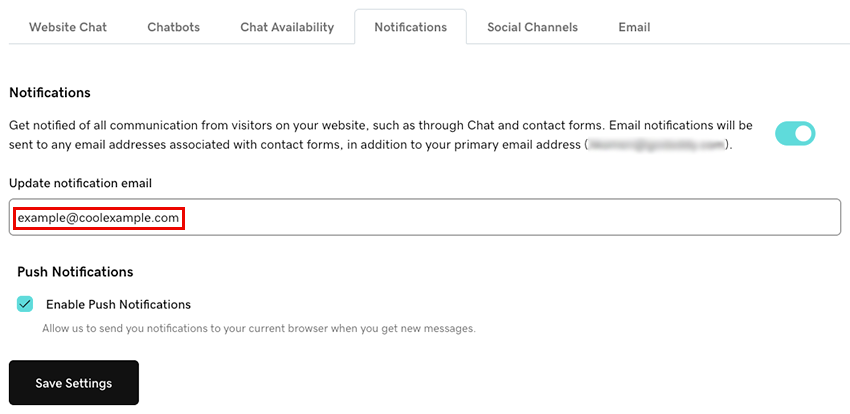
- Om meldingen in je browser te ontvangen wanneer je nieuwe berichten ontvangt via Conversations, selecteer je het selectievakje Push -meldingen inschakelen . Hierdoor worden meldingen naar je huidige browser gestuurd.
- Selecteer Instellingen opslaan om je wijzigingen op te slaan.
Als je problemen ondervindt bij het instellen van je meldingen, probeer dan de stappen in ons artikel over probleemoplossing voor meldingen voor Chat + Conversations .