Sign out of Professional Email powered by Titan
Whether you're using Professional Email powered by Titan webmail, Progressive Web App (PWA) or the mobile app, sign out of your email account when you’re not using it to keep your messages secure, especially when using shared or public devices.
Select the tab that matches the platform you’re using.
The steps to sign out of your email on webmail or the PWA on your desktop computer are the same.
- Faça login no do webmail . Use seu endereço Professional Email powered by Titan e senha (seu nome de usuário e senha da GoDaddy não funcionarão aqui).
- In the upper-right corner, select
 Settings.
 - At the bottom of the menu, select Log out.
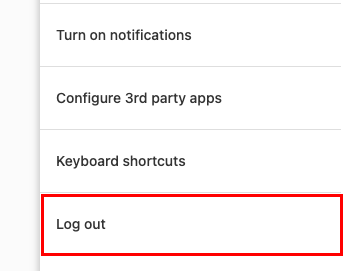
- To confirm that you want to sign out of your email account, select Log out again.
The steps to sign out of your email on the Titan app for Android and iOS are the same.
- Abra o aplicativo Titan.
- In the upper-right corner, select your account icon (typically, it’s an icon with the first letter of your username).
- Select Manage accounts on this device.
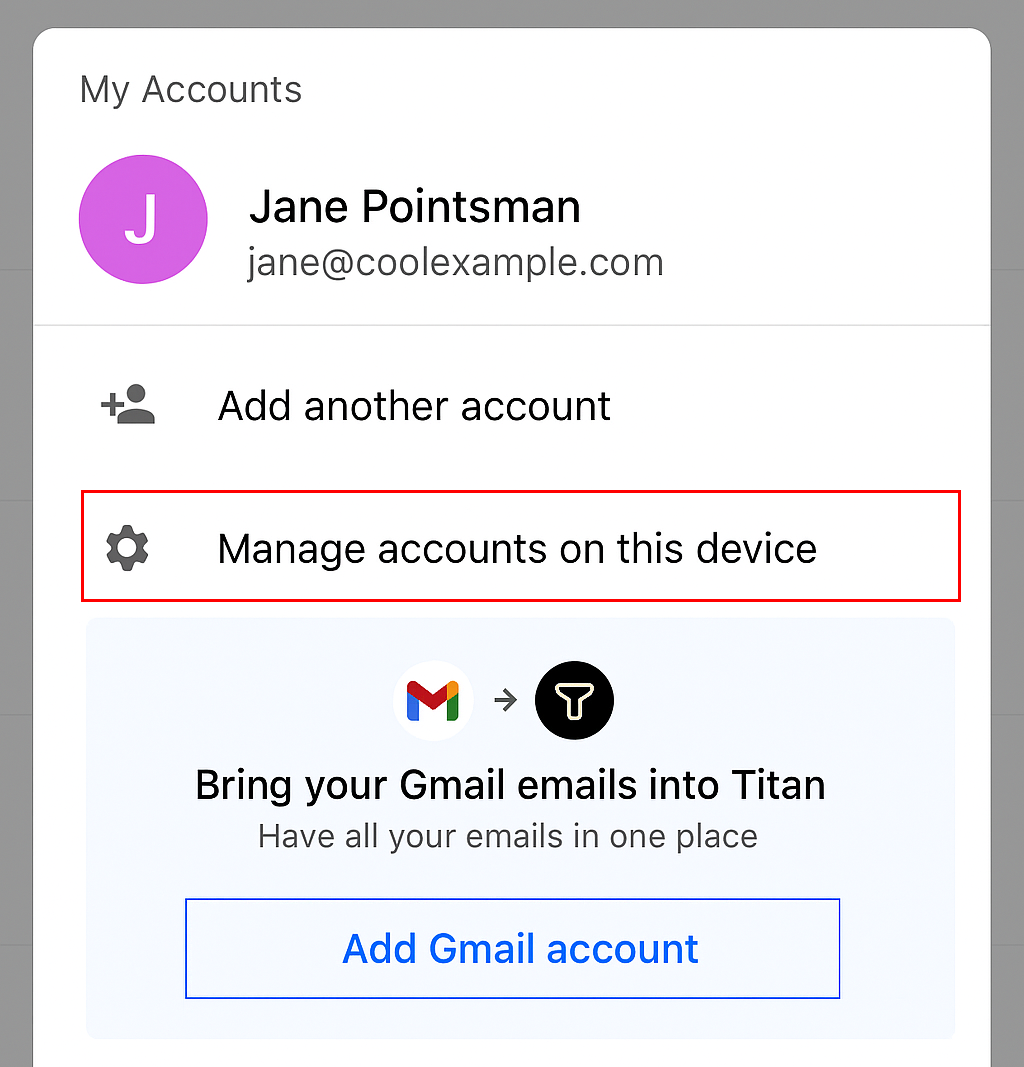
- Next to your email account, select
 Delete.
 - To confirm that you want to sign out of your email account on the app, select Remove.
Once you’re signed out, you’ll be taken to the sign-in page.