
It's not uncommon to register the perfect domain name and then find yourself wondering what to do with it. You might not be ready to declare yourself open for business, but there's still something incredibly useful you can do to get an idea rolling — set up an email address with your domain name.
Say you just registered maddy.pro. You can create an email address to match. And when you start sending messages from an address like me@maddy.pro , a whole range of benefits opens up.
For starters, every message you send nudges your brand a little closer to top of mind. It also signals credibility — people can see you're serious about your idea. And frankly, it's just better for business to ditch free email like Gmail or Yahoo and go with professional email that uses your own domain
That's what we're about to dig into. We'll cover the ins and outs of custom email, why it matters, and how to set one up for yourself.
Message received? Let's get to it.
Already know this is for you? Get your business email address right now!
What is a custom email domain?
A custom email domain is a personalized email address that uses your own domain name instead of a generic provider — for example, hello@yourbusiness.ca instead of yourbusiness@gmail.com — giving your brand a more credible, professional look.
Yes, free email services like Gmail and Yahoo are perfectly fine for personal use. But they lack that layer of professionalism. Ever come across a business using an address like acmeengineering@yahoo.com ?
It kind of does the job… but not really. An address like jane@acmeengineering.ca is a whole lot better, right?
And as you grow — using your domain for things like a website — your matching email address becomes one piece of your emerging brand.
Let's take a closer look.
Why using an email with your custom domain matters
Two words: brand credibility. Online, perception is everything. Setting up a custom domain email is one of the first steps any business should take when building an online presence.
If you already have a website but aren't yet using your domain name for email, now's the time. Using a freebie address like Gmail, Hotmail, or Yahoo can give the impression that you're not quite tech-savvy — or not quite committed. Which looks more polished: you@gmail.com or you@yourbusinessdomain.ca ? Exactly.
Serious businesses use their domain for email to build trust. Free accounts on Hotmail, Yahoo, and Gmail are easy to spin up — and easy to shut down. That's exactly why spammers and shady operators favour "throwaway" accounts for their less-than-honest activities.
Want to learn how to use a custom domain name for email? We'll walk through the setup process, and we'll cover how to put your new address to work.
How to get a custom email address with your domain
For this guide, we'll use GoDaddy as an example. Follow these steps to get a domain and set up email with it:
- Choose and register a domain name
- Select an email hosting provider
- Purchase and configure your email plan
- Create and manage email accounts
- Configure your email client on desktop and mobile devices
Not fully sold yet? Here are a few more reasons a professional email is worth it.
1. Choose and register a domain name
If you've already chosen and registered a domain name, feel free to skip ahead.
Got an idea in mind? It's a good idea to check whether your domain is available before someone else scoops it up. Don't forget to consider a .ca domain — it signals to Canadian customers that you're a local business, which can boost trust and click-through rates. If your first choice isn't available or you're stuck for ideas, try our domain name generator to get things moving.
2. Select an email hosting provider
Professional business email needs hosting to send, receive, and store your messages. Most email hosting plans include limits for each of these, along with features like virus and spam protection and integrations with other apps.
Free services like Gmail and Yahoo cover some of this ground, but they don't scale as smoothly as domain-based email. Domain email lets you easily adjust storage and add multiple accounts under the same domain as your team grows.
When you're comparing email hosting providers, pay close attention to performance metrics like uptime. Weigh costs against the storage and features you're getting, and don't overlook customer support.
If you hit a snag, it helps to have a real person walk you through the fix — like a GoDaddy Guide. GoDaddy covers all of these bases and offers competitive pricing on email and Microsoft 365 plans.
3. Purchase and set up your business email plan
Setting up a Business Email plan from GoDaddy is a straightforward process. Assuming you've already registered a domain, you'll choose an email plan and then connect it to that domain.
A. Log in to your GoDaddy account

Head to GoDaddy.ca and click Sign In in the upper right-hand corner. Once you've signed in (or created a new account), you'll land on your account dashboard.
B. Navigate to Email

If you don't already have an email plan, click the GoDaddy icon in the upper left to return to the homepage. In the header, click Email. If you already have a Microsoft 365 plan, skip to step five.
C. Select a plan
Choose the plan that best fits your business needs. Once you've selected one, you'll be taken to a page to set additional options like term length and number of users.
D. Purchase an email account
Enter your payment details if prompted and complete your order.
E. Access your email product
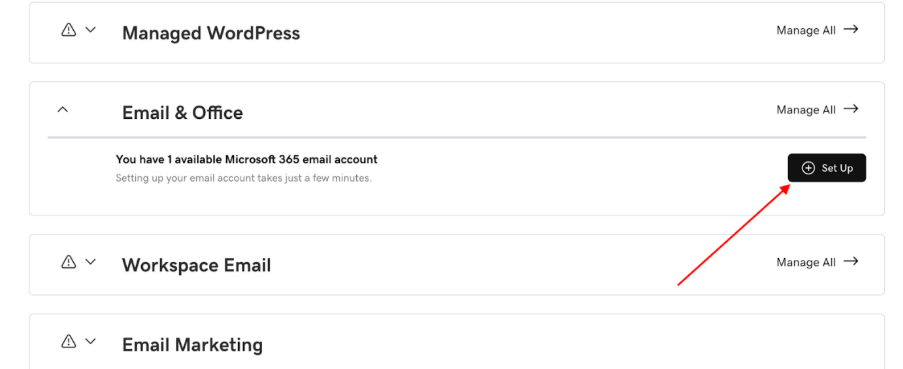
On your account page, find Email and Office under your list of products. Click Set Up All to be taken to your new email product.
F. Enter your domain
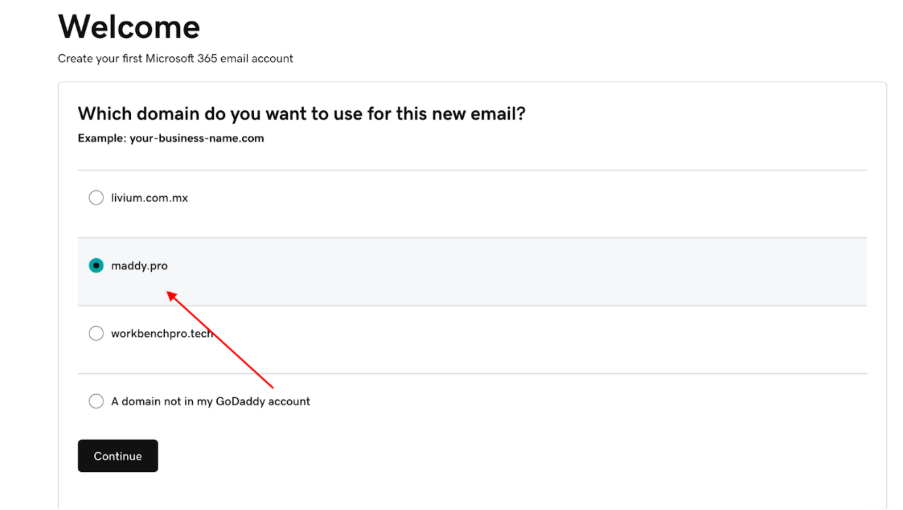
Choose from your list of domains. If you don't own one yet, you'll need to register a domain first.
G. Fill out your email information
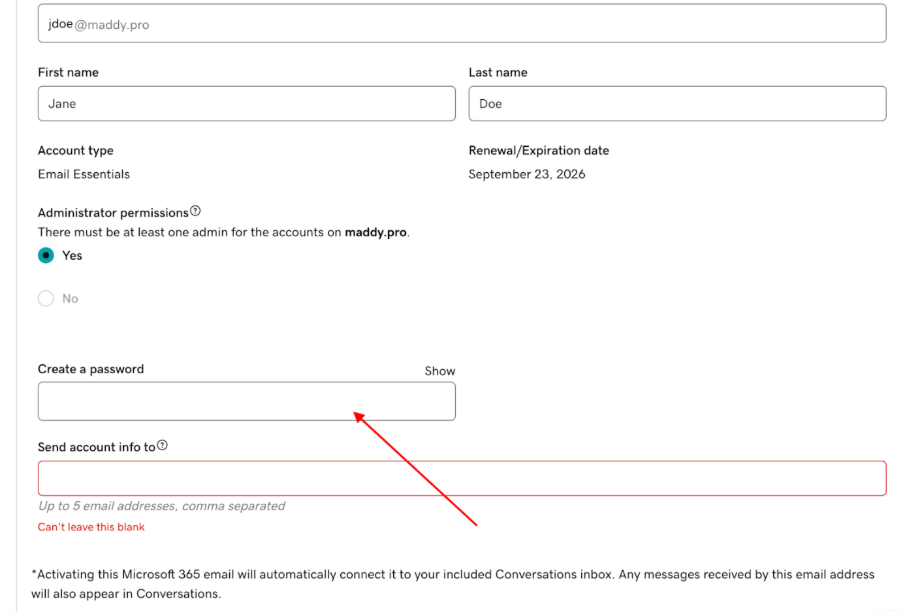
Enter your desired email address, full name, password, and any other required details.
H. Complete setup
Once everything's filled in, click Create. GoDaddy will handle the rest and let you know once setup is complete.
4. Create and manage additional email accounts
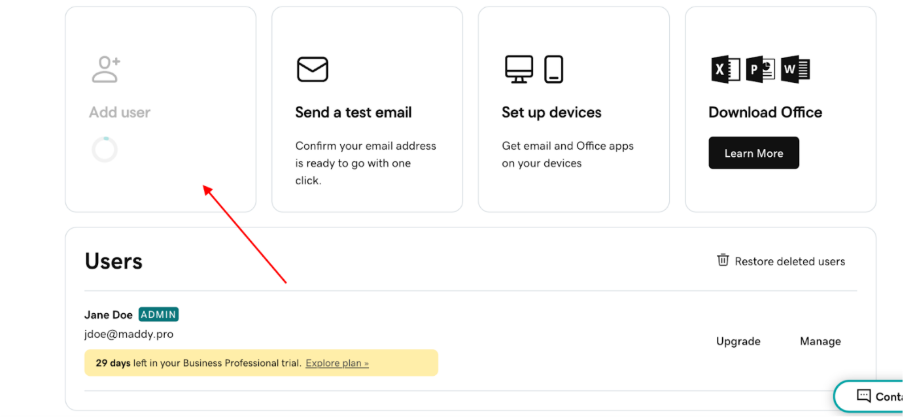
Now that you've set up a business email for yourself, you can repeat the process to add more accounts on the same domain. This is one of the biggest perks of domain-based email, especially if you've got teammates working alongside you.
Choosing your email address format
With your plan and admin address sorted, it's time to decide on a format for any additional email addresses — specifically, the part that comes before the @ symbol. Picking a consistent format from the start makes your business look organized and makes it easier to scale as your team grows.
Here are the most common formats businesses use:
| Format | Example |
|---|---|
| FirstName@ | john@example.ca |
| FirstName.LastName@ | john.doe@example.ca |
| FirstInitialLastName@ | jdoe@example.ca |
| FirstNameLastInitial@ | joed@example.ca |
Beyond personal addresses, it's also worth setting up role-based or departmental email addresses. These give your business a polished, professional feel and make it easier to route enquiries to the right person or team:
| Department | Example |
|---|---|
| General contact | hello@example.ca , contact@example.ca , info@example.ca |
| Customer support | support@example.ca , help@example.ca , returns@example.ca |
| Sales | sales@example.ca , quotes@example.ca |
| Billing | billing@example.ca , invoices@example.ca |
| Marketing/Press | press@example.ca , media@example.ca |
To get started, sign in to your GoDaddy account, click Email and Office, then click Manage All. On the Overview page, click Add User and repeat the setup process.
Flying solo? You can still benefit from having multiple email accounts. With an email alias, you can set up new addresses that route messages straight to your primary inbox — a great way to project a bigger, more established operation.
Using a catch-all email address
Another feature worth exploring is the catch-all email address. A catch-all is a special setting that captures any email sent to your domain — even if the specific address it was sent to doesn't exist.
For example, if someone accidentally types jon@yourdomain.ca instead of john@yourdomain.ca , a catch-all makes sure that email still lands in your inbox instead of bouncing back to the sender.
A few practical uses for a catch-all:
- Catching typos: Never miss an email because someone misspelled your address.
- Creating disposable addresses on the fly: Hand out unique addresses for specific purposes — like summersale2025@yourdomain.ca for a promotional campaign — without needing to create each one in advance.
- Tracking who shares your email: If a certain address suddenly starts attracting spam, you'll know where your details were shared and can block that specific address.
A word of caution: Catch-all addresses can attract more spam, since any random address at your domain will land in your inbox. Pair a catch-all with solid spam filtering to keep things manageable.
Understanding email authentication: SPF, DKIM, and DMARC
With your email set up, there are three technical standards working behind the scenes to keep your messages out of spam folders and stop fraudsters from impersonating your domain. You don't need to be a tech expert — here's a plain-English breakdown.
SPF (Sender Policy Framework)
SPF is a DNS record that tells the world which mail servers are authorized to send emails on behalf of your domain. Think of it as a guest list — any server not on the list gets flagged as suspicious. This helps stop spammers from impersonating your domain.
DKIM (DomainKeys Identified Mail)
DKIM adds a digital signature to every email you send. When the recipient's mail server receives your message, it checks the signature to confirm the email genuinely came from your domain and hasn't been tampered with along the way. It's the email equivalent of a wax seal on a letter.
DMARC (Domain-based Message Authentication, Reporting, and Conformance)
DMARC builds on both SPF and DKIM. It tells receiving mail servers what to do if an email fails those checks — for example, send it to spam or reject it outright. It also generates reports so you can monitor whether anyone is attempting to misuse your domain.
Why do these matter to you?
Getting these three records set up correctly means:
- Your emails are far less likely to land in your recipients' spam folders
- Your domain is protected against phishing attacks that impersonate your business
- Your sender reputation improves over time, which is especially important if you plan to use email marketing
GoDaddy provides step-by-step guidance for configuring SPF, DKIM, and DMARC within your account. If you're ever unsure, a GoDaddy Guide is available 24/7 to walk you through it.
5. Configure your email client on desktop and mobile devices (continued)
Now that everything's ready to go, the last step is making sure you can access your accounts on all your devices. Your computer is ideal for composing longer or more complex messages, but you'll want a way to fire off quick emails when you're on the go too.
GoDaddy provides step-by-step instructions for setting up email on Android and iOS.
I now have an email address with my own domain name. What’s next?

Many small business owners are surprised to learn that, out of all the tools and channels available for marketing, email marketing is still the heavyweight champion.
The bottom line: promotional emails are one of the most cost-effective ways for any business to connect with customers. And to make them work, you need a professional email address behind them.
That's why musicians use email marketing software to share tour dates with fans, non-profits use it to drive donations, and photographers use it to promote their portrait services. It just works — across every industry.
Custom domain email marketing ideas and tips

Email marketing has proven to be one of the most effective ways to nurture leads and encourage repeat business. With your professional email in place, you can start building real, long-lasting relationships with potential customers.
Not sure where to start? Here are a few email marketing tips to get you going:
- Personalize subject lines and content: Clarity always comes first, but subject lines are also a chance to inject some brand personality. For example, you can turn a flat Your subscription is expiring soon into a friendlier Oops — your subscription is expiring soon!
- Use clear and compelling calls to action (CTAs): As you write, keep the action you want your reader to take top of mind. That focus will help you craft stronger CTAs. If you want readers to sign up for a newsletter, make sure your email features a prominent message like Sign Up Now.
- Design visually appealing emails: Your message matters, so don't let it get lost in a wall of text. Most professional email apps include templates that make your messages more visually engaging. Play around with a few to find the best fit for your brand.
- Offer incentives: Provide free ebooks or whitepapers as incentives for joining your mailing list. Make sure the content is genuinely valuable and not overly promotional.
- Offer exclusive discounts: Reward subscribers with "Subscribers Only" discounts and promo codes.
- Share valuable content: Include tips, FAQs, how-to guides, or exclusive content that isn't available publicly on your website.
- Run surveys: Send customer surveys to gather feedback and improve your offerings. Consider adding incentives, like entry into a gift card draw, to boost participation.
- Optimize emails for mobile: With 41% of email opens happening on mobile devices, responsive design isn't optional. A responsive email adapts to any screen size, giving your audience a smooth reading experience no matter what device they're on. That means better engagement — and a better chance your emails actually get read and acted on.
- Monitor and analyze results: Don't just fire and forget. Use an email analytics platform to measure results and sharpen your future campaigns.
FAQs about creating an email address with your domain name
Can I get a free business email address?
Some hosting providers include a free business email account when you register a domain or purchase a hosting plan, but standalone free business email options are limited. For a professional setup with reliable storage, spam protection, and support, a paid plan is typically the better long-term investment.
What's the difference between email hosting, web hosting, and a domain?
Email hosting lets you send, receive, and store email messages. Web hosting stores the files and content that make a website visible online. A domain is an address that can be pointed to both an email account and a website, directing email messages or website visitors to the right location.
How long does it take to set up an email domain?
It depends. With GoDaddy, setup is a nearly automatic process that takes only a few clicks and keystrokes. That said, updating the DNS for a domain can be a longer, more involved process.
How do I create a professional email address when my domain name is taken?
You can't set up email on a domain you don't own — updating the domain settings is a required step. The good news: there are now plenty of new domain extensions available, so you can find a great alternative if your first choice is already taken. A .ca domain, for example, may still be available even when the .com version isn't.
Get started with GoDaddy's Digital Marketing
Now that you know how to set up a custom domain for your email — and the benefits that come with it — take the next step and explore GoDaddy's Digital Marketing tools. Start using them today to grow your reach and boost your business's ROI.