Chat + Conversations için bildirimleri yönetin
When customers send a message through your Websites + Marketing site's chat widget, you'll also get an email notification. You can turn these notifications off or change the email address they're sent to.
Note: The GoDaddy mobile app is not available with free Conversations plans.
Required: You need a Websites + Marketing plan to use Chat + Conversations. If you're subscribed to Conversations standalone you won't have this feature.
- GoDaddy mobil uygulamanıza giriş yapın.
- At the bottom of the screen, tap Conversations to see a list of all your unarchived conversations.

- In the top-right corner, tap
 more, and then tap Settings.
 - Next to Email Notifications, to receive chat messages through email, turn the toggle on (shows green). To stop receiving chat messages through email, turn the toggle off (shows white).
- GoDaddy hesabınızla ilişkilendirilen birincil e-posta adresine e-posta bildirimleri alacaksınız. Değiştirmek için bu makalenin Web sekmesinde belirtilen adımları izleyin.
- To receive notifications in the GoDaddy mobile app whenever you get new messages, select Manage in Device Settings.
- GoDaddy Conversations için uygulama içi bildirimlere izin verin.
- GoDaddy mobil uygulamanıza giriş yapın.
- At the bottom of the screen, tap Conversations to see a list of all your unarchived conversations.
- In the top-right corner, tap
 settings.
 - Next to Email Notifications, to receive chat messages through email, turn the toggle on (shows green). To stop receiving chat messages through email, turn the toggle off (shows white).
- GoDaddy hesabınızla ilişkilendirilen birincil e-posta adresine e-posta bildirimleri alacaksınız. Değiştirmek için bu makalenin Web sekmesinde belirtilen adımları izleyin.
- To receive notifications in the GoDaddy mobile app whenever you get new messages, select Manage in Device Settings.
- GoDaddy Conversations için uygulama içi bildirimlere izin verin.
- GoDaddy ürün sayfanıza gidin.
- Aşağı kaydırın, Websites + Marketing öğesini genişletin ve sitenizin yanındaki Yönet seçeneğini belirleyin.
- Soldaki menüde Conversations öğesini genişletin ve ardından Ayarlar öğesini seçin.
- Bildirimler öğesini seçin.
- E-posta yoluyla sohbet mesajı almak için,
 açın (yeşil gösterir). E-posta yoluyla sohbet mesajı almayı durdurmak için anahtarı kapalı konuma getirin (beyaz gösterir).
 - GoDaddy hesabınızla ilişkilendirilen birincil e-posta adresine e-posta bildirimleri alacaksınız. Değiştirmek için kutuya yeni e-posta adresini yazın.
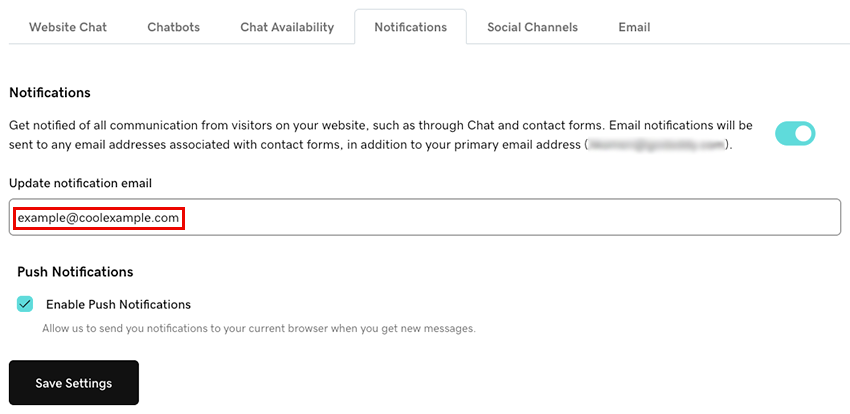
- Conversations aracılığıyla yeni mesajlar aldığınızda tarayıcınızda bildirim almak için, Anında Bildirimleri Etkinleştir onay kutusunu seçin. Bu, mevcut tarayıcınıza bildirimler gönderecektir.
- Değişikliklerinizi kaydetmek için Ayarları Kaydet öğesini seçin.
Bildirimlerinizi ayarlarken sorun yaşıyorsanız, Chat + Conversations bildirimleri sorun giderme ile ilgili makalemizde yer alan adımları deneyin.