Gerenciar notificações para Chat + Conversations
When customers send a message through your Websites + Marketing site's chat widget, you'll also get an email notification. You can turn these notifications off or change the email address they're sent to.
Note: The GoDaddy mobile app is not available with free Conversations plans.
Required: You need a Websites + Marketing plan to use Chat + Conversations. If you're subscribed to Conversations standalone you won't have this feature.
- Faça login no aplicativo móvel da GoDaddy.
- At the bottom of the screen, tap Conversations to see a list of all your unarchived conversations.

- In the top-right corner, tap
 more, and then tap Settings.
 - Next to Email Notifications, to receive chat messages through email, turn the toggle on (shows green). To stop receiving chat messages through email, turn the toggle off (shows white).
- Você receberá notificações por email no endereço de email principal associado à sua conta da GoDaddy. Para alterá-lo, siga as etapas descritas na guia Web deste artigo.
- To receive notifications in the GoDaddy mobile app whenever you get new messages, select Manage in Device Settings.
- Permitir notificações no aplicativo para GoDaddy Conversations.
- Faça login no aplicativo móvel da GoDaddy.
- At the bottom of the screen, tap Conversations to see a list of all your unarchived conversations.
- In the top-right corner, tap
 settings.
 - Next to Email Notifications, to receive chat messages through email, turn the toggle on (shows green). To stop receiving chat messages through email, turn the toggle off (shows white).
- Você receberá notificações por email no endereço de email principal associado à sua conta da GoDaddy. Para alterá-lo, siga as etapas descritas na guia Web deste artigo.
- To receive notifications in the GoDaddy mobile app whenever you get new messages, select Manage in Device Settings.
- Permitir notificações no aplicativo para GoDaddy Conversations.
- Vá para a página do produto da GoDaddy.
- Role para baixo, expanda Websites + Marketing e selecione Gerenciar ao lado do seu site.
- No menu à esquerda, expanda Conversations e selecione Configurações .
- Selecione Notificações .
- Para receber mensagens de bate-papo por email, gire o botão
 ative (fica verde). Para parar de receber mensagens de bate-papo por email, desative o botão (aparece em branco).
 - Você receberá notificações por email no endereço de email principal associado à sua conta da GoDaddy. Para alterá-lo, digite o novo endereço de email na caixa.
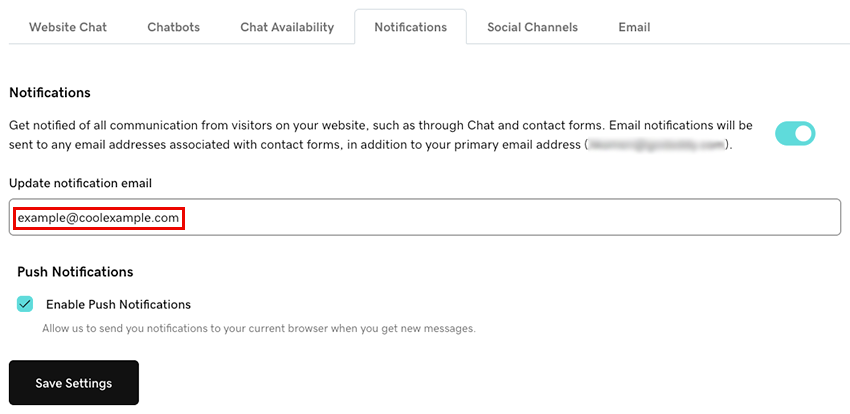
- Para receber notificações em seu navegador sempre que receber novas mensagens pelo Conversations, marque a caixa de seleção Habilitar notificações por push . Isso enviará notificações para seu navegador atual.
- Selecione Salvar configurações para salvar suas alterações.
Se você estiver tendo problemas para configurar suas notificações, tente as etapas em nosso artigo sobre solução de problemas de notificações para Chat + Conversations .