
One minute your website’s fine. The next, it’s displaying a not secure warning. Maybe you discovered it by visiting your own website, or perhaps a concerned customer got in touch and pointed it out.
However you found about it, you’re undoubtedly asking yourself “why is my website displaying a not secure warning?”. The answer is: Any website that is not protected by a SSL certificate will show a not secure warning when viewed in Google Chrome version 68 and later. Chrome 68 was launched by Google on 24.07.18. Online security isn’t something you should take lightly.
What does a not secure website mean?
A website that is not secure means that the connection between the website and your web browser is not encrypted. This means that any information you enter on the website, such as passwords, credit card numbers, or personal information, could potentially be intercepted by a third party.
You can usually tell if a website is secure by looking at the address bar in your web browser. If the website is secure, the address will typically start with "https" right before the domain name rather than "http." The "s" stands for secure.
How to tell if a website is "Not Secure"?
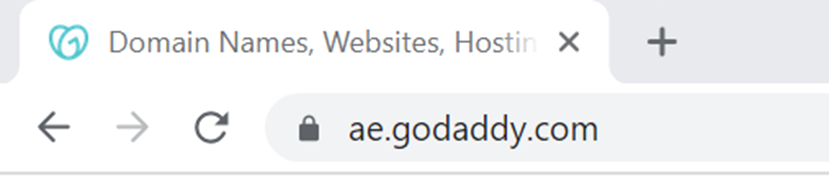
Most web browsers display a padlock icon next to the website address to indicate that the connection is secure.
If you see a not secure message on a website, it is generally a good idea to avoid entering any sensitive information on the website. Instead, you should look for a different, secure website to use.
How to view SSL certificate details in your browser?
Viewing SSL certificate details can help you troubleshoot HTTPS and security issues. Here's how to check certificate information in major browsers:
Google Chrome (Desktop)
- Click the padlock icon in the address bar
- Select "Connection is secure"
- Click "Certificate is valid" to view the full SSL certificate details
Google Chrome (Android)
- Tap the padlock icon next to the address bar
- Tap "Connection is secure"
- View the Certificate Authority (CA) information and security protocol
- Tap "Certificate Information" for complete details
Mozilla Firefox
- Click the padlock icon on the left side of the URL bar
- Click the arrow (>) on the right side of the dropdown menu
- Select "More Information" to view certificate details
Safari
- Double-click the padlock icon in the address bar
- Click "Show Certificate"
- Select "Details" to view certificate information
Microsoft Edge
- Click the padlock icon
- Select "Connection is secure"
- View the certificate issuing authority name
These steps allow you to verify that your SSL certificate is properly installed and that the certificate domain matches your website's domain.
HTTP vs HTTPS – and which one to choose
HTTP means not secure website
HTTP protocol (Hypertext Transfer Protocol) is a protocol for transmitting data over the internet. It is the foundation of data communication on the World Wide Web. When you visit a website using HTTP, the connection between your web browser and the website's server is not encrypted, which means that any information you enter on the website, such as passwords or credit card numbers, could potentially be intercepted by a third party.
HTTPS means secured website
On the other hand, HTTPS (Hypertext Transfer Protocol Secure) is a secure version of HTTP. It uses an encryption protocol called SSL (Secure Sockets Layer) or TLS (Transport Layer Security) to secure the connection between the web browser and the website's server. This means that any information you enter on a website using an HTTPS version is encrypted and cannot be easily intercepted by a third party.
In general, it is a good idea to use HTTPS whenever you are entering sensitive information on a website, such as passwords or credit card numbers. Most modern websites use HTTPS to secure their connections, but it is always a good idea to double-check before entering sensitive information.
How does HTTPS encryption work?
HTTPS uses an asymmetric public key infrastructure with two different keys to encrypt communications:
1. The Private Key
- Controlled by the website owner and kept private
- Lives on the web server
- Used to decrypt information that was encrypted by the public key
- Never shared with anyone
2. The Public Key
- Available to everyone who wants to interact with the server securely
- Used to encrypt information before sending it to the server
- Information encrypted by the public key can only be decrypted by the corresponding private key.
This two-key system ensures that even if someone intercepts the encrypted data, they cannot read it without access to the private key stored securely on the web server.
How to remove the "not secure" warning you’re your website?
The most common reason for a "Not Secure" warning is that the SSL certificate is not installed correctly. An SSL certificate means that any data that passes between your website and people visiting it is encrypted, so it can’t be accessed by a third party.
It increases your site’s security and helps you go from http sites (insecure sites) to https sites (secure sites).
This security certificate boosts customers’ and site visitors confidence in your site as they can be assured that their personal data isn’t being mistreated.
That’s probably all you really need to know about SSL certificates at this stage, but if you want to know more you can read this guide. If you own a WordPress website, you can also get a WordPress Security plugin as an extra layer of security.
How to install an SSL certificate?
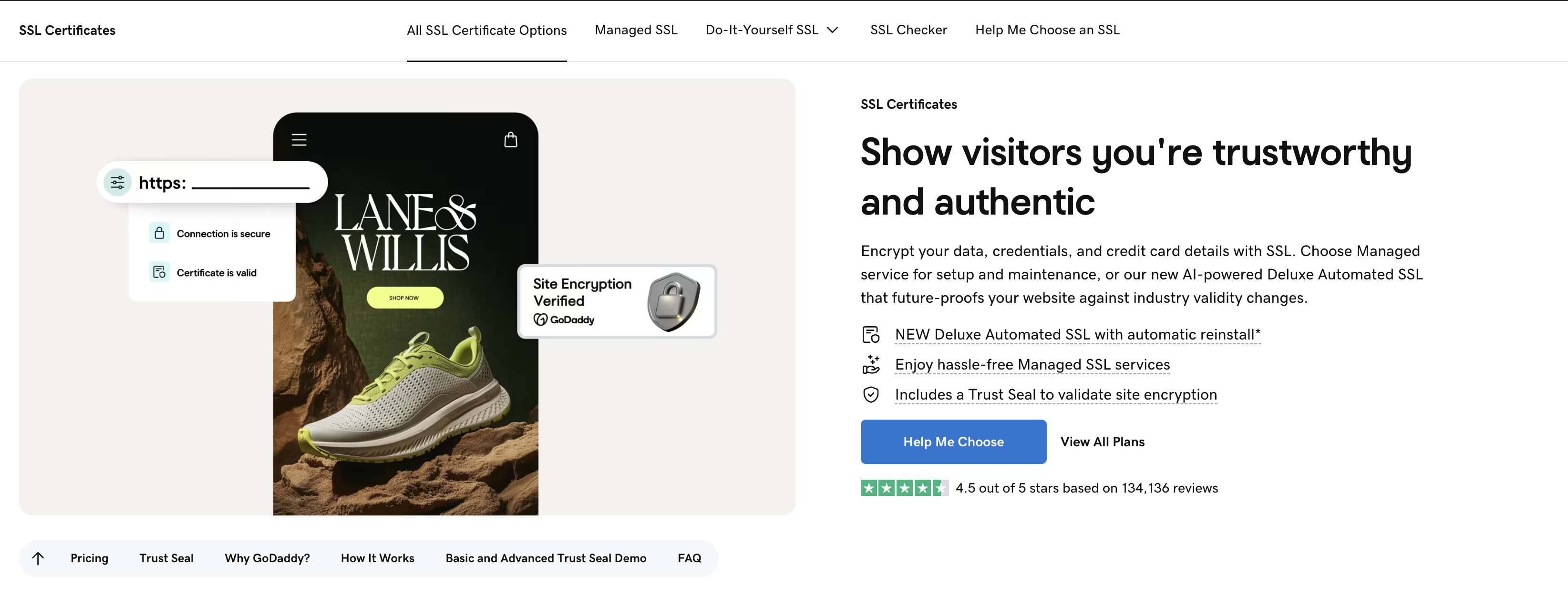
To fix the Google Chrome not secure warning you need to purchase and properly install a secure sockets layer (SSL certificate) to move to secure site status and go from http to https. You’ll need to buy an SSL certificate. GoDaddy offers a range of SSL options, so you’ll be able to find one that’s right for you. If you’re looking to protect a GoDaddy Website Builder or Online Store website, your SSL will be installed automatically. The same is true if you site is hosted on GoDaddy web hosting.
Learn all about the importance of SSLs in our online security guide.
Once your SSL certificate is installed, the Not Secure warning will disappear. You’ll also notice that the prefix of your web address changes from HTTP to HTTPS (the “s” stands for secure), and there’s a little padlock in the address bar indicating that you have a secure website. When the SSL installation is incomplete or incorrect, browsers can’t verify the secure connection and will display the warning.
How to verify your SSL installation?
You can confirm whether your SSL is properly installed by clicking View Certificate when the error message appears. Check the following:
- Domain name match: Verify that the SSL certificate domain name matches the domain in the URL you’re visiting. A mismatch between these will trigger the Not Secure warning.
- Certificate validity: Ensure the certificate hasn’t expired.
- Certificate chain: Confirm all intermediate certificates are properly installed.
Once your SSL certificate is successfully installed and configured correctly, your site should redirect from HTTP to HTTPS, establishing a secure, encrypted connection.
If you continue to see the warning after installation, the issue is likely one of the verification points above rather than needing to purchase a new certificate.
Make sure outgoing links are pointing to HTTPS
There are a few reasons why you might want to make sure that your outgoing links are pointing to HTTPS:
- Security: If you are linking to a website that uses HTTPS, it is generally a good idea to use HTTPS for the link as well. This helps ensure that the connection between your website and the linked website is secure.
- Better user experience: If you are linking to a website that uses HTTPS and you use HTTP for the link, the user's web browser may display a warning that the connection is not secure. This can create a poor user experience and may discourage users from following the link.
To make sure that your outgoing links are pointing to HTTPS, you can simply update the link in your website's HTML code to use HTTPS instead of HTTP. For example, if the link currently looks like this:
<a href="http://www.example.com">Example website</a>
You can update it to look like this:
<a href="https://www.example.com">Example website</a>
It is also a good idea to double-check that the website you are linking to actually supports HTTPS. Some websites may not have an SSL certificate installed, which is required for HTTPS, and will not work if you try to use HTTPS for the link. In this case, you may need to use HTTP for the link instead.
Add redirects to non HTTPS URLs
There are a few different ways you can add redirects to non-HTTPS URLs:
- Using a redirect plugin: If you are using a content management system like WordPress, you can use a redirect plugin to automatically redirect non-HTTPS URLs to HTTPS. This is a simple and easy way to implement redirects on your website.
- Modifying your .htaccess file: If your website is hosted on an Apache web server, you can add redirects to non-HTTPS URLs by modifying your .htaccess file. This requires some knowledge of server-side programming, but can be a useful option if you don't want to use a plugin.
- Using a server-side language: If your website is built using a server-side language like PHP or Ruby, you can use the language's built-in functions to redirect non-HTTPS URLs to HTTPS. This requires some programming knowledge, but can be a powerful and flexible option.
In general, it is a good idea to redirect non-HTTPS URLs to HTTPS to ensure that your website's connections are secure and to provide a better user experience for your visitors.
Update your XML sitemaps
Updating your XML sitemaps from a security perspective involves making sure that all the URLs in your sitemaps are using HTTPS rather than HTTP. This helps ensure that the connections between your website and its pages are secure.
There are a few reasons why you might want to update your XML sitemaps in this way:
- Security: As mentioned earlier, using HTTPS helps secure the connection between your website and its pages, which can help protect sensitive information like passwords and credit card numbers from being intercepted by third parties.
- Better user experience: If you are using HTTP for your sitemap URLs and a user's web browser displays a warning that the connection is not secure, it can create a poor user experience and may discourage users from visiting your website.
To update your XML sitemaps to use HTTPS, you will need to edit the sitemap file and replace all instances of "http://" with "https://". It is a good idea to double-check that all the URLs in your sitemap are actually accessible using HTTPS before updating the sitemap file.
Once you have updated your XML sitemap to use HTTPS, you should submit the updated sitemap to search engines like Google to ensure that they are aware of the changes. This is an important ranking factor because it will help them index your website correctly and improve your search engine rankings (SEO).
Submit your website in Google Search Console
To submit your website to Google Search Console, follow these steps:
- Go to https://search.google.com/search-console/ and sign in with your Google account.
- Click the "Add a Property" button.
- Enter the URL of your website and click "Continue."
- Choose the "Domain" option and click "Continue."
- Select the "HTML tag" option and copy the provided code.
- Open your website's HTML code and paste the code into the head section of your homepage.
- Save your changes and go back to the Google Search Console.
- Click "Verify" to complete the verification process.
It may take a few minutes for Google to verify your website. Once the verification is complete, you can use the Google Search Console to monitor your website's performance in search results, submit sitemaps, and identify any potential issues with your website.
Why is it important to secure your website?

Avoid the Not Secure warning and get a secure connection In practice, this means that if someone is inputting sensitive data such as payment information (credit card) or even just their name and address into an unprotected web page, then there’s a possibility this data could be accessed by someone else and misused. That’s why Google’s web browser has introduced the not secure warning – so people visiting a website know whether it’s safe to enter personal details. This also applies in other web browsers like Firefox, safari, duck duck go, internet explorer, and the rest. Your online security is not there to only protect you as a website owner against hackers. But also, to protect your customers/conversions from losing their sensitive data.
Note: ecommerce websites cannot accept payments online without an https connection which you can only acquire through an SSL certificate.
1. Protect your website visitors
Businesses have a duty to inform their clients if they experience a cyber breach that involves the exposure of personal information. If you’ve ever been a customer whose data has been exposed after trusting a company to handle it properly because of any kind of website security threat, you realize how this can jeopardize business relationships.
2. Protect your online assets
If you build a website or set up a computer and don’t take proactive steps to protect yourself, you might have wide-open and known vulnerabilities hackers can quickly exploit to gain access to your data.
Start by installing basic anti-virus and malware detection software from any major provider.
Spyware might come from clicking on a bad link in an email, the wrong file permissions on your website server, or an outdated app or program. Because there are so many potential sources of spyware, it is important to understand how to prevent it in addition to choosing a good spyware detector and spyware removal tool.
3. Gives you a competitive advantage
Improving the online security of your website can give you a competitive advantage in a few different ways:
- Improved search rankings: Google and other search engines may give a ranking boost to websites that are secure and provide a good user experience. By implementing HTTPS and other security measures, you may be able to improve your search rankings and attract more visitors to your website.
- Reduced risk of cyber-attacks: By improving your online security, you can reduce the risk of cyber-attacks and protect your website and business from potential damage. This can help you avoid costly downtime and reputation damage, which can be especially important for small businesses.
Overall, investing in online security can help give you a competitive advantage by increasing trust, improving search rankings, and reducing the risk of cyber-attacks.
4. Protect your reputation
Increased trust: By taking steps to secure your website and protect your users' information, you can build trust with your customers and visitors. This can lead to increased conversions and sales, as users are more likely to do business with a website they trust.
5. Prevent loss in sales & revenue
As we have mentioned earlier, you will get to rank better in search engines when you are secure, customers trust you, you are allowed to do business online. All of those factors help you prevent losses in sales.
If you don’t want Google’s not secure warning to appear on your website, then you need to install an SSL certificate as soon as you can. Doing so will also ensure visitors have a safe and secure experience on your website.
Frequently Asked Questions (FAQ) about the "Not Secure" website warning
Here’s a few answers to your Frequently Asked Questions:
1. How do I fix non secure HTTPS in Chrome?
To fix the Google Chrome not secure warning you need to purchase and properly install a secure sockets layer (SSL certificate).
2. How do I turn off not secure on Safari?
As a website owner, you can turn off the "not secure" warning in Safari by implementing HTTPS on your website. This involves installing an SSL (Secure Sockets Layer) certificate on your website's server and configuring your website to use HTTPS.
To implement HTTPS on your website, you will need to follow these steps:
- Purchase an SSL certificate from a trusted certificate authority.
- Install the SSL certificate on your website's server.
- Update your website's code to use HTTPS for all URLs and resources.
- Test your website to make sure that everything is working properly with HTTPS.
- Update any external links or references to your website to use HTTPS.
Once you have implemented HTTPS on your website, the "not secure" warning should no longer appear in Safari or any other web browser. It is important to keep your SSL certificate up to date and renew it before it expires to ensure that your website remains secure.
3. What are the risks of submitting personal information on a non-HTTPS site?
Hackers may be able to silently intercept any information sent to and from a non-HTTPS site. This includes logins, passwords, banking details and other personal data.
Armed with this information, the hacker can attempt to break into your accounts or impersonate you in order to commit fraud.
Editor's Note: This article was first published on 26 December 2022 and updated on 20 April 2026.