Turn on auto-renew
Follow these steps to turn on auto-renew for your products. Your products will automatically renew on their expiration dates.
Note: For products set to auto-renew: If the selected payment method can't be charged at billing time, we may try another payment method that has been successfully used before.
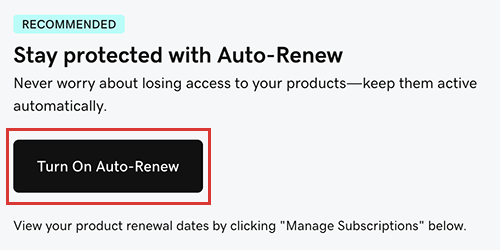
- Go to your Renewals and Billing page and select Manage Subscriptions.Note: If you see this banner on your Renewals and Billing page, if you want to turn on auto-renew for all the products in your account, select Turn on Auto-Renew. Otherwise continue with the next step.
- Select the product and then select the Auto-Renew toggle.
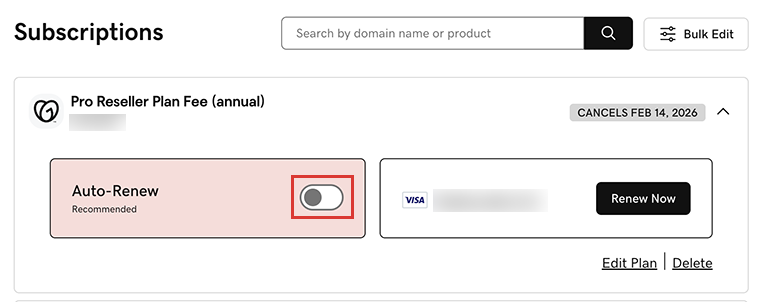
The Subscriptions list now shows the date that your product will auto-renew.Note: If auto-renew is already turned on for your product, you will not see the Auto-Renew box or toggle.
Change renewal length and see new price
Follow these steps to see the price for your product before turning on auto-renew.
- Go to your Renewals and Billing page and select Manage Subscriptions.
- Select the product and then select Edit Plan. We'll show you your current plan and its price, as well as other available plans.
Related steps
- Many products auto-renew by default, but you can turn off auto-renew by cancelling your product subscription.
More info
- Delete payment methods you aren't using for your products.