Adjust tip settings for GoDaddy Payments
Your customers can add a tip to their order during in-person transactions. During checkout, customers will have the option to select a customized tipping option or enter their own tip amount. Custom tip settings apply to transactions in the GoDaddy Commerce app and GoDaddy Smart Terminals.
If this is your first time enabling tips, you'll be guided through a series of questions to optimize the settings for your business. Afterwards, you can view and customize your settings whenever you'd like.
Note: Some types of businesses aren't eligible to receive tips. If the option to tip doesn't appear during in-person transactions, tips may have been disabled for the type of business you operate. To find out if you can re-enable tips for your business, please contact us for assistance.
- Sign in to the Dashboard where you manage your GoDaddy Payments account (use your GoDaddy username and password).
- From the left-nav, select Settings, and then Payments (if prompted).
- From the top-nav, select Tips.
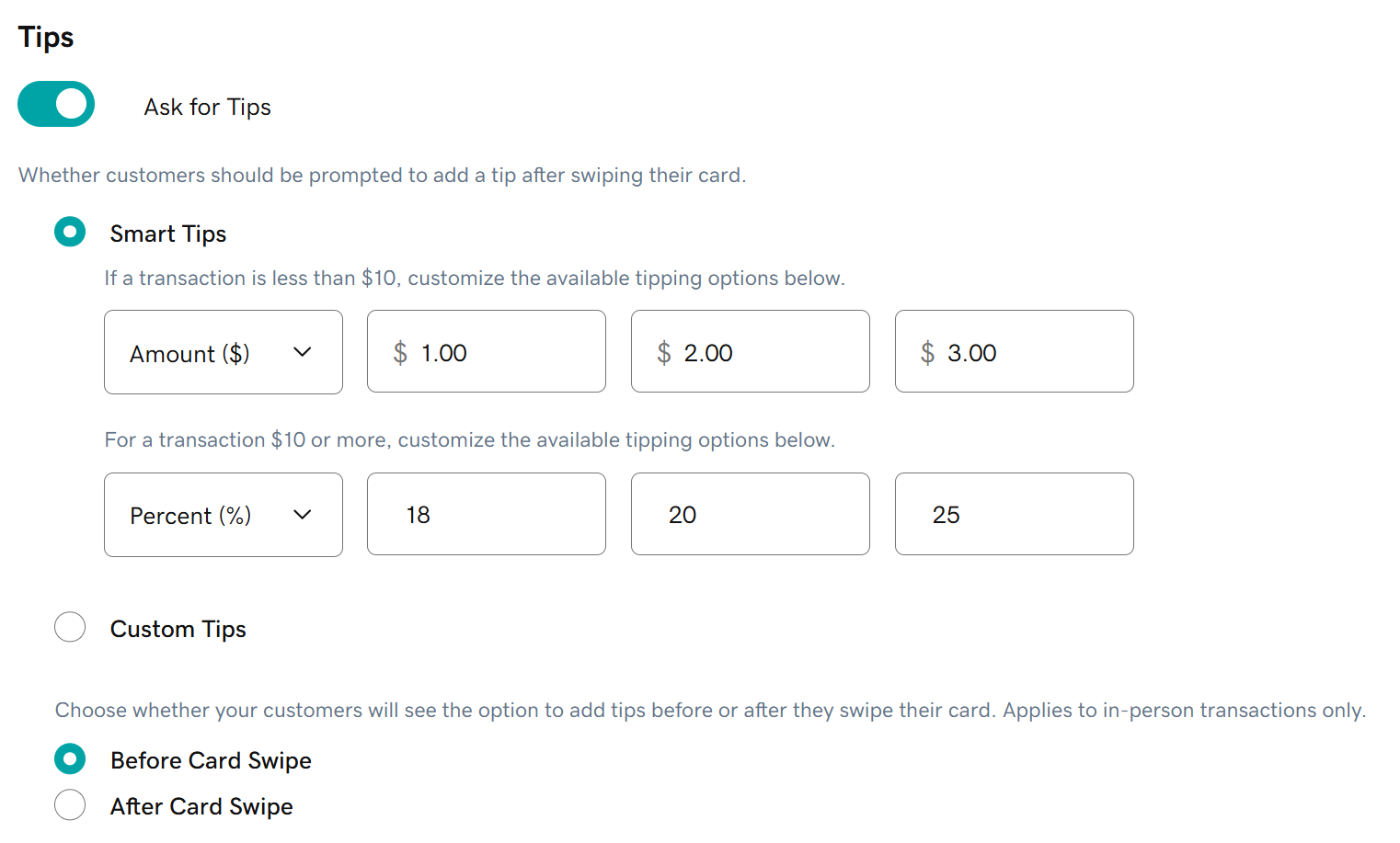
- Turn on the Ask for Tips toggle.
- Enable Smart Tips or Custom Tips and then enter a tip value in each field. Tips can be entered as a set Amount ($) or a Percent (%) of the final transaction total.
- Use Smart Tips to set 3 tip options for orders above $10.00 and orders below $10.00.
- Use Custom Tips to set 3 tip options that always appear, regardless of the order amount.
- Choose whether the tip option appears Before Card Swipe or After Card Swipe for in-person transactions.
- Select Save.
More info
- Learn how to add a tip to a transaction when a customer writes the tip amount on a printed receipt.
- Manage additional GoDaddy Payments settings, like your contact info and receipt customizations.