Change a Microsoft 365 password
Change your Microsoft 365 password anytime through the Email & Office Dashboard whether you're updating your own password or, as the account owner, resetting one for a user who's forgotten theirs.
Use these steps to change a password. If you're the account owner, you can use the same steps to update your own password.
- Sign in to your Email & Office Dashboard (use your email address and password).
- Under Manage, select Password.
- Enter a new password, and then, under Confirm password, enter it again.
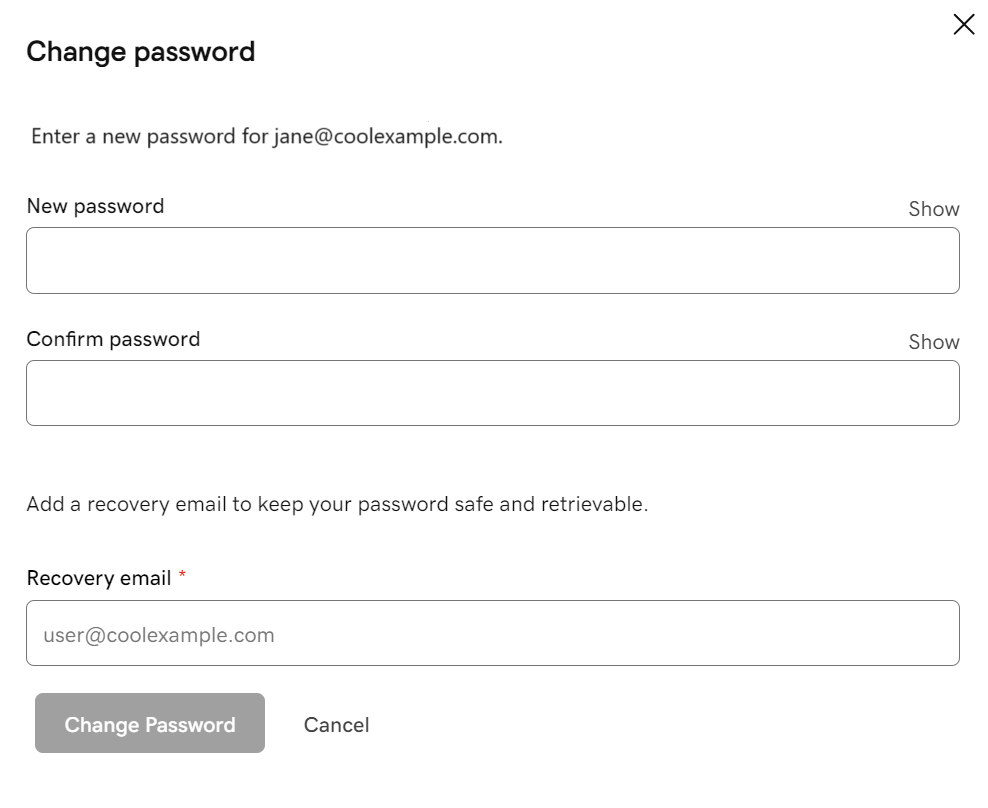
- Under Recovery email, enter or update the email address that can be used for resetting this user’s password.
- Select Change Password. It could take up to 30 minutes to update the password.
Account owners: To manage passwords for all of your users at once, scroll down to the bottom of the page, and then select Go to main account holder sign in. Next to a user, select Manage to update their password.
