Disconnect from QuickBooks Online in Accounting Sync and connect to QuickBooks Online or QuickBooks Desktop by LINK
Note: This article is only applicable to current users of our GoDaddy Poynt Accounting Sync feature.
Accounting Sync will be deprecated on January 30, 2026, as we have introduced a new app on our App Center with faster performance, enhanced features, and a modern look. Your transactions will no longer be synced to QuickBooks in Accounting Sync after the date.
Required: Before you download the new app, follow the steps to disconnect the current sync with QuickBooks Online, to ensure your transactions continue to be synced to QuickBooks via the new app If you don’t disconnect in Accounting Sync first, it will disrupt your sync with QuickBooks.
1. Disconnect from QuickBooks Online in Accounting Sync
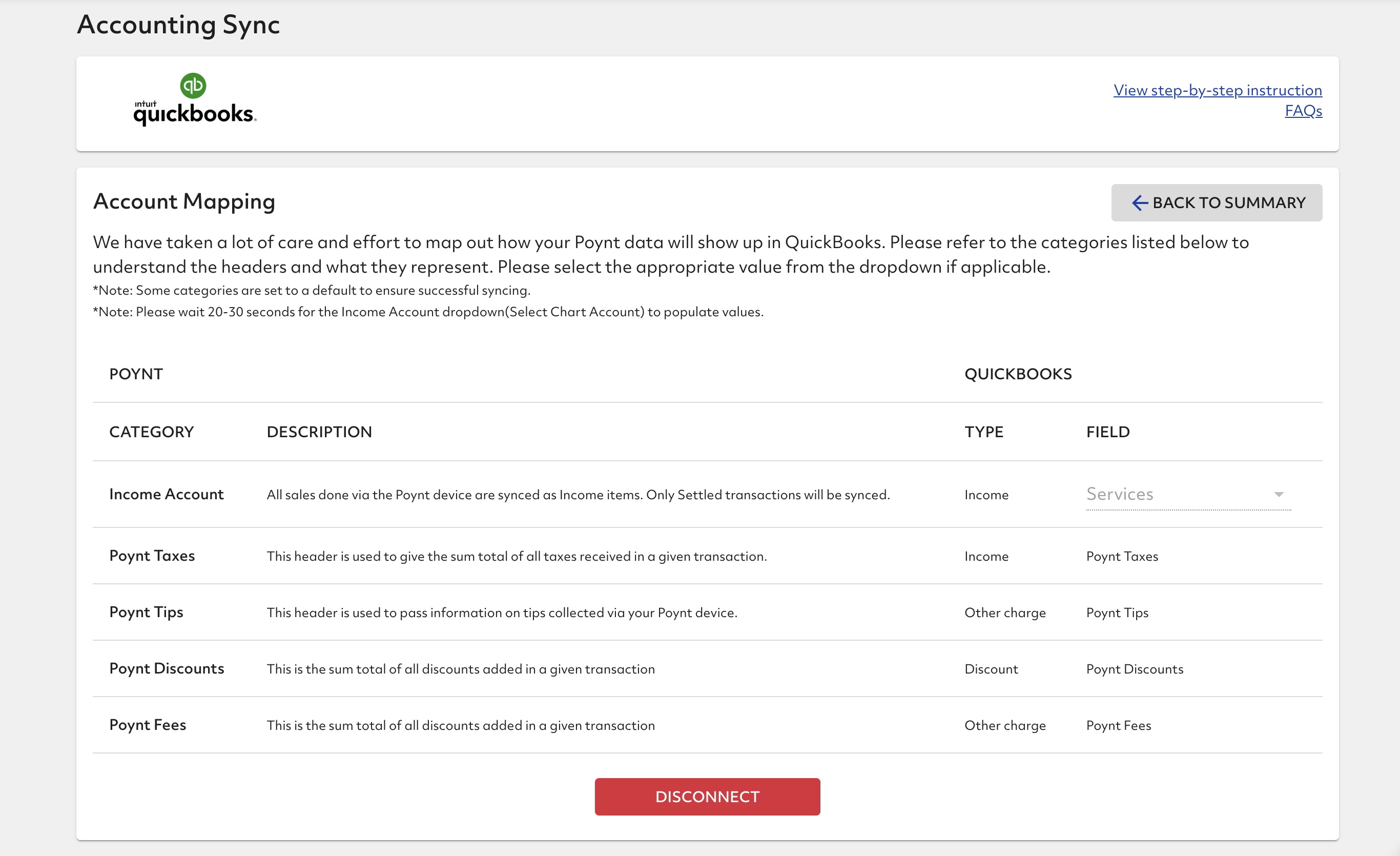
- In your current Accounting Sync screen, select Edit Settings.

- Scroll down and select Disconnect.
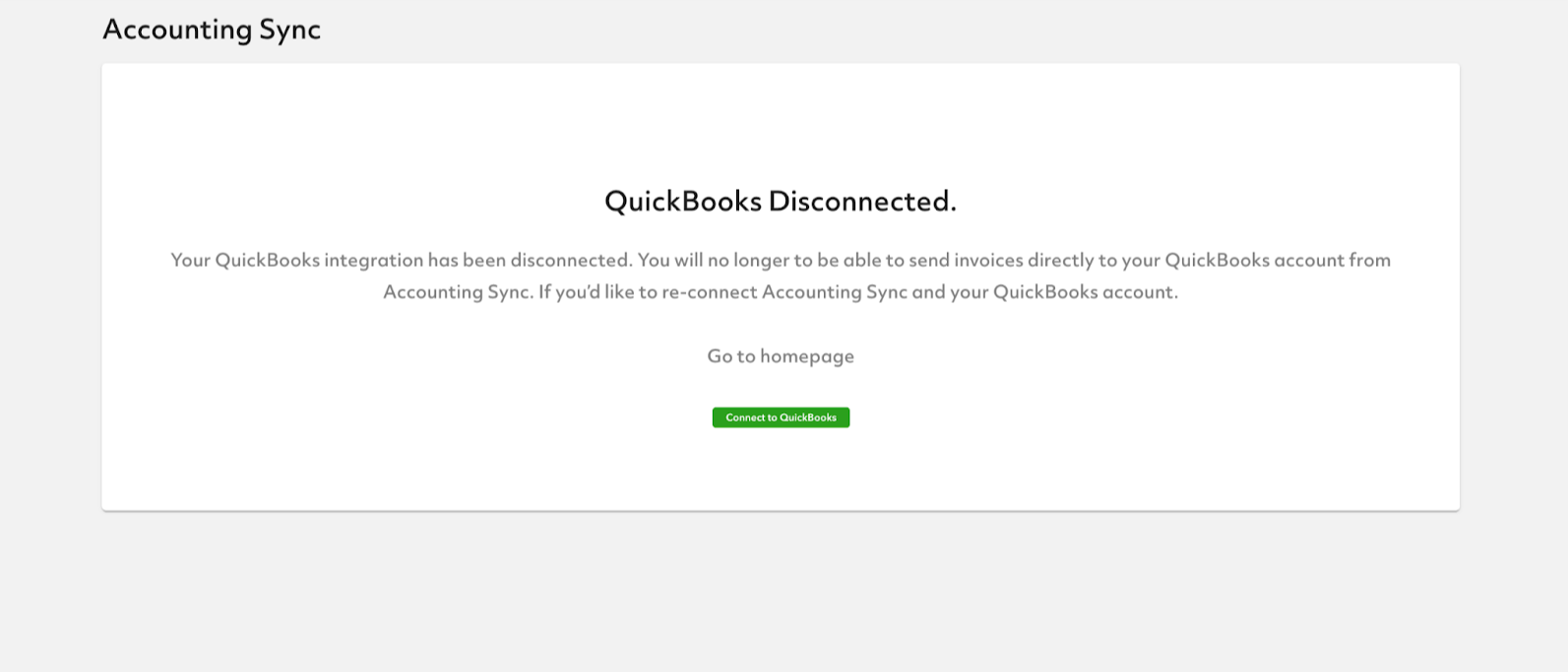
- You’ll see the confirmation after you get disconnected from QuickBooks Online in Accounting Sync.
2. Connect to QuickBooks Online or QuickBooks Desktop by LINK
Pick the appropriate app based on your QuickBooks subscription.
- Sign in to the Dashboard where you manage your GoDaddy Payments account (use your GoDaddy username and password).
- From the left-nav, select App Center.
- In the Online Apps section, select QuickBooks Online by LINK or QuickBooks Desktop by LINK.
- If you don’t see the app, select See More or look for the app using the Search option in the App Center.
- Scroll down and select QuickBooks Online by LINK or QuickBooks Desktop by LINK.
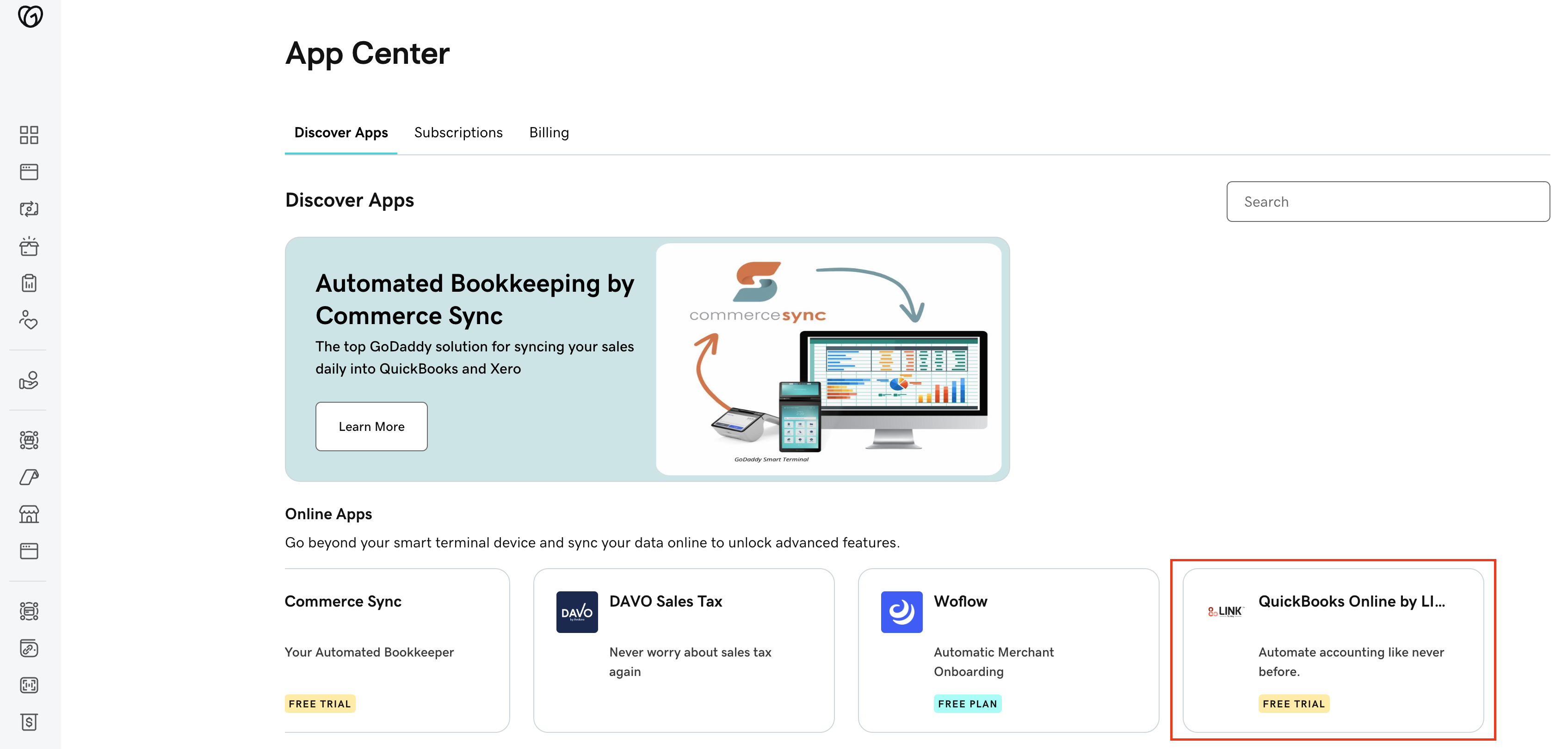 Note: If you can’t find QuickBooks Online by LINK or QuickBooks Desktop by LINK in the App Center, make sure you are on the new Commerce Home App Center. If you can’t find it there, contact GoDaddy Guides for help.
 - Under Choose Plan, select the Basic plan and then select Subscribe.
- Follow the instructions to set up the new sync.