Remove a GoDaddy Smart Terminal accessory
The GoDaddy Smart Terminal Duo and GoDaddy Smart Terminal Flex are equipped with a built-in printer, and you can connect external accessories, like printers or cash drawers, to all GoDaddy Smart Terminals. To stop using a connected accessory, you can temporarily disable it or remove it completely.
Disable the internal printer or a connected accessory to temporarily stop using it. Re-enable the accessory to resume use without going through the full connection process again.
Disabling the internal printer also turns off all reminders and notifications about the printer.
- Tap Accessories on the first page of the Smart Terminal home menu.
- Locate the accessory you want to disable and switch the toggle to Off.
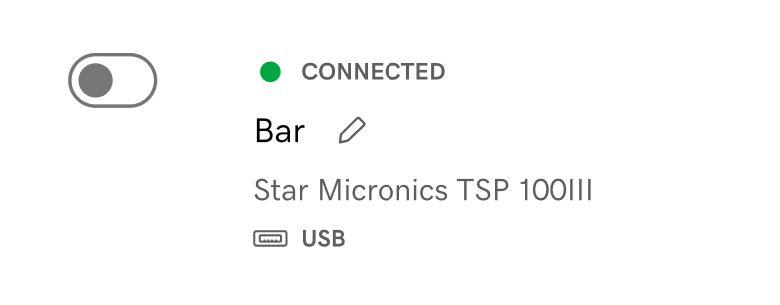
- To re-enable a disabled accessory, switch the toggle to On.
Remove a connected accessory to completely disconnect it from the Smart Terminal. If you want to use the accessory in the future, you will need to go through the full connection process to reconnect it.
- Tap Accessories on the first page of the Smart Terminal home menu.
- For wired accessories, unplug the accessory from the Smart Terminal.
- On the Smart Terminal, tap Remove next to the accessory. Once removed, it will no longer appear in the Accessory Manager.
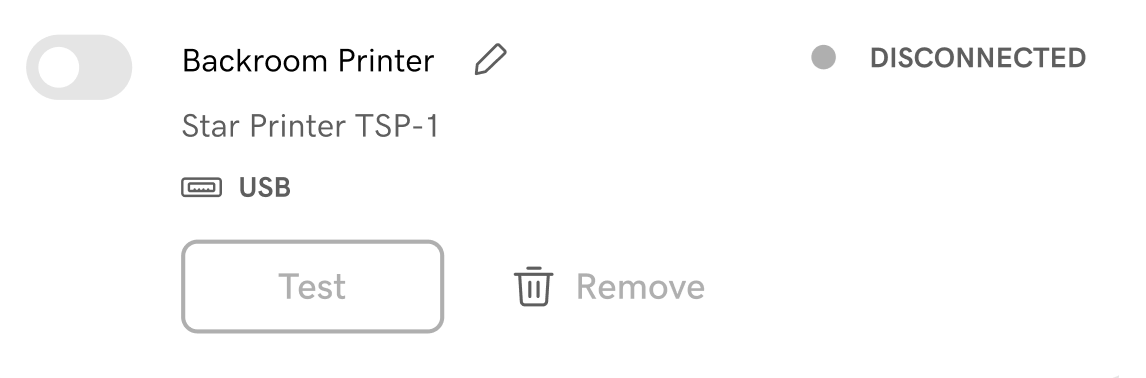
- To reconnect a removed accessory, tap Add Accessory and follow the step-by-step guides to connect an external printer, cash drawer or barcode scanner.
More info
- Connect an external accessory (like a printer or barcode scanner) to your GoDaddy Smart Terminal.
- Learn about compatible external printers and accessories for your Smart Terminal.
- Adjust various accessory settings through the Accessory Manager on your GoDaddy Smart Terminal.