Add a countdown timer
Promote limited-time offers or upcoming events on your Websites + Marketing website with a countdown timer.
- Go to your GoDaddy product page.
- Scroll down, expand Websites + Marketing and select Manage next to your site.
- Select Edit Website.
- Go to the page and location where you want to add a countdown timer and add a section, searching for Countdown Timer, which is under the General category, and selecting Add.
- Set the start and end date for the timer, in your local time zone. The timer won't appear on your website until the start date and time of the countdown.
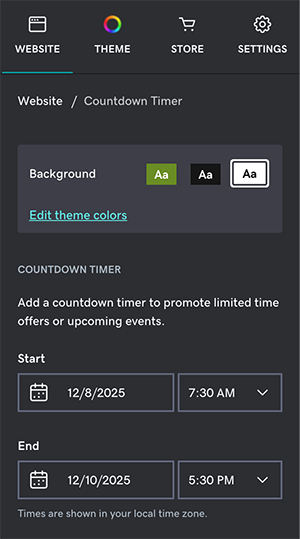
- To edit the message that should display during countdown, select During Countdown, select the Description box, and then update the description.
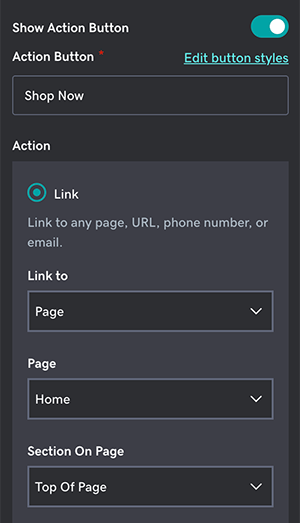
- To show a button encouraging customers to take an action, still in the During Countdown panel, switch on the Show Action Button toggle. You have the following further options:
- Edit the button style and colors.
- Edit the button text.
- Choose what happens when the customer selects the action button—link them to a page, URL, section on your website, phone number or email.
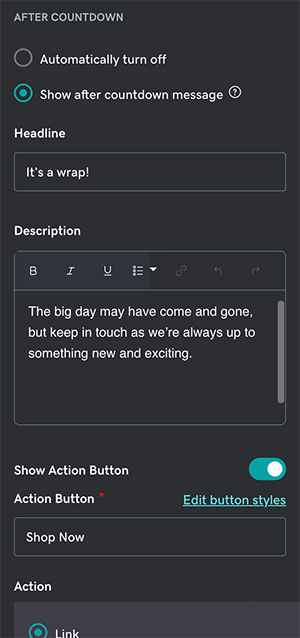
- To edit what happens after the countdown expires, select After Countdown and choose from these options:
- Automatically turn off: Stops displaying the countdown timer on your published website on expiry.
- Show after countdown message: Gives you further options to display a short message and an action button, as in step 7.
- Remove or edit the background image that will appear behind the countdown timer.
- Your changes are saved automatically. Select Preview to see the results. When you're ready to make the changes public, publish your site.