Change my Auto Attendant greeting
If you have a business phone number with GoDaddy Conversations, callers are greeted with the message: "Thank you for calling, press 1 to continue." When they press 1, their call is connected to you. You can change the first part of this message.
Required: You'll need the GoDaddy Conversations app to manage your Auto Attendant. If you don't already have it, follow the steps to download the app for iOS and Android.
- Sign in to your GoDaddy Conversations app.
- In the lower-right corner, tap
 Account.
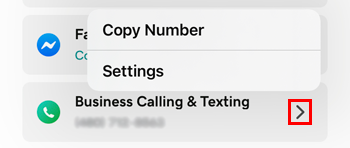
 - To the right of Business Calling & Texting, tap the arrow, and then Settings. (If you don't see this option, first add a business number.)
- Tap Auto Attendant.
- Tap Play Greeting.
- To change the current greeting, under Greeting, enter a new message.
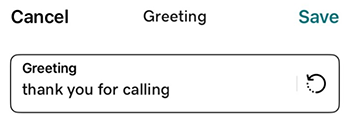
- Tap Save to update the greeting.
- Sign in to your GoDaddy Conversations app.
- In the lower-right corner, tap Account.
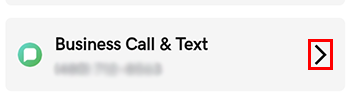
- To the right of Business Call & Text, tap the arrow. (If you don't see this option, first add a business number.)
- Tap Auto Attendant.
- Tap Play Greeting.
- To change the current greeting, under Greeting, enter a new message.
- Tap Save to update the greeting.
Your text greeting is automatically converted to speech to greet your callers. They’ll hear your custom message, and then hear, "Press 1 to continue".