My Media Temple email is moving to Microsoft 365 from GoDaddy
We’re retiring Media Temple Mail, along with their other services. We're moving your Media Temple Mail accounts to Microsoft 365 from GoDaddy, giving you the most secure and up-to-date email experience.
After you're migrated, we'll give you a 7-month free trial of Microsoft 365 so you can try it out and decide if it's the right email solution for you. Your Media Temple Mail will no longer be bundled with your hosting service.
We'll send you an initial email communication before your migration, along with reminders 7 days and 1 day before your migration. Active mailboxes will be migrated to Microsoft 365 from GoDaddy. Please sign into your Media Temple email once every 30 days to show that it’s active and ensure that we migrate it.
Select a question to see its answer about the migration:
- What can I expect from the migration process?
- Who will be able to access my email?
- Will my username or password change after migration?
- What happens to my email accounts after migration?
- What if I don't want to migrate to Microsoft 365?
- Why did I receive a retirement email if my Media Temple Mail is being migrated?
Learn about the differences between Media Temple Mail and Microsoft 365:
- Will my prices change?
- Will my renewal dates change?
- How will my storage limits change?
- Are all my Media Temple Mail features available in Microsoft 365?
- Will my catch-all functionality be migrated to Microsoft 365?
- Will my Contact Groups be included with my migration?
- Will I still be able to use accessdomains in my email client with Microsoft 365?
- How will delegate users manage email after the migration?
Find out what actions you might need to take after migration:
- Will I need to change anything on my mobile or desktop email client?
- Do I need to update any DNS records?
- I think I'm missing email after migrating to Microsoft 365. What do I do?
- I can't find my Sent folder. Where can I find it?
- Why do I see a ".NETORG" user in my Email & Office Dashboard?
- Why do I see an "archive" user in my Email & Office Dashboard?
- Who do I contact if I need help?
What can I expect from the migration process?
To make sure that you don't lose any data or experience any interruptions to your mail flow, we'll take care of moving your accounts, including their email, folders, contacts and calendars, to Microsoft 365 for you.
You'll continue to have access to your Media Temple Mail through your current webmail or email client and on your GoDaddy My Products page until the migration is completed. You might notice your new Microsoft 365 accounts are already in your GoDaddy account.
After migration, we'll send you an email once you can start using your new Microsoft 365 account. GoDaddy account owners will manage email accounts in the Email & Office Dashboard, but both account owners and users will access email directly by visiting email.godaddy.com, the sign-in page for Microsoft 365 webmail.
Who will be able to access my email?
Only those with your authentication credentials or assigned with delegate access permissions will have access to your email account. GoDaddy has measures to prevent unauthorized access to your account.
Will my username or password change after migration?
Your email address and password will stay the same. If you saved your Media Temple Mail password to your web browser's keychain, your password might not auto-fill on the Microsoft 365 webmail sign-in page. If you don’t remember your password, you can reset it in the Email & Office Dashboard.
What happens to my email accounts after migration?
After migration, your Media Temple Email accounts will no longer be associated with your hosting service and will be transitioned to Microsoft 365 accounts. All new messages will be delivered through Microsoft 365. Free email credits will transition to paid email plans, but you can turn off auto-renew for any credits you do not want.
What if I don't want to migrate to Microsoft 365?
We know change can be difficult, but we didn't make this decision lightly. Media Temple Mail is not up to standards with the email experience we want to give you, so we recommend giving Microsoft 365 a try with the free trial we are offering.
If you still do not wish to use Microsoft 365 after your trial, you can cancel your Microsoft 365 accounts any time after migration.
Why did I receive a retirement email if my Media Temple Mail is being migrated?
If you received both a migration and retirement email from us, it means that some of your mailboxes are preventing the migration of the rest of your Media Temple Mail accounts to Microsoft 365. We have paused the migration and sent a retirement email specifically for the affected mailboxes (it'll have the subject line "Action required: Media Temple Mail is retiring..."). Once those mailboxes are retired, we'll continue migrating the remaining mailboxes to Microsoft 365.
Will my prices change?
Your prices will change, but you'll get a free trial of Microsoft 365 so you can try it out before it renews and you start paying. We want to help you make sure that Microsoft 365 is the right email platform for your business.
When your migration is completed, you'll receive a 7-month free trial of Microsoft 365. We'll send you email notifications explaining your new prices before your free trial ends.
Will my renewal dates change?
Yes, your renewal dates will change. When your migration is completed, you will receive a 7-month free trial of Microsoft 365. Your new renewal dates will be based on when the free trial is issued and can be viewed on your Renewals & Billing page.
Once your email is migrated to Microsoft 365, your billing date will no longer be associated with your hosting account and these products will have different renewal and billing dates.
How will my storage limits change?
Your new mailbox storage limit will depend on the amount of content that was migrated from your Media Temple mailbox.
- If your Media Temple mailbox contained 8 GB of storage or less, you’ll receive a Microsoft 365 mailbox with 15 GB of storage.
- If your Media Temple mailbox contained more than 8 GB of storage, you’ll receive a Microsoft 365 mailbox with 50 GB of storage.
Are all my Media Temple webmail features available in Microsoft 365?
Microsoft 365 has many features similar to Media Temple Mail, including some new ones, like calendars, tasks, auto-forwarding, and customizable themes and colors. There are some differences in account limitations, forwarding and spam settings:
- Account limitations: All major email providers have account limitations, and we use them to reduce bad actors and improve the reputation of our email servers. Check out Microsoft 365's account limitations.
- Catch-all email: This feature is not supported by Microsoft 365. Find out about alternatives in the next question and answer.
- Forwarding: See your forwarding options for Microsoft 365.
- Spam settings: You'll no longer have the configurable spam settings with Microsoft 365. Instead, you can go to your Junk folder and allow or block specific senders.
Will my catch-all functionality be migrated to Microsoft 365?
To prevent the risk of phishing attacks and other security threats, Microsoft 365 does not allow or support catch-all email. If you used a catch-all with Media Temple Email, it will no longer work after you move to Microsoft 365. Find out how to use one of Microsoft 365’s existing features as an alternative (we strongly recommend this option) or set up an experience that simulates a catch-all email in our article.
Will my Contact Groups be migrated to Microsoft 365?
We’ll move your individual contacts during the migration, but we cannot migrate your Media Temple contact groups since they are not supported in Microsoft 365. If you want to save a record of your contact groups from your Media Temple mail account, export them as a .vcf file.
- Go to your GoDaddy My Products page. You might be prompted to sign in.
- Next to Media Temple, select Manage. You might need to scroll down the page.
- Select Webmail, and then Contacts.
- On the leftmost side, select the contact group you’d like to export.
- Select More, and then Export All. Your contact group will be exported as a .vcf file.
- Open the .vcf file, and then copy the email addresses.
- Create a distribution group in Microsoft 365, and then add each email address.
For each contact group you want to export, repeat steps 4-7.
How will delegate users manage email after the migration?
Previously, delegate users could manage assigned email products by going to the GoDaddy My Products page and accessing the Media Temple Mail dashboard. Users could sign into the email's webmail interface with their unique sign-in URL on their web browser.
After migration, delegate users will manage assigned emails by going to the My Products page and selecting Manage next to Email & Office.
Do I need to update any DNS records?
If your DNS is hosted with GoDaddy, we'll automatically update or manage your DNS records after migration.
If your DNS isn't hosted with GoDaddy, we'll set up a proxy to forward your DNS from Media Temple Mail to Microsoft 365 after your migration is completed. Your email will continue to work, but this will only be active for 1 year. We recommend updating your DNS with your DNS host as soon as you can.
To view the records you need to update, go to the Email & Office Dashboard. Next to a user, select Manage, and then Set mail destination. Copy the records, and then update them with your DNS provider.
Will I need to change anything on my mobile device or desktop email client?
Yes, you’ll need to set up any phone or desktop clients you were using for your Media Temple Mail again after your migration to Microsoft 365 is completed. For instructions on setting up Microsoft 365 with various email clients, including Mac, Windows, Android and iPhone, check out our article.
Please note that if you have any email that’s only stored on your email client (for example, if you’re using POP3 server settings in your email client), it will not be migrated to Microsoft 365. We recommend importing and exporting any data with your email client (we have instructions on exporting and importing using Outlook).
Some Windows users can use the SkyKick Outlook Assistant to export local data. It’s an application that automatically sets up Outlook, creates a new Outlook email profile, and moves local data for you. Find out more about the Skykick Outlook Assistant and whether you’re eligible to use it.
I think I’m missing email after migrating to Microsoft 365. What do I do?
If you're missing email after migration, it's likely due to email stored in your email client, which is not migrated. We recommend importing and exporting any data with your email client (we have instructions on exporting and importing using Outlook).
I can’t see my Sent folder. Where can I find it?
Your Sent folder might’ve migrated under your Inbox. To see where your Sent folder is located, expand your Inbox.
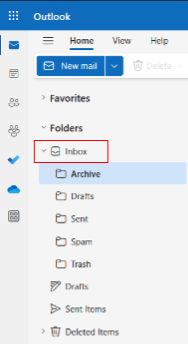
Depending on which email client you’re using, the Sent folder might be called one of the following:
- Sent
- SentMail
- Sent Messages
- Sent Mail
- Sent Items
Why do I see a ".NETORG" user in my Email & Office Dashboard?
If you see a “NETORG” user in your Email & Office Dashboard, that means the associated domain is already in use with a Microsoft 365 account with Microsoft.
Example: If your Media Temple Mail accounts were set up on coolexample.com and that domain is being used for a Microsoft 365 account with Microsoft, we transferred the email user’s content to a “NETORG” user, like NETORG12345.onmicrosoft.com.
You have 3 options based on whether you’d like to keep the user:
- If you want to use the account with Microsoft 365 from GoDaddy, you need to remove the domain from Microsoft. Once the domain is removed, you can reach out to our GoDaddy Guides to change the username or domain name of the account.
- If you don’t need the account, delete it from your GoDaddy account.
- If you just want to access the email account without making any changes for now, reset the password, and then sign in to it.
Why do I see an “archive” user in my Email & Office Dashboard?
If you see an “archive” user, it means you created two versions of the same user in Media Temple: one on your domain, and another on (all-domains).
If the user@(all-domains) was created before the domain-specific user, you can’t access user@(all-domains)’s data. To make sure you don’t lose this data, we migrated it to an "archive" email user. This will allow you to access both sets of email data after the migration. To sign in to the archive user, use the password you created for the @(all-domains) user.
Example: If you created jane@(all-domains) and then later set up jane@coolexample.com, you wouldn’t be able to access the email data stored in jane@(all-domains). We migrated jane@coolexample.com and archive-jane@coolexample.com (previously jane@(all-domains)).
Who do I contact if I need help?
Our GoDaddy Guides are available to help you at any point during the migration. We're here for you, 24/7.
More info
- If you need help with your active Media Temple Mail account before migration, check out our PDF.
- How does EMAIL_O365 migration work?
- Compare Microsoft 365 email plans