Enable credit surcharge
Credit surcharge is an opt-in feature that enables you to save even more on your payment processing fees by applying a surcharge to credit card transactions and benefiting from lower debit card fees.
Alternatively, you can opt in to cash discounting, which increases overall catalog prices and then discounts cash purchases. You’ll save on fees, whichever option you choose. Learn more about the different Rate Saver programs.
Note: Credit surcharge is available only with the Point of Sale Plus plan or the Invoicing and & Pay Links Plus plan. Besides credit surcharge, these plans include a wide range of additional features.
Warning: Before enabling credit surcharge, you must read our credit surcharging guide thoroughly. Several US states and territories have rules and regulations regarding applying surcharges to credit card transactions, as outlined in the guide. You are responsible for reviewing, understanding and complying with your local rules and regulations. GoDaddy bears no liability regarding your compliance with these rules. Consult your local counsel if you have further questions regarding these regulations.
To enable credit surcharge in your store(s):
- Sign in to the
Dashboard where you manage your GoDaddy Payments account (use your GoDaddy username and password). - In the left menu, select Settings.
- Select Rate Saver.
- Select Enable surcharge.
- Review and the terms and conditions, then select I understand to confirm.
- If you have multiple stores you want to enable credit surcharging for, you will need to repeat this process for each store.
Note: The credit card surcharge fee is applied to all credit card transactions made with a GoDaddy Smart Terminal, Invoicing, Online Pay Links, Virtual Terminal or the GoDaddy Commerce app (all payment methods except debit card or cash). It is not currently available for transactions in your Online Store.
Select a payment method below to learn how to process an order with credit surcharge enabled.
Smart Terminal orders
Smart Terminal orders
- After enabling surcharging, create an order on a GoDaddy Smart Terminal.
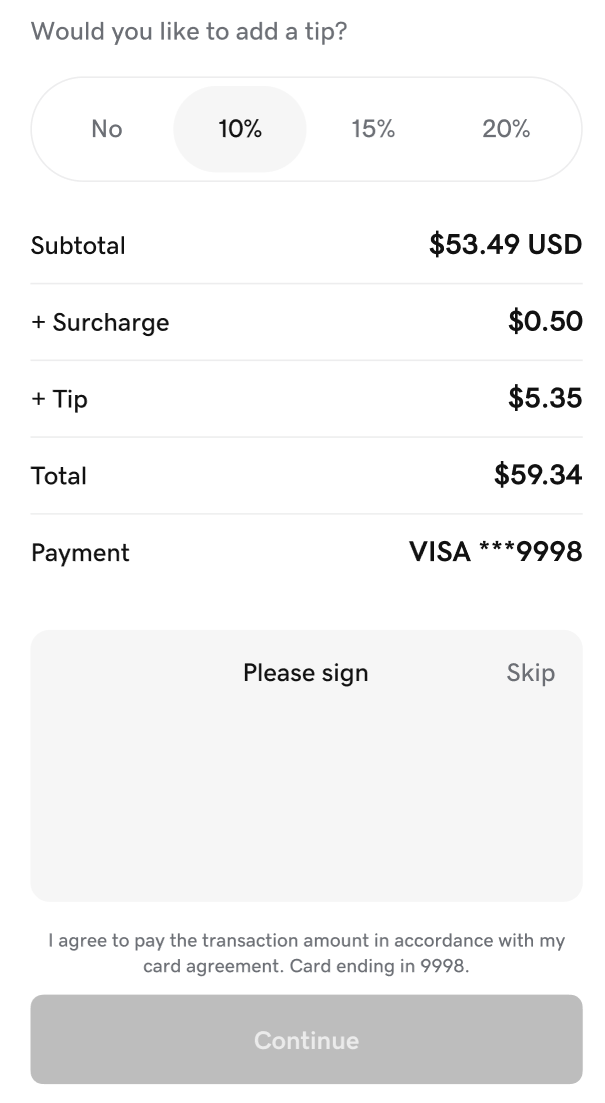
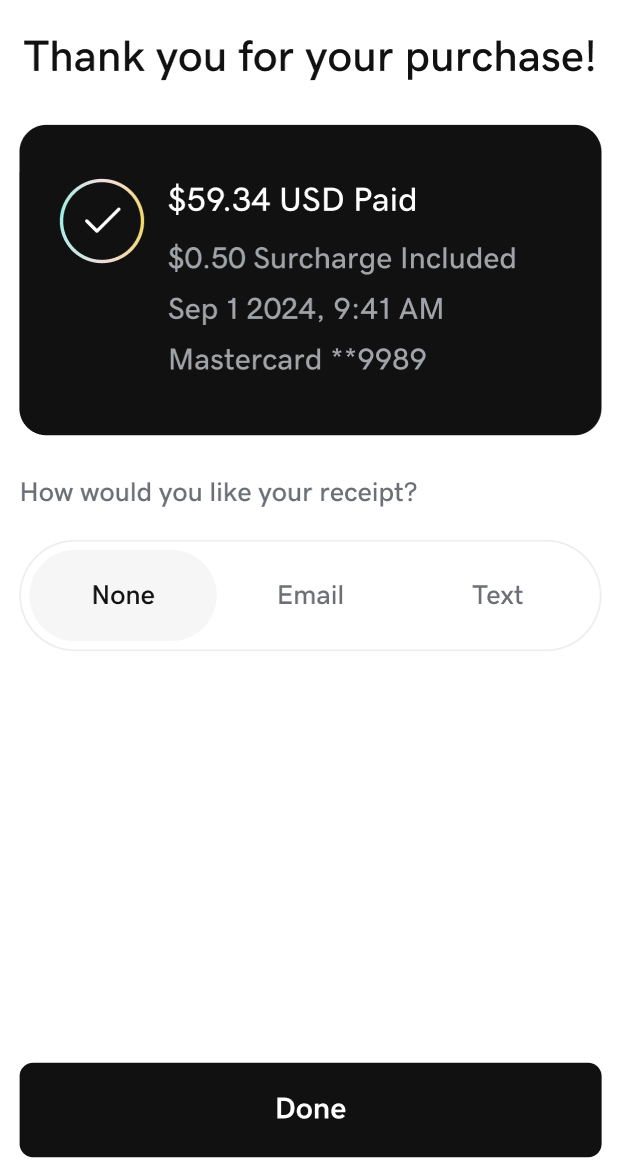
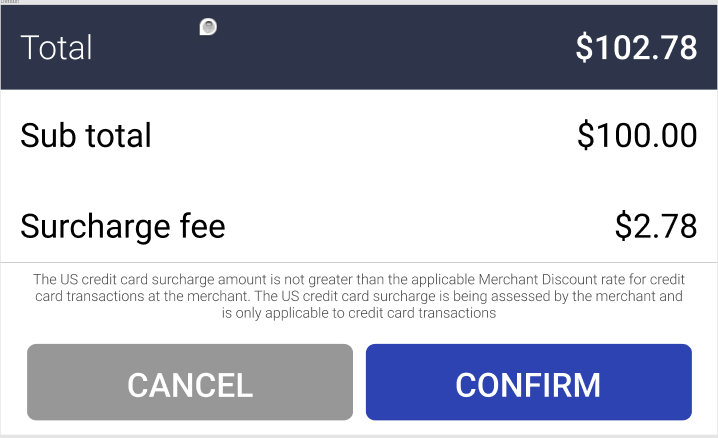
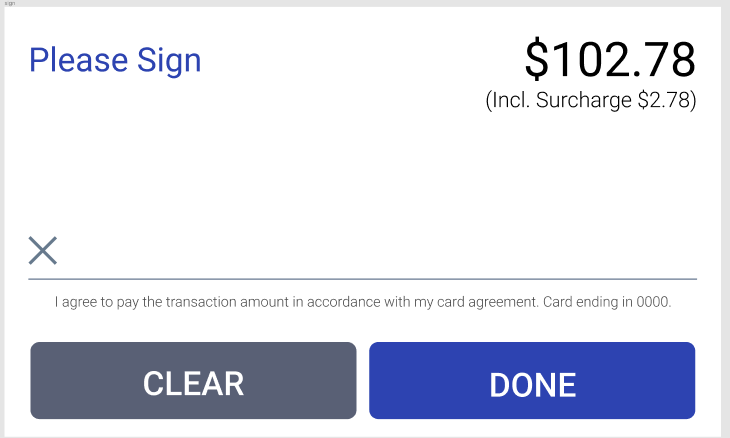
- When processing a credit card payment (either with the physical card or manually entering card info), customers will be notified of the surcharge fee during checkout and on the receipt.
Checkout:
Receipt:

Invoicing orders
Invoicing orders
- After enabling surcharging, create an invoice.
- When paying with the credit card, customers will be notified of the surcharge fee during checkout and on the receipt.
Receipt:
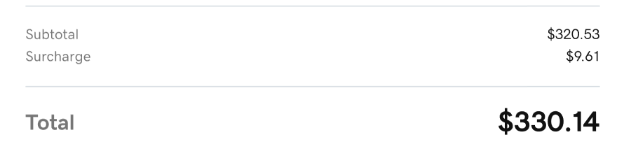
Online Pay Links orders
Online Pay Links orders
- After enabling surcharging, create an Online Pay Link.
- When paying with the credit card, customers will be notified of the surcharge fee during checkout and on the receipt.
Receipt:
Virtual terminal orders
Virtual terminal orders
Note: The credit surcharge is capped at 3% by the card network rules, so any transaction fees greater than 3% would be partially offset.
- After enabling surcharging, process a payment on Virtual Terminal. You'll be prompted to confirm the surcharge at the checkout.
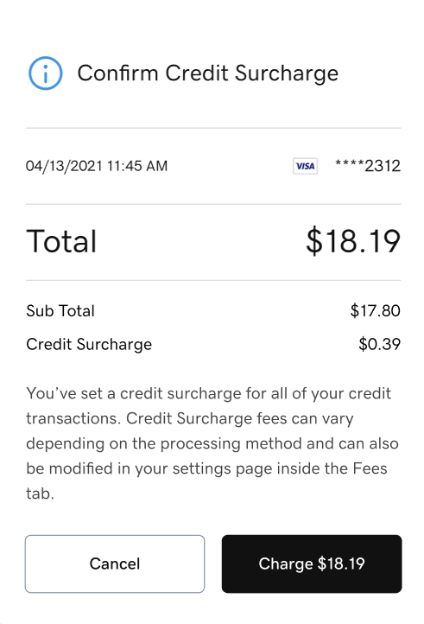
- Customers will be notified of the surcharge fee on the receipt if they previously chose to receive one.
Commerce app orders
Commerce app orders
- After enabling surcharging, create an order with the GoDaddy Commerce app.
- When processing a credit card payment with Tap to Pay, a GoDaddy Poynt Card Reader, manual entry, a pay link or a QR Code, customers will be notified of the surcharge fee during checkout and on the receipt.