Websites + Marketing Help

Fulfill and ship my orders

Congrats on your sale! Now you're ready to fulfill and ship your orders. You can buy shipping labels directly through your dashboard with ShipEngine, or you can purchase shipping labels on your own and manually add tracking info to each order.

Note: If you previously used Shippo, this is no longer supported. To keep creating shipping labels without interruption, do so manually, or connect your online store with ShipEngine instead.
  1. Go to your GoDaddy product page.
  2. Scroll down, expand Websites + Marketing and select Manage next to your site.
  1. On your dashboard, expand Commerce and select Orders.
  2. Select an unfulfilled order number to open it.
  1. On the Order page select Buy Shipping Label.
    Note: If you haven't already set up your account with ShipEngine, you'll be prompted to do so.
  2. Choose your package type from the carrier of your choice. The dropdown list includes many of the common package sizes by carrier, or you can select Custom Package and enter the measurements.
  3. Add your package weight. If your products already have a weight value, it will be added automatically.
  4. Select Ship Date and choose whether a signature will be required to receive the delivery.
  5. Select Calculate Rates.
  6. Under Rates, select the desired carrier and delivery speed. You'll also see how much your customer paid in estimated shipping costs above the listed rates. Your actual costs may vary based on the total dimensions and weight of the shipment.
  7. Under Summary, select a label format.
    Note: Any additional fees that appear beneath the label cost on the Other line may be related to additionally purchased insurance, for example. These are fees added by the carrier, not GoDaddy.
  8. Select Buy Shipping Label. At this point, the order will be marked as Fulfilled and the shipment's tracking number will be automatically added to the details of that order.
    Warning: Once an order is marked as fulfilled, you'll no longer be able to cancel the order.
  9. From here, you can Download and Print or Refund the shipping label.
  1. Select Fulfill Order.
  2. Warning: Once you mark an order as fulfilled, you'll no longer be able to cancel the order.
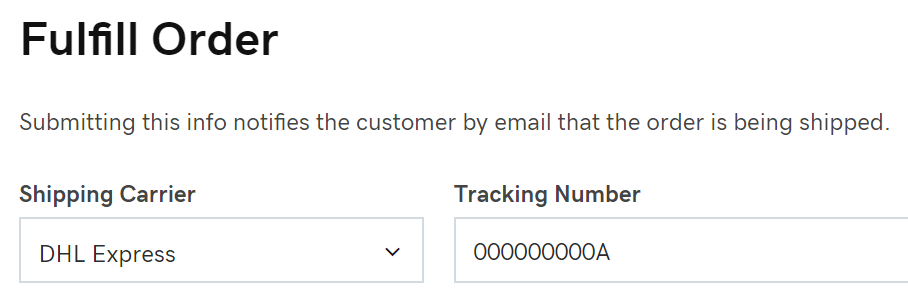
  3. Enter the Shipping Carrier and Tracking Number.
    Fulfill Order
  4. Select Submit.

Your order is now fulfilled, and the customer will receive an email letting them know their order has shipped.

More info

Share this article