Issue a refund to my customer
You can refund or void a charge processed through GoDaddy Payments in the Dashboard on your web browser, the GoDaddy Commerce app or your GoDaddy Smart Terminal. All orders can either be partially or fully refunded.
If you haven't been paid out for the order yet, you'll see the option to void the transaction. That way, your customer won't get charged, and you won't have to pay the initial processing fee. After you receive your payout, you'll see the option to issue a refund.
Refunds can take around 5-7 business days to process and appear on the customer’s card. If your customer has not received a refund within that timeframe, we recommend they contact their credit card company.
- There are no processing fees when issuing refunds; however, the processing fee for the initial transaction will not be refunded. (Applicable surcharge fees are refunded to your customer.)
- In the event of an account closure due to an audit/transaction, we will collect the cost of the initial processing fee, regardless of whether the funds are on hold or have settled into your business's bank account.
- If a customer has multiple transactions, you’ll need to refund each transaction separately. GoDaddy Payments doesn’t support refunding multiple transactions at once.
In your web browser, you can:
- Void the transaction from the Orders page
- Issue a full or partial refund and manage returns from the Orders page
- Issue a full or partial refund from an Order Details page
- Refund or void an order from the Transactions page
Void the transaction from the Orders page
- Sign in to the Dashboard where you manage your GoDaddy Payments account (use your GoDaddy username and password).
- In the left-nav, select Orders.
- For the order you’d like to void, in the Actions column, select
 More, then select Void.
 - Select Confirm.
Issue a full or partial refund and manage returns from the Orders page
- Sign in to the Dashboard where you manage your GoDaddy Payments account (use your GoDaddy username and password).
- In the left-nav, select Orders.
- For the order you’d like to void, in the Actions column, selsect More, then select Process a Return.
Note: If orders have FULFILLED, PARTIALLY_FULFILLED, or PARTIALLY_RETURNED status, you'll see the option to process a return. Otherwise, you'll see the option to void the transaction (described above).
- On the Process a New Return page, choose the item(s) your customers want to return.
- Next to Return Settings, select one of the following options:
- Restock now: Your customer physically returned the item(s) when initiating the refund, and you determined the items are not damaged, meaning that you can immediately restock. Select the Return Reason, enter the number of returned items under Return Quantity, and then enter the number under Restock.
- Do not restock: The item(s) that won't be physically returned to the stock.
- Select Next.
- Under Provide a refund to customer, choose whether to refund the returned item(s).
- If you selected Yes, under Refund Amount, enter the amount you would like to refund. It can be the full order price, or you can issue a partial refund.
- Review the Return Overview section and then select Next.
- Select Confirm.
This will complete the refund process and take you to the Order Details page for that order, where you can view Return Details and Order Details and take additional actions:
- For restocked orders, select See Details in the Return Details section, to get to the Manage Return page, where you can print the return information.
Issue a full or partial refund from an Order Details page
- Sign in to the Dashboard where you manage your GoDaddy Payments account (use your GoDaddy username and password).
- In the left-nav, select Orders.
- Under Order #, select the order you want to refund.
- In the top-right corner, select Refund.
Note: The refund option is only available if no return has been processed for the order. If an itemized return was already processed, any additional refunds must be handled through the return flow from the Orders page (described above).
- Under Refund Amount, enter the amount you would like to refund. It can be the full order price, or you can issue a partial refund.
- If you want to issue a refund later, select Skip refund.
- Select Confirm.
Refund or void an order from the Transactions page
- Sign in to the Dashboard where you manage your GoDaddy Payments account (use your GoDaddy username and password).
- In the left-nav menu, select Transactions.
- Locate the transaction you’d like to refund and select More, then select Void or Refund.
- Enter the total amount of the transaction to process a full refund, or a portion to process a partial refund.
- Select Refund.
- From the Smart Terminal home screen, tap the Orders app.
- Use the filter or search fields to locate the order in your history.
- Find the order in the list and tap it.
- Tap
 Options, and then tap Refund.
 - You can refund orders with a single item or multiple products:
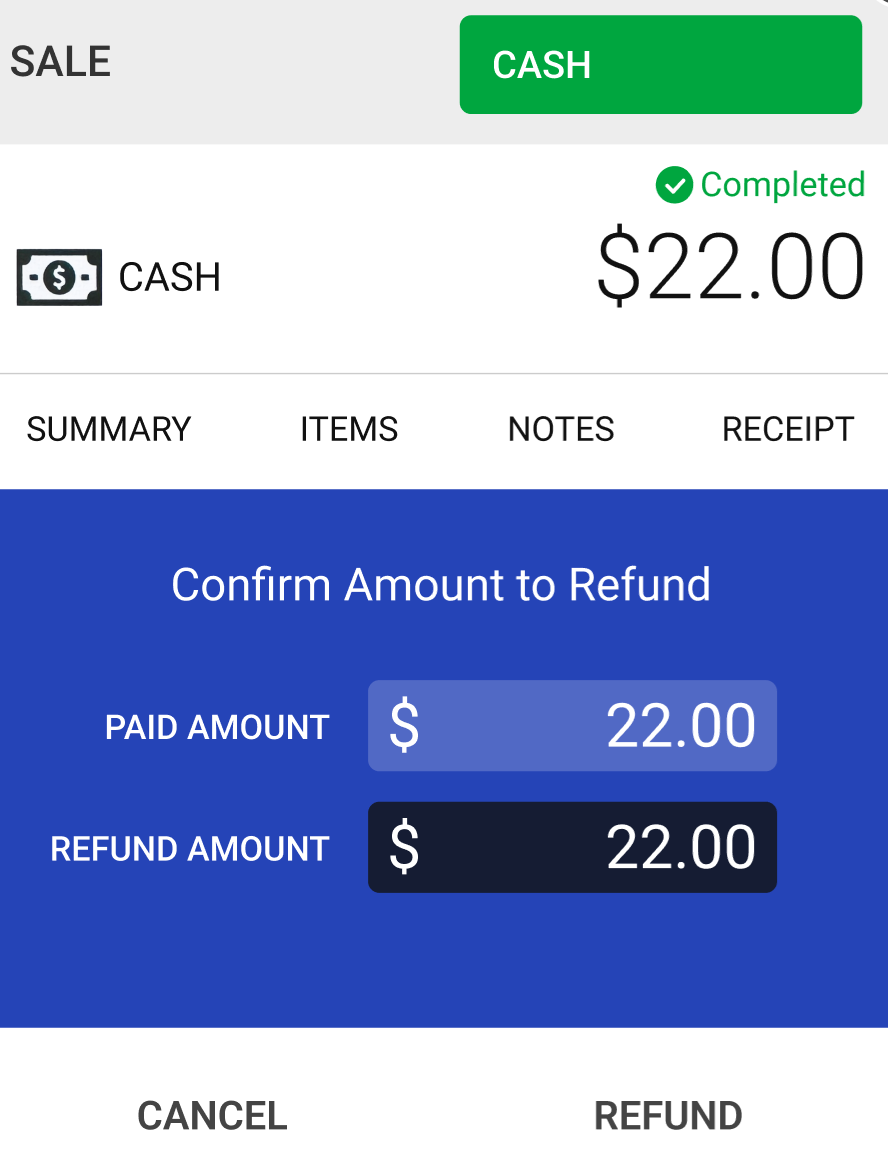
- Orders with a single item: For orders with a single item, the refund amount (including applicable taxes, fees or discounts) will automatically display.
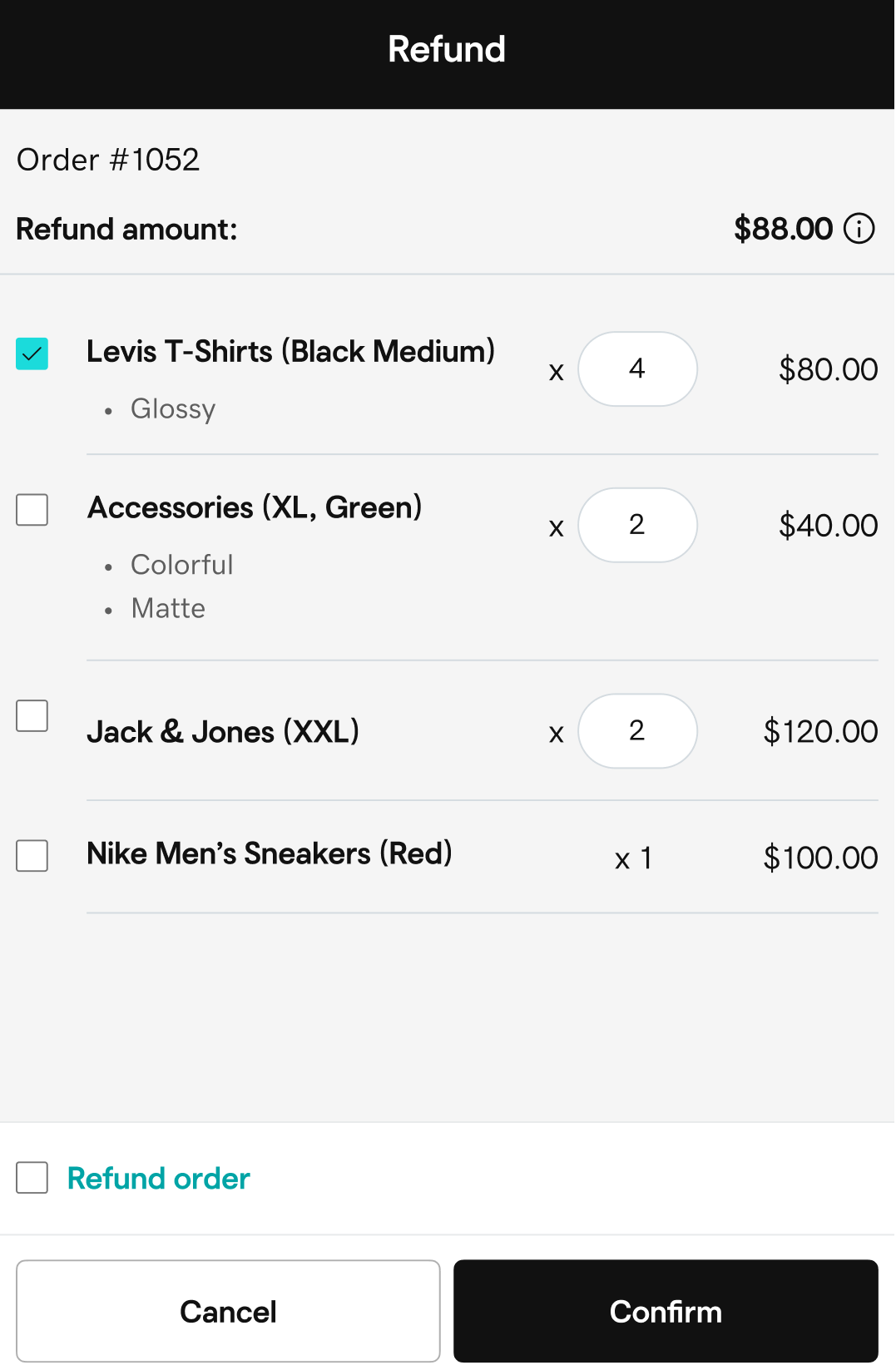
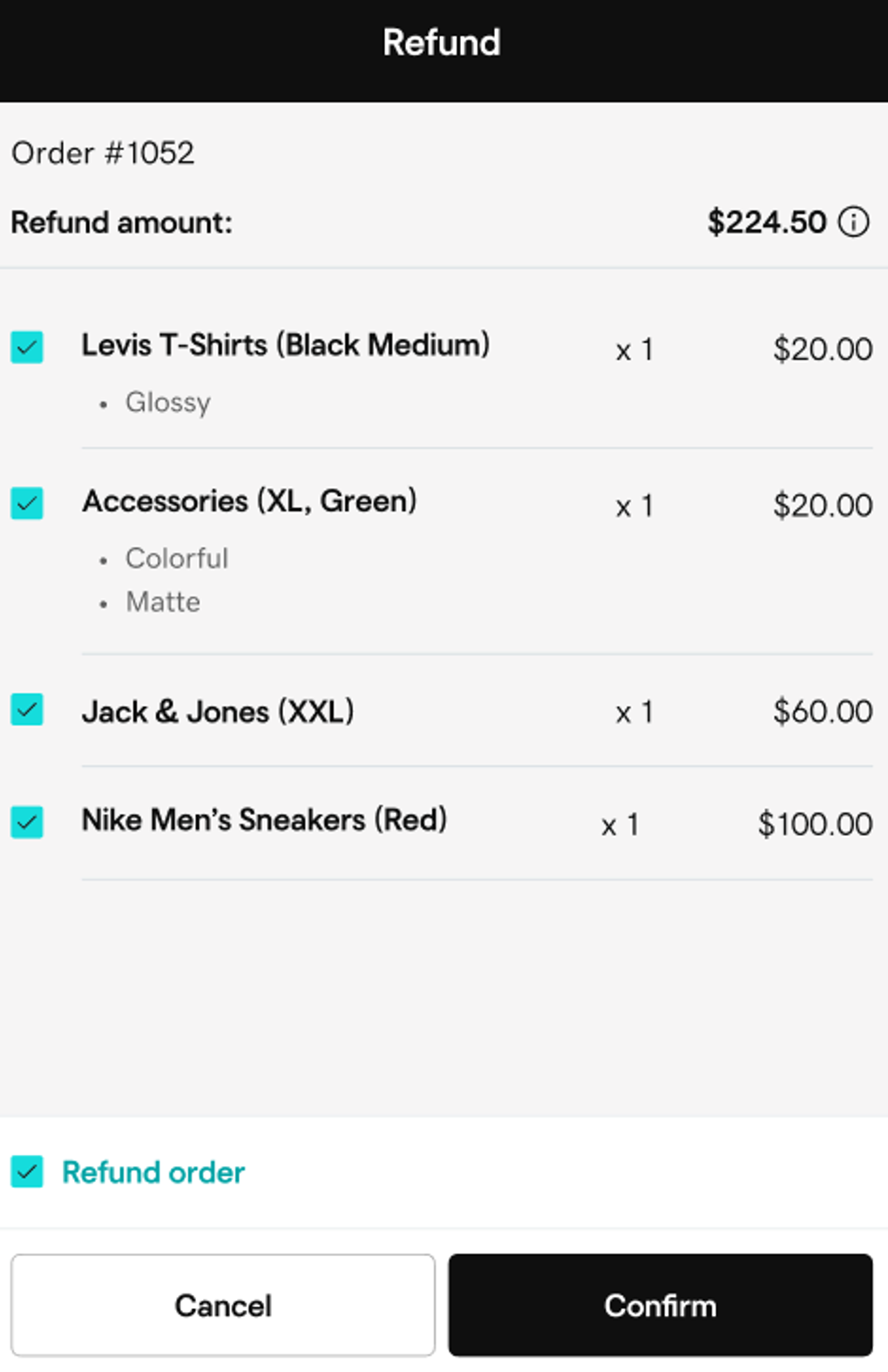
- Orders with multiple items: To refund some of the items, tap the item and adjust the quantity to refund. Or, to refund the full order, tap the box next to Refund order. Tap Confirm. The final refund amount (including taxes, fees or discounts) will be calculated.
- Orders with a single item: For orders with a single item, the refund amount (including applicable taxes, fees or discounts) will automatically display.
- Tap Confirm.
- If you have Return reason selection turned on in your order settings, choose a return reason from the list (such as “Defective” or “Changed mind”). Tap Confirm.
- Tap Refund to process the refund.
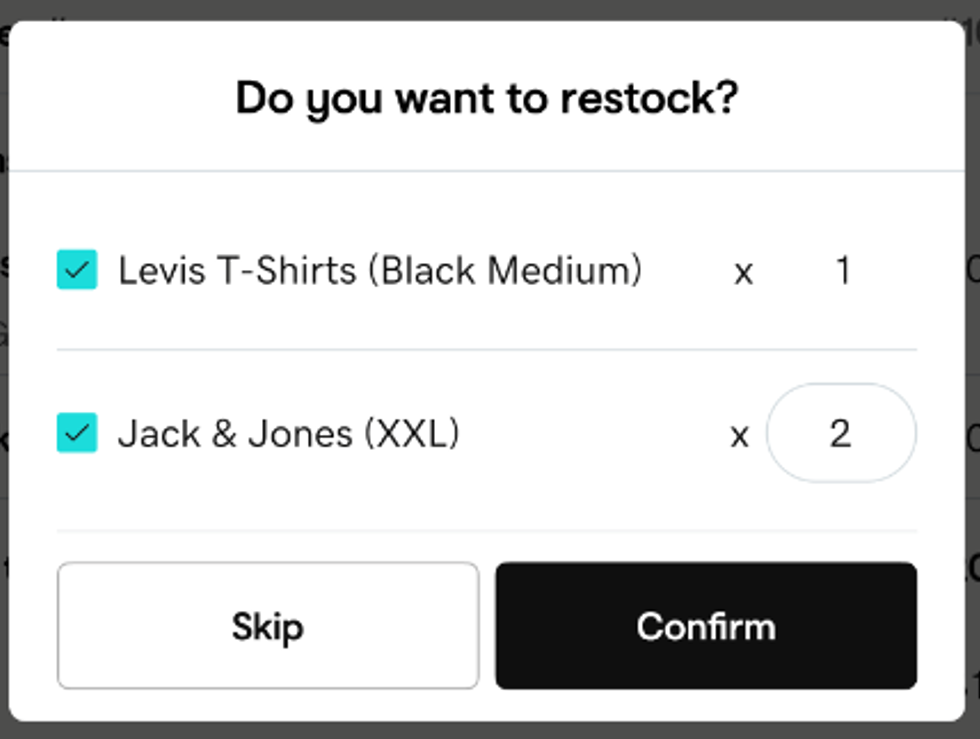
- For inventoried items you’ll be asked if you’d like to restock the returned products, which will add them back into your inventory count. To restock returned items, adjust the item Quantity and then tap Confirm. (Otherwise, just tap Skip when prompted.)
- Launch the GoDaddy Commerce App. You might be prompted to sign in.
- Tap Transactions.
- Locate the Transaction you’d like to refund, and tap Refund Transaction or Void Transaction.
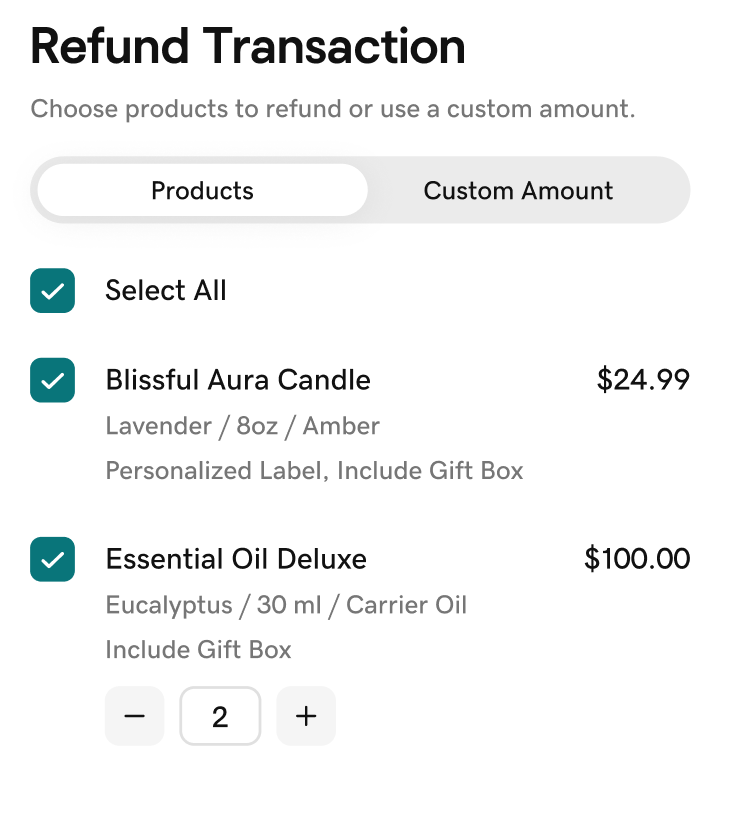
- Tap Products to refund specific items.
Note: To refund a monetary amount only (not associated with a product), tap Custom Amount and enter the amount to refund, up to the total of the order. Tap Issue Refund. You’re done!
- Select the items to refund:
- To refund some of the items, tap the item and adjust the quantity to refund.
- To refund the full order, tap Select All.
- Tap Continue.
- Choose a return reason from the list (such as “Wrong item” or “Changed mind”). Tap Continue.
- The final refund amount (including taxes, fees or discounts) will be calculated. Tap Issue Refund to process the refund and send a refund receipt.
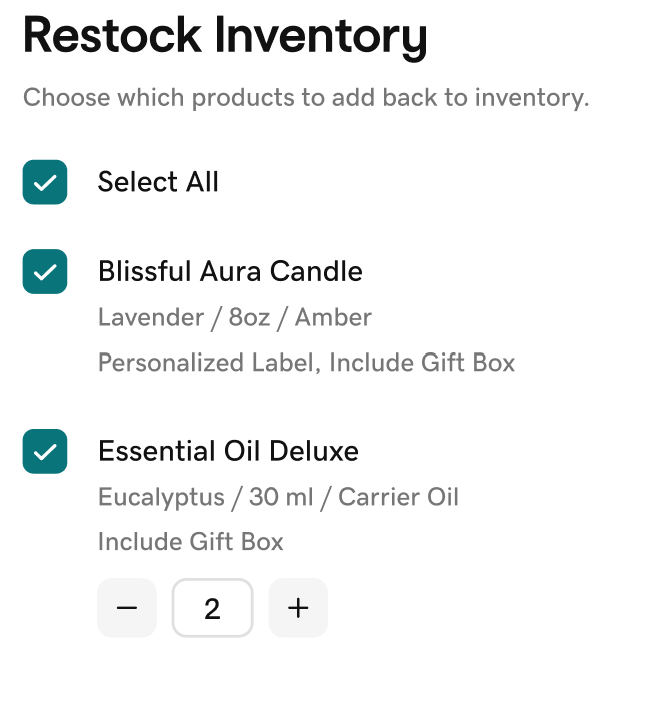
- For inventoried items you can restock returned products, which will add them back into your inventory count. To restock returned items, adjust the item Quantity and then tap Restock Inventory. (Otherwise, just tap Skip Restock when prompted.)
Note: If a transaction has settled, you’ll see Refund. If it hasn’t settled yet, you’ll see Void.