
If you’re shopping around for a website platform, here's an interesting stat: WordPress powers over 43% of all websites on the internet. From personal blogs to Fortune 500 companies, WordPress has become the go-to for creating a web presence — and for good reason.
It's flexible, powerful, and surprisingly beginner-friendly, even if you've never written a line of code.
This comprehensive guide will walk you through every step of building a WordPress website, from locking down your perfect domain name to launching a fully functional site. You won't need coding skills, a technical background, or an expensive web developer, so let’s go through the steps you’ll need to take.
What is WordPress? (WordPress.org vs WordPress.com explained)
WordPress is a content management system (CMS) that lets you create, manage, and publish website content without coding. Think of it as powerful software that provides an intuitive interface where you can write content, upload images, and design your site visually — no HTML, CSS, or JavaScript knowledge required.
Here's where beginners get confused — there are two versions of WordPress, and they're very different.
WordPress.org is the self-hosted version. This is what most people mean when they say "WordPress." You download the free WordPress software and install it on your own web hosting account. This gives you complete control, full customization freedom, any themes or plugins you want, total monetization control, and ownership of your site and data. This is what we’ll focus on in this guide.
WordPress.com is a hosted service that handles all technical aspects for you. WordPress.com hosts your site and manages security, backups, and updates automatically. However, it comes with significant limitations: restricted customization, limited plugin installation, WordPress.com branding on free plans, monetization restrictions, and less SEO control.
Which should you choose? WordPress.org is right if you're building a business website, want full customization, plan to monetize, need professional capabilities, want to build an ecommerce store, or are willing to invest minimal time learning for unlimited possibilities. WordPress.com makes sense only for simple personal blogs or hobby sites where customization isn’t such a big deal.
For entrepreneurs, small business owners, and anyone building a site with professional goals, WordPress.org is the better choice. Modern hosting providers like GoDaddy have streamlined the process with one-click installation, making self-hosting nearly as simple as WordPress.com but without restrictions.
Throughout this guide, "WordPress" refers to WordPress.org — the self-hosted version giving you complete control. For more on these advantages, explore why WordPress benefits your website.
What you need before getting started on your WordPress website
Before you jump into your WordPress project, gather a few essentials and set realistic expectations. You don't need coding skills, web design experience, or technical knowledge.
What you do need is a carefully considered goal, a few hours of focused time, and basic tools.
Time expectations: Following this guide, you can have a basic WordPress site running in a few hours — possibly one afternoon. A fully polished, content-rich site takes longer, perhaps days to weeks, depending on content creation. Remember, done is better than perfect. Launch simply and improve over time.
Budget requirements: Building a WordPress site is surprisingly affordable. Minimum costs include web hosting ($10-$30/month) and a domain name ($10-$20/year). Optional investments include premium themes ($30-$60 one-time), premium plugins ($20-$100+ annually), and professional email ($5-$10/month). Most beginners build professional sites for $150-300 in the first year.
Essential tools checklist: Domain name ideas (with backups if your first choice is taken), hosting account, valid email address, business information (name, address, description), logo and branding images (optional), content outline for your pages, and competitor websites for inspiration.
What you don't need: Technical skills or coding knowledge. WordPress was built for non-technical users. If you can use Microsoft Word or send an email, you have sufficient skills.
Dial in your business goals before starting. What should your website accomplish? Sell products? Showcase work? Share expertise? Offer services? Your purpose guides decisions throughout the building process.
For design guidance without being a designer, explore these best practices for designing a WordPress website.
Step 1: Choose your domain name and hosting
Every website needs two elements — a domain name (your website's address) and web hosting (where your website lives). Understanding what a domain name is and what hosting is helps you see how these work together.
When someone types your domain into their browser, it points to your hosting server, which delivers your website. While you can purchase a domain and hosting separately, getting both from the same provider simplifies management.
Choosing quality hosting from the start is a big deal. Cheap hosting costs you through slow loading times, frequent downtime, security vulnerabilities, poor support, and difficulty scaling. Think of hosting as your house's foundation. Cutting corners affects everything built on top.
Pick the perfect domain name
Your domain name is a big part of your brand identity. Follow these principles:
- Keep it short and memorable (2-3 words typically work best).
- Use .com when possible. It's the most recognized and trusted.
- Avoid numbers and hyphens that create confusion when sharing verbally.
- Make it brandable rather than generic.
- Consider SEO keywords if they don't compromise memorability.
- Check social media availability for consistent branding.
With those ideas in mind, let’s run through some domain dos and don'ts:
| Do | Don’t |
|---|---|
| Make it easy to spell and pronounce | Use too many numbers or special characters |
| Keep it unique | Choose something too similar to competitors |
| Check for trademarks | Use trademarked terms |
| Consider how it sounds out loud | Make it so creative people don't understand what you do |
Check domain availability or use the domain name generator for suggestions if your first choice is taken. For more guidance, see these 10 tips for choosing the perfect domain name.
At this point, you should also consider adding domain privacy and protection to mask your personal information from the public WHOIS database, protecting you from spam and identity theft.
Choose the right type of hosting
Different hosting types serve different needs:
- Shared hosting: Most affordable, but shares resources with many sites
- VPS hosting: Provides dedicated resources but requires technical knowledge
- Dedicated hosting: Offers maximum performance but is expensive and complex
- Managed WordPress hosting: Specifically optimized for WordPress, handling technical aspects automatically (ideal for beginners and busy professionals)
Managed WordPress hosting combines affordability with WordPress-specific optimization, automatic updates, enhanced security, expert support, and features like caching and CDN integration.
GoDaddy's Managed Hosting for WordPress offers integrated domain management, one-click WordPress installation, 24/7 support, automatic updates, daily backups, performance optimization, free SSL certificates, and staging environments.
For plan selection guidance, read how to choose the best WordPress hosting plan.
Step 2: Install WordPress
With hosting ready, it's time to install WordPress. Modern hosting providers have eliminated technical complexity, making installation possible with one or two clicks.
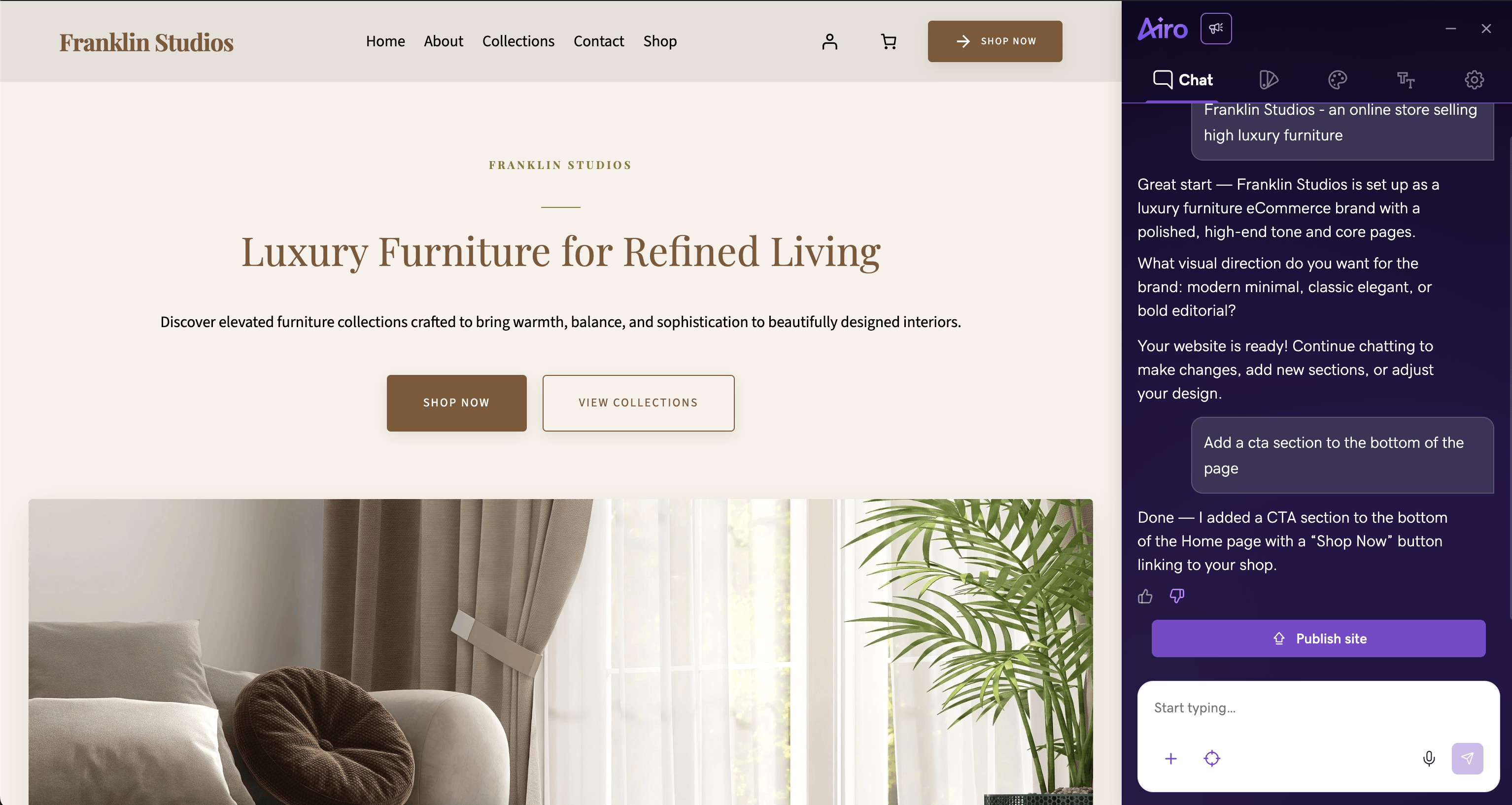
And if you want to skip setup entirely, use GoDaddy Airo® for WordPress to build a WordPress site, which provides an AI-assisted design flow to get your site set up in minutes.
One-click installation (recommended for beginners)
One-click installation handles all technical configuration automatically. Here's how with GoDaddy:
- Log into your GoDaddy account and navigate to Web Hosting.
- Click "Install WordPress" or "Set Up WordPress."
- Choose your domain.
- Configure basic settings: site title, admin username (avoid "admin"), strong password, and admin email.
- Click Install and wait 1-3 minutes.
- Access your WordPress dashboard at yourdomain.com/wp-admin using your credentials.
That's it. You've installed WordPress without touching code. Everything is configured automatically. For detailed guidance, see how to use WordPress with cPanel for auto-installing.
Manual installation walkthrough
Manual installation involves downloading WordPress, creating a database, and then uploading files via FTP (significantly more complex). For beginners with one-click available, there's no reason to do this.
However, if you’re going this route, find out how to manually install WordPress with cPanel .
With WordPress installed, you've reached a major milestone. Your website exists. Now, let's configure essential settings that affect how it functions.
Step 3: Essential WordPress settings and configuration
Before customizing the appearance of your budding website, spend a few minutes on the settings affecting everything you build. These are mostly one-time configurations that prevent problems later and optimize your site for search engines and security.
For deeper insights, explore these top WordPress tricks to enhance your experience.
Getting to know the WordPress dashboard
Your WordPress dashboard at yourdomain.com/wp-admin is mission control for your entire website. When you first log in, you'll see a clean, organized interface with the main navigation menu running down the left side of your screen.
This is where you'll spend most of your time managing and building your site. Key sections include:
- Posts for creating and managing blog content, your dated articles that appear in chronological order
- Media for your image library, storing all photos, videos, and documents you upload
- Pages for static website pages like your homepage, About, and Contact pages
- Comments for moderation, where you can approve, reply to, or delete visitor comments
- Appearance for design customization, including themes, menus, and widgets
- Plugins for adding functionality and extending what WordPress can do
- Users for managing who has access to your site and their permission levels
- Settings for fundamental configurations that control how your entire site operates
The dashboard also displays a helpful overview section showing recent activity, quick drafts, and site statistics. At the top of your screen, you'll find a toolbar with shortcuts to visit your live site, check for updates, and access your user profile.
Take time to click around and explore each section — don’t worry, you can't break anything by looking — and familiarizing yourself with where everything is located will make the rest of your website-building journey much smoother and more intuitive.
Configuring permalinks for SEO
Permalinks are permanent URLs for pages and posts. By default, WordPress creates ugly URLs like yourdomain.com/?p=123.
For better SEO and user experience, change this.
Navigate to Settings > Permalinks. Select Post name. Click Save Changes. This creates clean URLs like yourdomain.com/about-us that include keywords and are human-readable. Do this early before sharing links to avoid broken URLs later.
Critical security settings
Bad actors, beware! You can implement basic security precautions without becoming a cybersecurity expert. Use a strong administrator username and password (change at Users > Your Profile).
Enable two-factor authentication following this guide on enabling 2FA for WordPress. Keep WordPress, themes, and plugins updated regularly. Limit login attempts via security plugin. Be cautious with administrator access and use appropriate user roles.
Privacy and comment settings
Navigate to Settings > Discussion to configure comments. Check "Allow people to submit comments on new posts." Require name and email. Enable "Comment must be manually approved" to prevent spam from appearing publicly. Check "Comment author must have a previously approved comment" so regular commenters aren't held up after first approval.
For spam management, see managing spam in WordPress.
Set your WordPress website to coming soon
If you're not ready to launch, enable coming soon mode to display a placeholder while you work. Many themes include built-in coming soon options. Alternatively, install a plugin like SeedProd or Coming Soon Page. Navigate to Plugins > Add New, search, install, activate, and configure your coming soon page. Remember to disable it when launching!
With settings configured, your WordPress foundation is solid. Now let's make your site look like your brand.
Step 4: Choose and customize your WordPress theme
There’s no overstating the importance of how your website looks, so let’s take a sec to discuss how to use WordPress themes. A theme incorporates elements like the visual design, layout, colors, and typography. Choosing a quality theme that looks good, functions well, loads quickly, and provides necessary customization is key.
You can also use GoDaddy Airo for WordPress to fine-tune your theme, producing a beautiful design that’s ready to go right out of the box.
Free vs premium WordPress themes
Free themes are available through the WordPress directory (Appearance > Themes > Add New). They're perfect for getting started, testing WordPress, or building simple sites with limited budgets. Advantages include zero cost, easy installation, and being good enough for a simple website. Limitations include fewer customization options, potentially no dedicated support, fewer advanced features, and less uniqueness.
Premium themes ($30-$60 typically) offer extensive customization, professional support, regular updates, advanced features like page builders, multiple demo layouts, and optimized code for better performance.
For beginners, the best bet might be to start with a quality free theme, and then upgrade to premium if you outgrow it. For business sites where first impressions matter, investing in premium from the start saves time.
How to evaluate theme quality
Once you start shopping themes, it’s easy to get overwhelmed by all the cool designs. But it’s important to focus. This is an important choice.
Evaluate themes against these criteria:
- Last update date: Within 6 months indicates active maintenance
- Active installations and ratings: Thousands of installations and 4.5+ stars show reliability
- Mobile responsive design: This one’s non-negotiable because 60%+ of traffic is mobile
- Page speed: Lightweight themes load faster
- Browser compatibility: Ensures a better experience for visitors
- Documentation quality: Comprehensive docs save hours
- Customization options: Abundant but not overwhelming
Red flags include no updates in over a year, poor ratings, very few installations, no mobile responsiveness mentioned, overwhelming negative reviews, no documentation, and themes trying to do everything.
For template selection tips, see choosing the best website template.
Installing and customizing your theme
Free theme installation: Navigate to Appearance > Themes > Add New. Search, click Details & Preview, then Install and Activate.
Premium theme installation: Download the .zip file, go to Appearance > Themes > Add New > Upload Theme, choose the file, Install Now, then Activate.
Customize through Appearance > Customize. Common options include site identity (logo, title), colors, fonts, header/footer settings, homepage settings, menus, and widgets. Changes preview live before publishing.
For detailed instructions, see how to install a WordPress theme.
Mobile responsiveness check
Test mobile responsiveness using the Customizer's preview modes, browser developer tools' responsive design mode, and your actual smartphone. Ensure text is readable without zooming, images display properly, navigation works, buttons are tappable, forms are usable, and layout looks intentional.
If your theme isn't mobile-friendly, switch themes rather than trying to fix it. See how to make WordPress sites mobile-friendly.
Step 5: Create essential website pages and add content
Content transforms your styled template into a functional website serving your business goals. Every website needs core pages that visitors expect and search engines look for. Start with functional content and refine over time.
Homepage design best practices
Your homepage is your most important page. It’s the first impression that determines whether visitors stay or leave, so keep in mind these web design strategies to engage readers.
Essential elements include a clear headline answering "What do you do?" with benefit-focused language, a hero image or video that's professional and engaging, a primary call-to-action button with action-oriented language, trust signals like testimonials or client logos, featured products/services highlighting key offerings, a brief about section, and secondary CTAs for visitors not ready for the primary action.
Set a page as the homepage at Settings > Reading, select "A static page," choose your page, and save.
About us page that converts
As you learn how to create an About page, remember it’s a sales tool, not just a place for storytelling. Include your story and mission connected to customer needs, what makes you different with specific differentiators, who you serve helping visitors self-identify, team photos humanizing your business, credentials and achievements establishing authority, customer success stories providing social proof, and a clear next step CTA.
Contact page setup
Essential elements include a contact form (use plugins like Contact Form 7 or WPForms), email address (professional domain email), phone number (clickable on mobile), physical address (for local businesses), business hours, social media links, map embed (for local businesses), and response time expectations.
Product or service pages
Here’s where you explore creating compelling product pages and effective sales landing pages.
Structure each page with a compelling headline, high-quality images/video, clear description focusing on benefits over features, pricing information (be transparent), social proof like reviews, trust signals like guarantees, FAQs, and a clear CTA.
For ecommerce, learn how to start an online store with WordPress and WooCommerce, and ecommerce design tips.
Blog posts
Once you learn how to start a blog, work on developing your brand voice, which will guide how to write a blog post.
Blog posts are dated content appearing chronologically. Blogging attracts organic traffic, establishes expertise, engages audiences, and supports marketing. As you consider strategies for blogging productively, remember that consistency matters more than frequency.
You can create posts at Posts > Add New.
Privacy policy and legal pages
Privacy policies are required if you collect any visitor data (forms, analytics, cookies). Explain what you collect, how you use it, who you share it with, and retention periods. Terms of service outline usage rules. Disclaimers vary by industry.
Other essential pages for your WordPress website
Depending on your business, also consider case studies/portfolio, pricing pages, FAQ pages, testimonials pages, custom 404 pages, sitemaps, careers pages, and press/media pages.
Step 6: Set up navigation and site structure
Navigation is how visitors move through your website. Website navigation best practices dictate that effective navigation should be natural, letting visitors instinctively know where to click. Keep it simple with five to seven main menu items maximum.
Creating user-friendly menus
Navigate to Appearance > Menus. Click "create a new menu," name it (e.g., "Main Menu"), and then click Create Menu.
You can add pages from the left side by checking boxes and clicking Add to Menu. Arrange by dragging them in the order you want. You can also create dropdowns by indenting items beneath parent items. Under Menu Settings, check "Primary Menu" location. Save Menu.
Test your work immediately on your live site. For block-based navigation, see creating navigation menus using blocks.
Footer customization
Footers, which live at the very bottom of your pages, typically include secondary navigation, contact information, social media icons, a brief description, copyright information, and trust signals.
Customize your footers through Appearance > Customize > Widgets or Footer. You can also add widgets to the footer areas. Common layouts use three or four columns to organize information logically.
Step 7: Install must-have plugins
Once you get the hang of how to add WordPress plugins, you can drastically extend WordPress functionality, just like apps for your smartphone. With over 60,000 plugins available, install only what you actually need to avoid slowing your site, creating security vulnerabilities, or causing conflicts.
Install plugins at Plugins > Add New, search, Install Now, then Activate.
To shop around, take a look at our recommendations for the best WordPress plugins.
SEO plugins
The best SEO plugins like Yoast SEO or Rank Math optimize your content for search engines. They analyze content, provide optimization suggestions, set page titles and descriptions, generate XML sitemaps, manage technical SEO and offer readability analysis.
If you install Yoast SEO, get started by running the configuration wizard at SEO > General, then optimize each page/post using the Yoast section with actionable suggestions.
SEO plugins are a great way to get started with better visibility, but as you get more serious, consider bringing in heavyweight help like GoDaddy SEO Services.
To learn more about getting found online, see our guide to SEO.
Security plugins
Websites face constant threats from bad actors. And a compromised website can result in an array of nasty consequences. But implementing website security measures can help prevent these costly disasters and protect both your business and visitor information.
Security plugins like Sucuri Security provide firewall protection, malware scanning, login protection, activity monitoring, and hardening features. Once you’re done installing Sucuri, run the security scan, enable security notifications, and monitoring.
While security plugins can provide a measure of protection (and peace of mind), advanced protection like GoDaddy Web Security provides a more potent shield from bad actors.
You can discover more strategies for thwarting bad actors in our WordPress security guide
Performance optimization
Improving WordPress speed matters for user experience, SEO rankings, and conversions. WP Rocket (premium) or W3 Total Cache (free) provide caching. Smush or ShortPixel optimizes images. Enable caching through plugin settings and test speed improvements. It’s also worth learning about optimizing images, as large image files can drag down page load times.
Backup solutions
Backing up WordPress is like having a solid insurance policy. Plugins like UpdraftPlus or BlogVault automatically back up your entire site to cloud storage. and GoDaddy daily backups can handle this important function with more advanced capabilities. Once you set up scheduled automatic backups (daily/weekly) with off-site storage, perform an immediate test backup.
Analytics integration
Google Analytics tracks visitors, traffic sources, page views, and conversions. You can install website analytics platforms like Google Site Kit or MonsterInsights to connect to Google Analytics without code. Just be sure to update your privacy policy to mention analytics.
WooCommerce for selling online
Selling with WordPress and WooCommerce transforms WordPress into an ecommerce platform. To get started, install WooCommerce, run the setup wizard, add products at Products > Add New, and customize store appearance. If managing a physical inventory seems like too much, learn more about dropshipping with WooCommerce.
Step 8: Beyond launch: Growing your WordPress website
Launching is just the beginning. Websites are living assets requiring ongoing attention. Growth doesn't require the intensity of initial building — just consistent effort. Here are a few big-picture strategies to get your wheels rolling:
- Content strategy: Publish fresh, valuable content regularly. Develop a realistic schedule you can maintain. Quality beats quantity.
- Email list building: One of the benefits of professional email is that you can offer valuable incentives for email addresses. Branded email can also help you use signup forms strategically.
- Social media integration: Share content on platforms where your audience lives. Our social media guide can help you nail down the basics.
- Regular maintenance: Monthly, update WordPress/themes/plugins, delete unused items, check functionality, respond to comments, and review analytics.
- SEO: Continuously optimize new content, research keywords, build internal links, and monitor rankings. For helpful digital marketing tips, see our content marketing guide .
Small, consistent efforts compound over time. One post weekly equals 52 annually, 260 after five years. It all adds up.
Common WordPress problems (and how to troubleshoot them)

Most common WordPress issues have straightforward solutions that even beginners can fix with a step-by-step approach to troubleshooting. The key is not to panic when something goes wrong. Take a deep breath and work through the problem systematically.
For comprehensive troubleshooting guidance, see troubleshooting WordPress.
If you're really stuck or encounter a problem beyond your comfort level, don't hesitate to contact GoDaddy support if you're a customer, or consider hiring a WordPress professional who can quickly diagnose and resolve complex issues.
The key to troubleshooting is to always make one change at a time so you know exactly what fixed the problem. Keep recent backups before making significant changes, and document what you try so you can reverse course if needed.
Now let's run through some common errors and their solutions:
- White screen of death: Your site displays a blank white screen with no error message. This is typically caused by plugin conflicts or memory limits. Deactivate plugins by renaming your plugins folder via FTP from "plugins" to "plugins_old." If your site works, reactivate plugins one by one to identify the culprit. Fix white screen
- Database connection error: WordPress can't connect to your database. Verify database credentials (name, username, password, host) in your wp-config.php file match what's in your hosting control panel. If they’re correct but the error is still there, contact your host as the database server may be down. Fix database error
- 500 internal error: A generic server error without specifics. Often caused by corrupted .htaccess files. Fix it by going to Settings > Permalinks and clicking Save Changes without changing anything. Fix internal error
- 404 errors: Pages exist but show "Page Not Found." Your permalink structure needs resetting. Go to Settings > Permalinks and click Save Changes to regenerate the .htaccess file. Fix 404 error
- Plugin conflicts: New plugin causes site problems or errors. Deactivate all plugins to confirm that plugins are the issue. If the site works, reactivate plugins one at a time, checking your site after each activation. When the problem returns, you've found the problematic plugin. Fix plugin errors
- Slow loading: Site becomes sluggish. Install a caching plugin, compress images with optimization plugins, delete unused plugins and themes, optimize your database, or upgrade hosting if necessary. Run speed tests to identify specific bottlenecks. Troubleshoot slow sites
- Stuck in maintenance mode: After updates, your site displays "Briefly unavailable for scheduled maintenance" permanently. This happens when the .maintenance file isn't deleted. Connect via FTP and delete the .maintenance file from your WordPress root directory. Fix maintenance mode
WordPress vs. GoDaddy Website Builder: Which one is a better option for you?
Although it’s a pretty awesome platform, WordPress isn't always right for everyone. In these cases, GoDaddy Website Builder offers different strengths that fit certain users better. Let’s run through some of these scenarios:
- Ease of use: Website Builder wins on simplicity. You can build a site in hours with no learning curve. WordPress requires learning the dashboard and concepts.
- Customization: WordPress dominates with thousands of themes, plugins, and unlimited modifications. Website Builder is more limited.
- Cost: Comparable, though Website Builder has lower entry costs.
- Scalability: WordPress scales far better for growth.
- SEO: Both handle basics well, but WordPress offers advanced control.
- Maintenance: Website Builder is fully managed, while WordPress requires ongoing updates.
| Choose Website Builder if you: | Choose WordPress if you: |
|---|---|
| Choose Website Builder if you: | Choose WordPress if you: |
| Need a site in under an hour | Want full control, plan to scale significantly |
| Have minimal technical interest | Need specific functionality |
| Don't need major customization | Want plugin ecosystem access |
| Want all-in-one simplicity | Are building an ecommerce that needs to scale |
| Are building something very simple | Are building a business site that needs to scale |
While both are excellent tools for different needs, this guide focuses on WordPress for its flexibility, power, and professional capabilities for growing businesses.
Ready to build your WordPress site? (You got this!)
You've now learned everything needed to build an awesome WordPress website from scratch. Congratulations on gaining an understanding of WordPress installation, configuration, design, content creation, navigation, plugins, and growth planning.
Now, you have a complete roadmap.
The most important thing is simply to start. Take what you've learned and begin building today. Every expert was once a beginner. The difference between success and failure is taking action and sticking with it through learning.
Your WordPress journey begins now. You're building something valuable, and every step brings you closer to a professional web presence supporting your goals for years to come.
FAQs about building a WordPress website
How much does a WordPress website cost?
The WordPress core software is free, but there can be some additional costs, such as hosting ($10-30/month) and domain registration ($10+/year) — roughly $130-$380 for the first year. Optional costs include a premium theme ($30-60), premium plugins ($20-100+/year), and professional email ($5-10/month). Most beginners build professional sites for $150-$300 for the first year.
Can I build a WordPress site for free?
Technically yes, using WordPress.com's free plan, but with severe limitations:
- Forced branding
- No custom domain
- Restricted customization
- No plugins
- Limited monetization
It’s fair to say the free version is not suitable for professional sites, while self-hosted WordPress.org requires minimal investment in hosting and a domain.
Do WordPress websites need a lot of maintenance?
Some maintenance is needed, but managed hosting handles much of it automatically. Each month, recommended tasks include:
- Update plugins/themes
- Monitor comments
- Publish new content
- Check functionality
- Review analytics
Overall, you should expect 30 to 60 minutes monthly for basic maintenance, plus content creation time.
Do I need coding skills to create a WordPress site?
Absolutely not. WordPress was designed for non-technical users. Everything uses visual interfaces requiring no code. If you can use email, you can build a WordPress site. Optional coding knowledge (HTML/CSS/PHP) enables advanced customization — but isn't required.
How long does it take to build a WordPress site?
For a basic functional site, expect four to eight hours of focused work. If your goal is a polished, content-rich site, you’re probably looking at several days to weeks, depending on content creation. Technical aspects take just hours, but content creation extends your timeline. The best strategy is to launch simply and improve over time — many successful sites start small and grow over time. Remember, scalability is one of the greatest strengths of WordPress.